
Outside of the traditional permissions and access pieces of YouthCenter, there are additional safe checks on forms and reports that allow you to determine viewing, editing, and reporting capabilities.
Below are showcases of how these securities work for forms and reports specifically.
For more information on access levels and permissions, please see the documentation here.
Form Security #
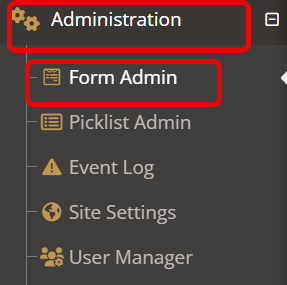
To access and manage form security, select the “administration” tab, followed by “form admin.”
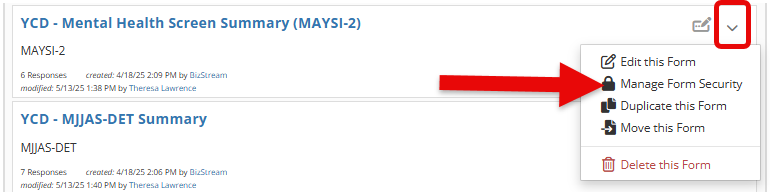
Choose the form you would like to update the security on and select the down carrot, followed by “manage form security.”
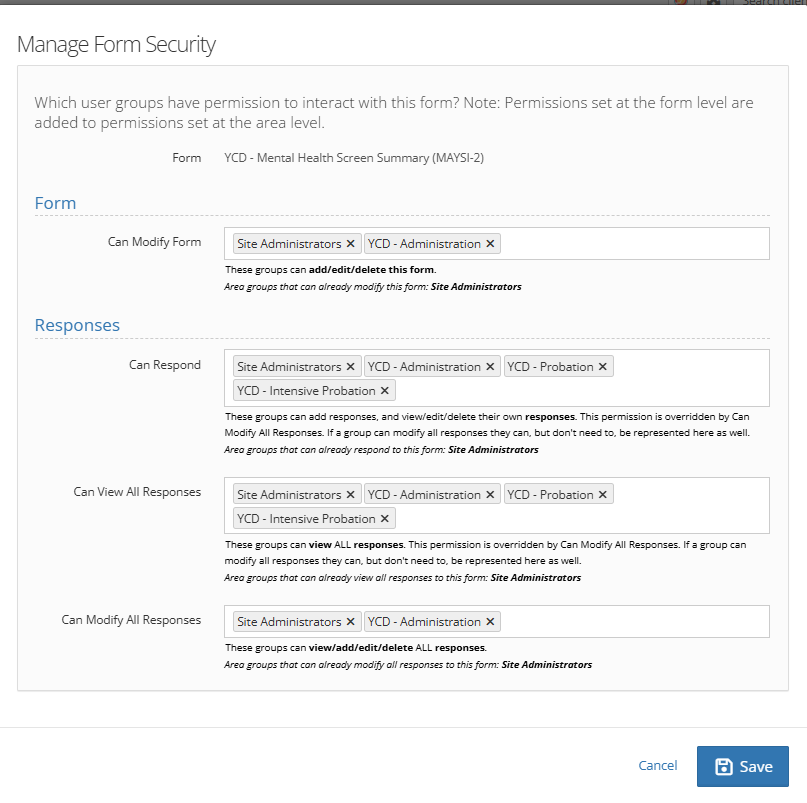
Within security, four fields will allow you to add specific user groups to and will allow the following:
- Can modify form: groups added to this section will be able to edit any fields on the form.
- Can respond: groups added to this section will be able to see and respond to the form.
- Can view all responses: groups added to this section will be able to see responses, but will not be able to respond.
- Can modify all responses: groups added to this section will be able to modify any previously submitted responses.
Report Security #
To update security on reports, determine first which report system you are working out of. The two options currently are:
- Legacy Reports
- Reports 2.0
Legacy Reports #
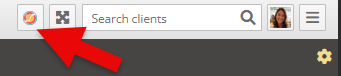
To access legacy reports, select the orange icon in the upper right hand corner of your YouthCenter Screen.
Select and choose the report you would like to update security on and select the down carrot followed by “manage security for this report.”
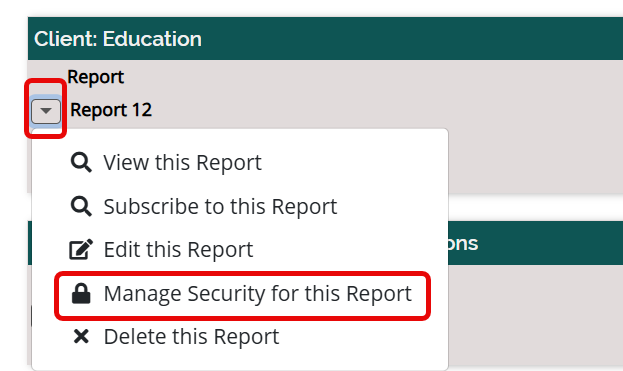
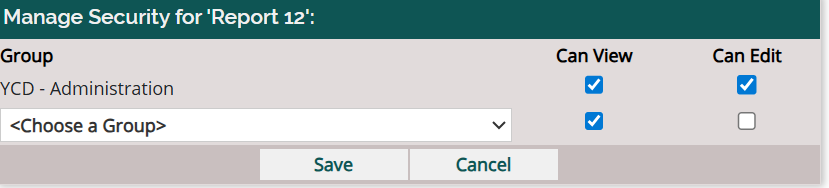
Choose the groups that should have access to the report.
Choose from the two options of “can view,” “can edit,” or both.
Click save.
Reports 2.0 #
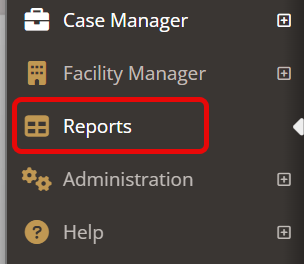
To access Reports 2.0 select “reports” from the main menu.
When editing or creating a new report, the first page containing report details, data, display options, and pinning options will also contain the security section.
To add security, go to the “manage security” section and choose a group from the dropdown. Select the group and choose “add group.”
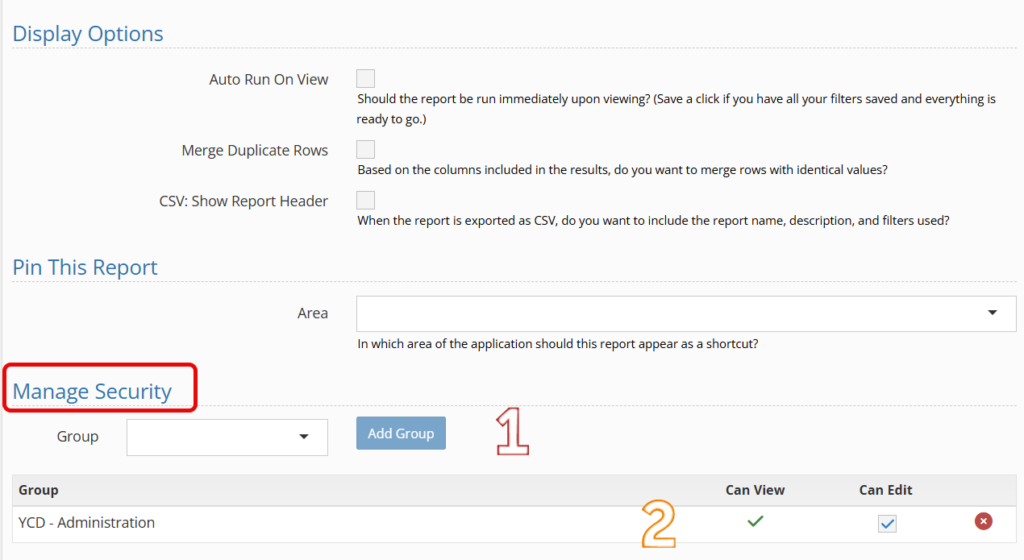
Under the groups, the “can view” check box will be automatically selected.
If the group can update the report, choose the “can edit” checkbox.

For more information on Reports 2.0 please see the documentation shared here.