
Contact Manager is your sitewide directory for YouthCenter. This holds not only YouthCenter users, but also personal Contacts (parents and guardians) and professional Contacts (therapists, attorneys, judges, and referees). Contacts can be grouped under Companies such as a law firm or a medical facility.
Looking for a client’s Contacts? Go to Adding a Client Relationship Contact.
Find an Existing Contact or Company #
Use the Contact Manager to search for previously added people or companies.
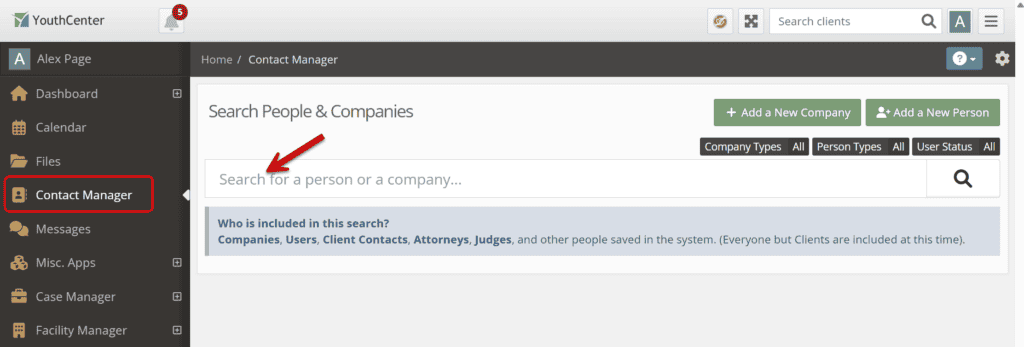
Once you type a name into the search bar, you can hit Enter or click the magnifying glass to find results. The results will pull up any matching entries, including users. Everyone except the clients are included at this time:
- Companies
- YouthCenter Users
- Client Contacts
- Attorneys
- Therapists
- Referees
- Judges
- Other people who are saved in the system
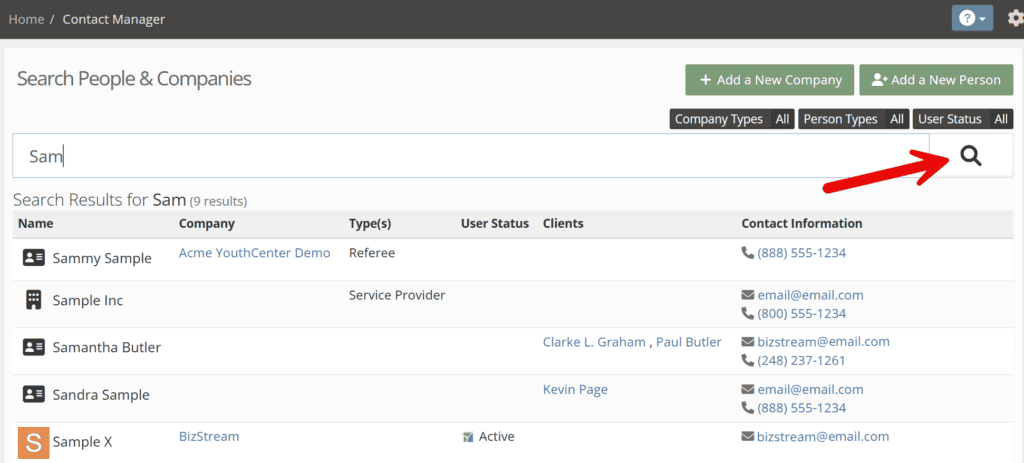
Using the screenshot above, you can see that Samantha and Sandra (individual People) are associated with some clients. Sammy (an individual Person) is marked as a Referee, a type of Person, and Sample Inc (a Company) is marked as a Service Provider, a type of Company. Sample X is actually a user – they have a profile picture and a User Status. See below for more on Company and Person Types.
Click directly into the Contact name to see further information. You can edit or delete the Contact from here using the notepad or trashcan icons:
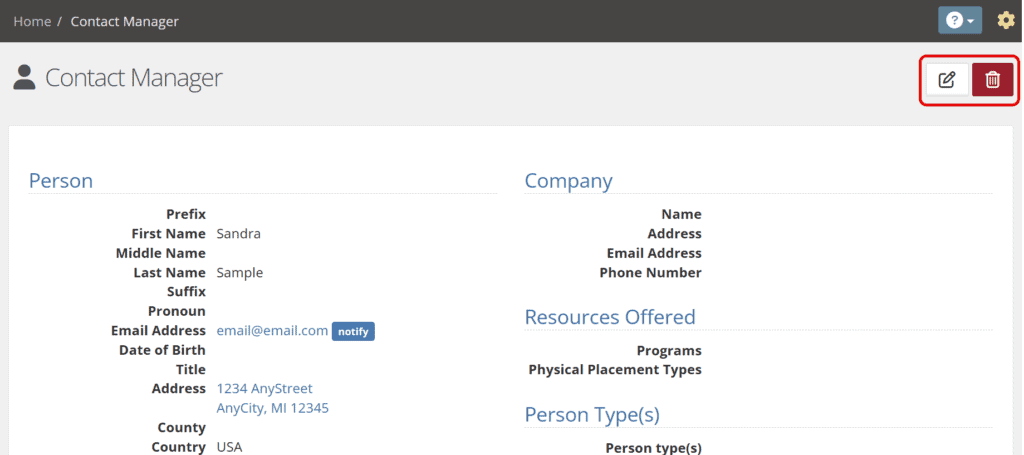
Don’t delete just yet! If you need to change a Relationship or User, consider the following:
- Need to inactivate a relationship? Go to Client/Contacts
- Need to disable a user? Go to Administration/User Manager
Adding a New Person #
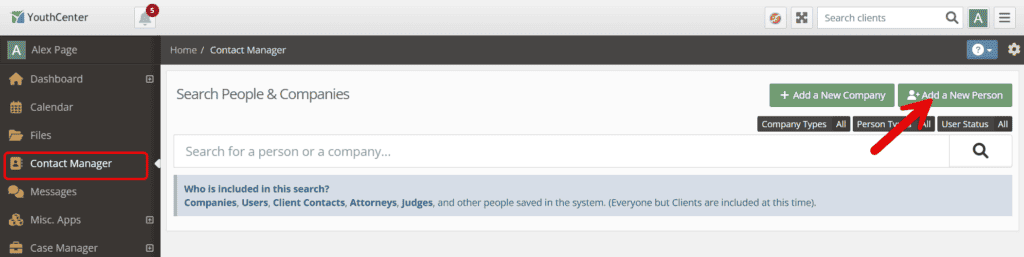
Click on Contact Manager and then the green + Add a New Person button:
First Name and Last Name are required, but other information can be entered for reference while using YouthCenter. You can associate a Person with a Company, Programs, or Physical Placements if applicable.
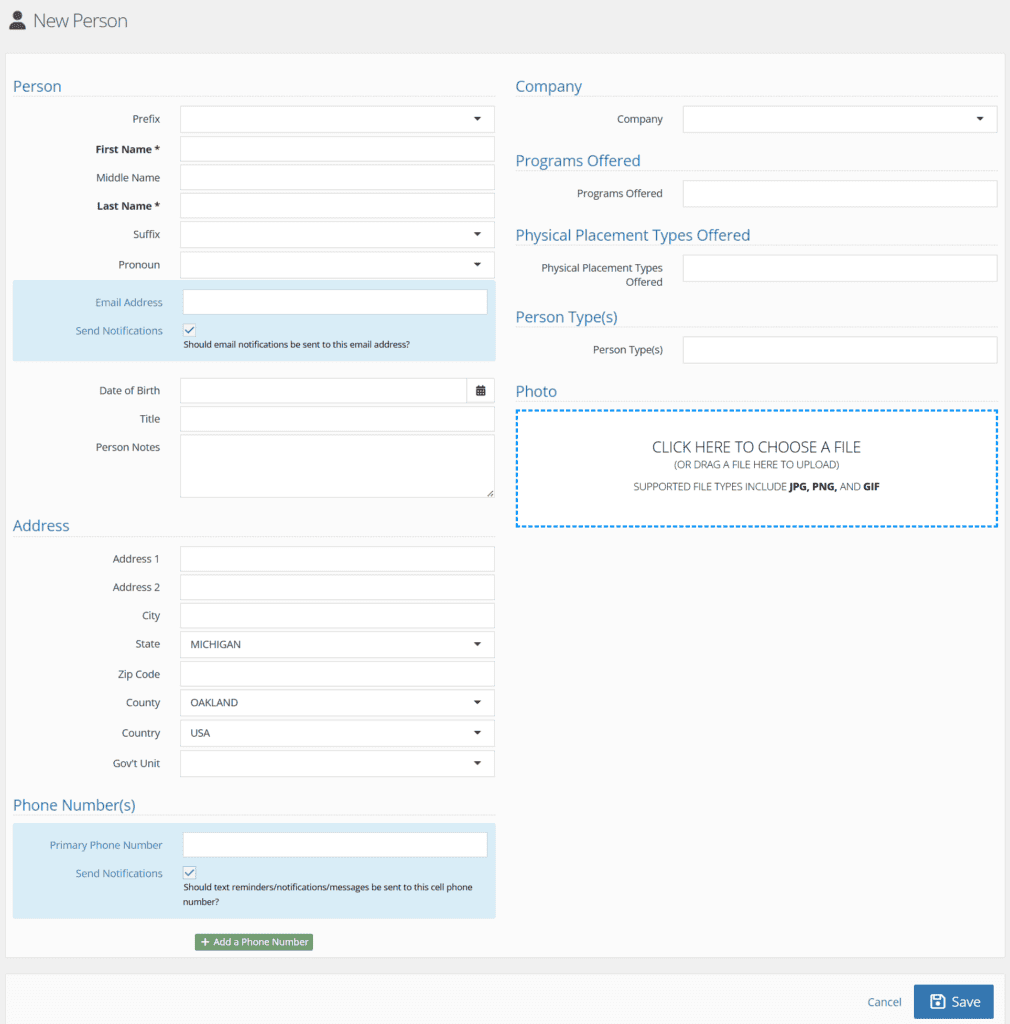
- Send Notifications will allow the person to get calendar event reminders
- Photo is often used to hold an ID or business card
- Person Type allows the contact to show under the Therapists, Referees, Judges, or Attorneys drop-down menus in YouthCenter
- Need to add an Attorney? See this article for details
- Need to add a Judge, Referee, or Therapist? See this article for details
Click Save when done.
Editing Drop-Down Choices for a New Person #
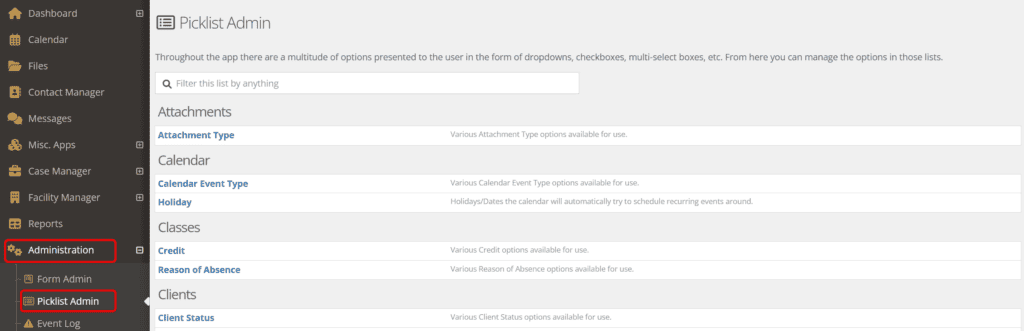
You can customize Relationship Type, Person Type, and Programs Offered for the new Person form if you have Admin privileges . Go to Administration and Picklist Admin to find these:
Relationship Type #
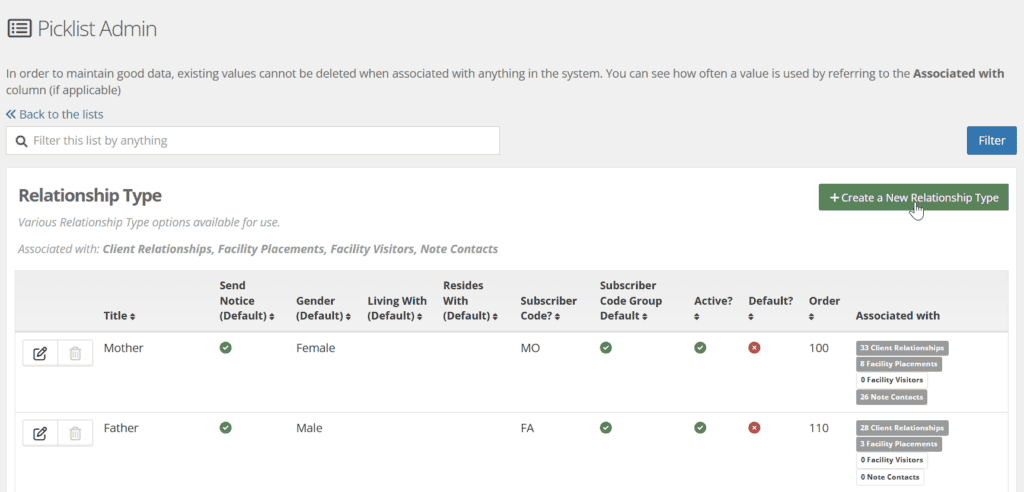
Relationship Type is how the contact relates to the client (grandmother, sister, father, etc). Search Picklist Admin for “Relationship Type”. Choose the notepad and pencil icon to edit and the green + Create a New Relationship Type button to add:
Title is the only required field, but you can add default choices and other details:
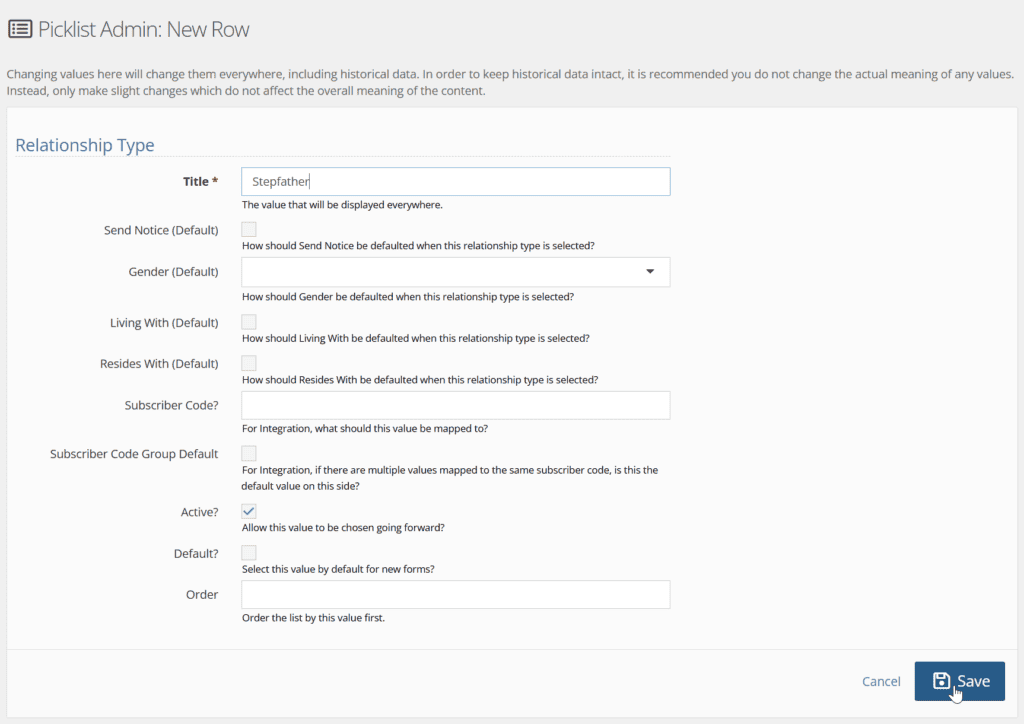
- Title is the name of the relationship you’ll see in the drop-down menu
- Send Notice will default the Send Notifications? box to checked (yes) for new Contacts who have this relationship
- Gender will default the chosen gender for new Contacts with this relationship type
- Living With will default that the youth is living with this person when a new Contact is created with this relationship type
- Resides with will default that the youth is residing with this person when a new Contact is created with this relationship type
- Subscriber code is the value that this Relationship is mapped to (if your team is using integrations)
- Subscriber code default is the default value that this Relationship is mapped to (if your team is using integrations)
- Active marks whether this Relationship is a choice for new entries (unchecking the box takes it off the drop-down menu)
- Default will make this Relationship the default choice on any new forms
- Order can force your Relationship choices into a different order in the drop-down menu when you add a value here
You can find more details on entering client relationship information here.
Once you’ve entered all desired information, click Save to add the Relationship Type.
Person Type #
Person Type labels the Contact as a certain category (internal, community service coordinator, judge, etc). Search Picklist Admin for “Person Type”. Choose the notepad and pencil icon to edit and the green + Create a New Person Type button to add:
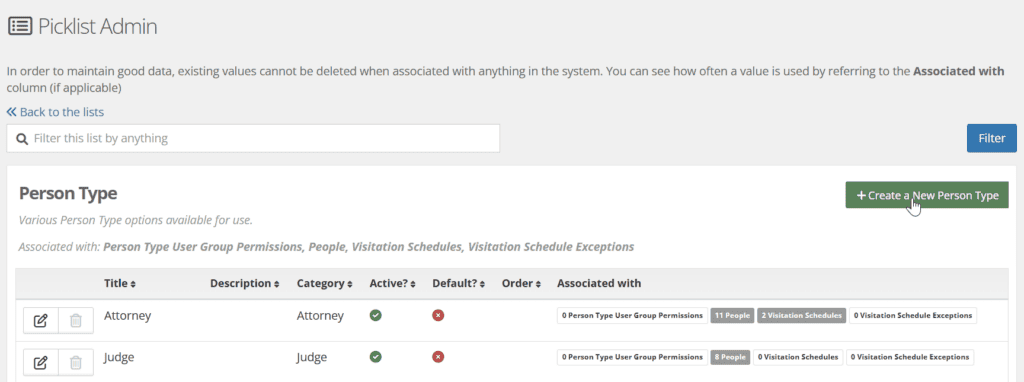
Title is the only required field, but you can add default choices and other details:
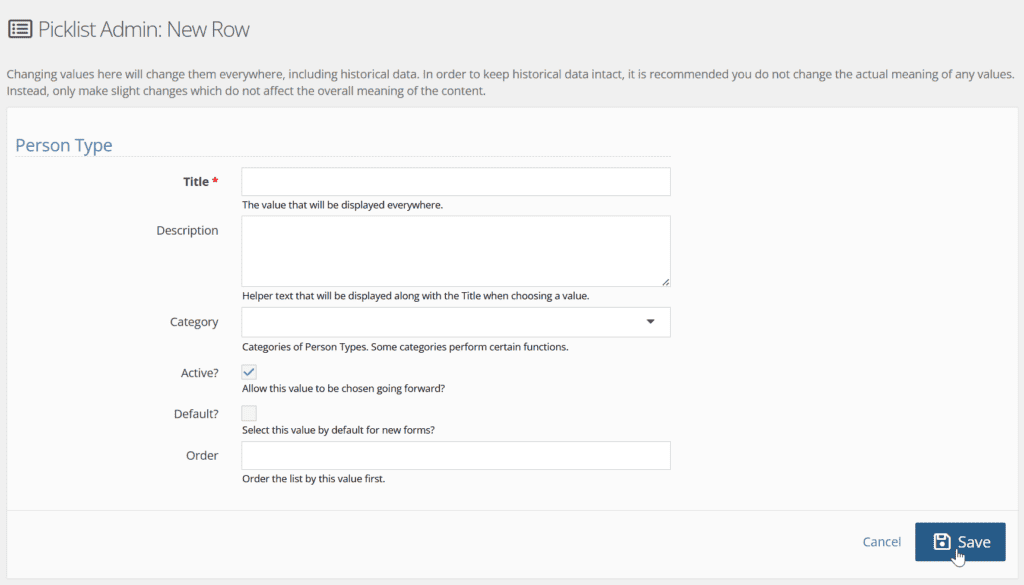
- Title is the name of the Person Type you’ll see in the drop-down menu
- Description will display as a subtitle when choosing Person Types, so it helps your team determine the correct Person Type
- Category allows the contact to show under the Therapists, Referees, Judges, or Attorneys drop-down menus in YouthCenter
- Active marks whether this Relationship is a choice for new entries (unchecking the box takes it off the drop-down menu)
- Default will make this Relationship the default choice on any new forms
- Order can force your Relationship choices into a different order in the drop-down menu when you add a value here
Once you’ve entered all desired information, click Save to add the Person Type.
Programs Offered #
Programs offered are the Programs that an individual Contact (or a Company) is associated with (community service, specific classes, group therapy, etc). To learn more about this drop-down menu, see this article.
Adding a New Company #
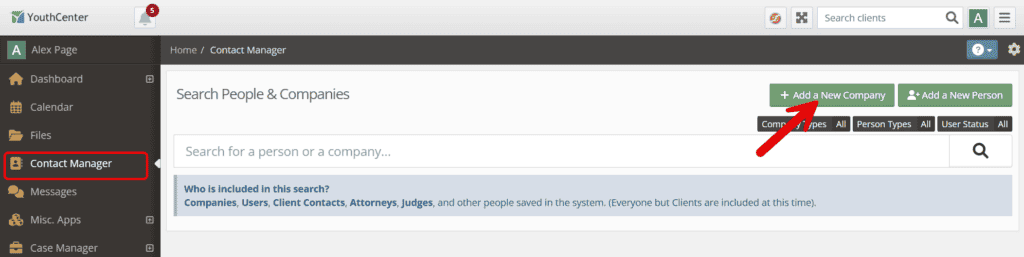
Click on Contact Manager and then the green + Add a New Company button:
Company Name is required, but other information can be entered for reference while using YouthCenter. You can associate a Company with a Program or Physical Placements if applicable.
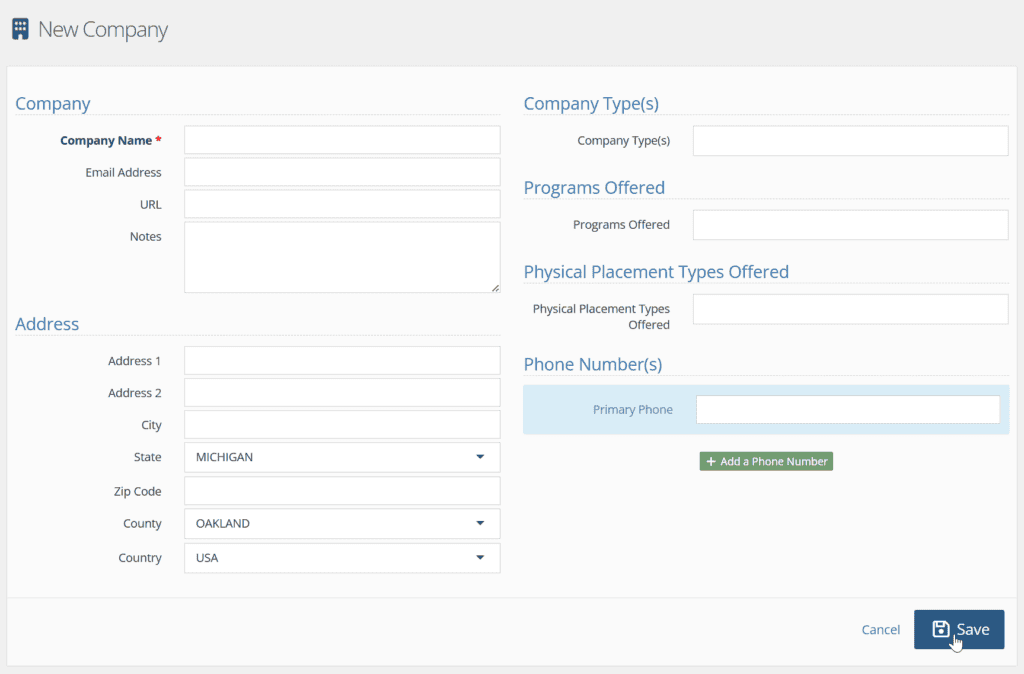
Need to list the Company as a referral to a Program? Check here for help in adding those details.
Once you’ve entered all desired information, click Save to add the new Company.
Editing Drop-Down Choices for a New Company #
You can customize Company Type and Programs Offered for the new Company form if you have Admin privileges . Go to Administration and Picklist Admin to find these:
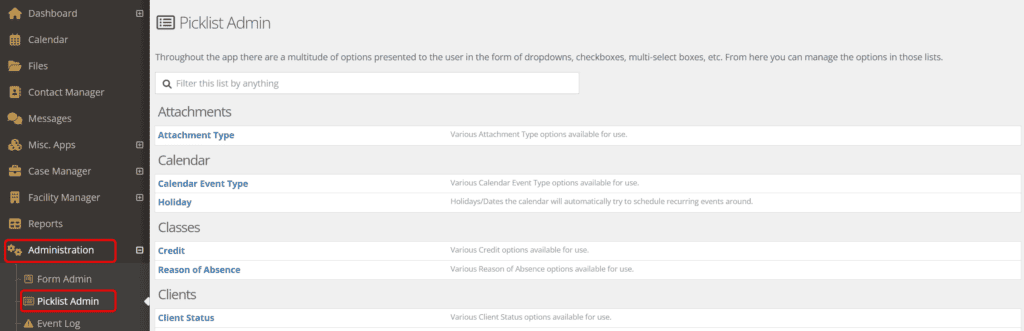
Company Type #
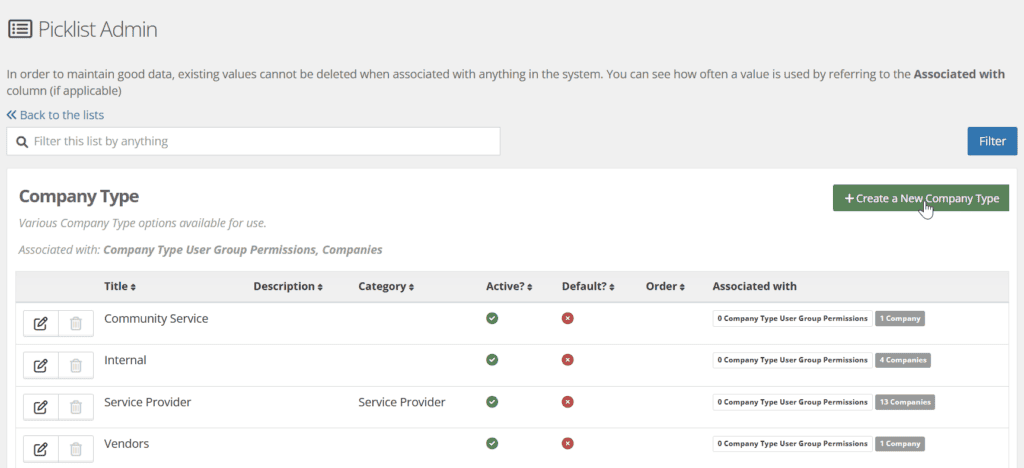
Company Type labels the Company with any desired term (internal, service provider, vendor, etc). This label is just for your information and does not add the Company to other drop-downs. Search Picklist Admin for “Company Type”. Choose the notepad and pencil icon to edit and the green + Create a New Company Type button to add:
Title is the only required field, but you can add other details:
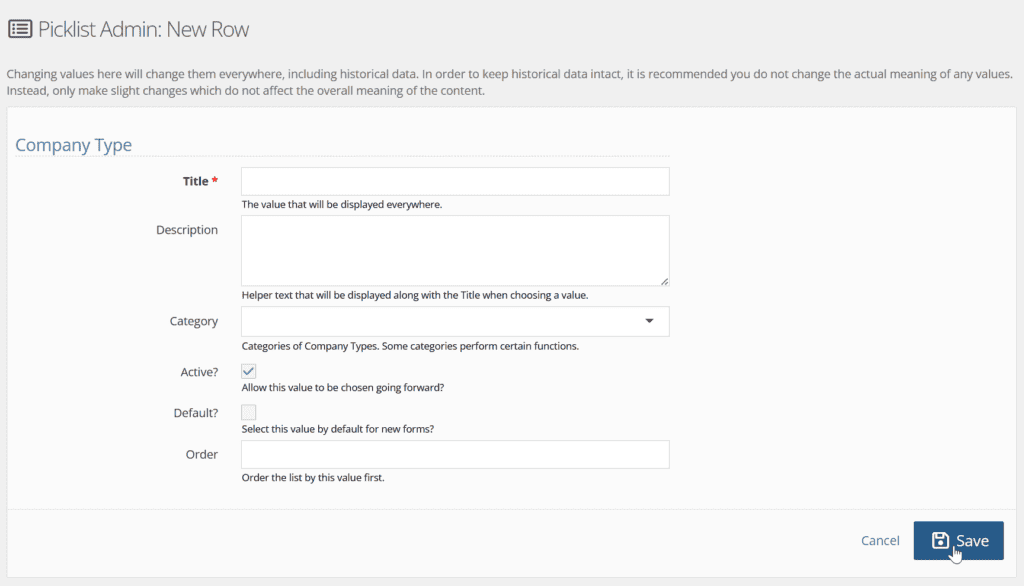
- Title is the name of the Company type you’ll see in the drop-down menu
- Description will display as a subtitle when choosing Company Types
- Category allows you to choose if this Company is a Service Provider or Other
- Active marks whether this Company is a choice for new entries (unchecking the box takes it off the drop-down menu)
- Default will make this Company the default choice on any new forms
- Order can force your Company choices into a different order in the drop-down menu when you add a value here
Once you’ve entered all desired information, click Save to add the Company Type.
Programs Offered #
Programs offered are the Programs that a Company (or an individual Contact)is associated with (community service, specific classes, group therapy, etc). To learn more about this drop-down menu, see this article.