Having a clear and consistent visual representation of the youth you are working with is an important part of YouthCenter documentation. With this in mind, you can now create consistent Client Images by cropping them to a square aspect ratio.
Crop to Square feature #
Adding a Client Image/profile picture will be the same as prior (for more detailed steps on how to add a new Client Image, see documentation here). However, when adding a new Client Image, you are now given a checkbox option that will allow you to crop and focus the image.
The new checkbox will be titled “crop to square.”

If this box is selected, before uploading the image, a cropping area will appear to help with sizing the image to match your needs.

Once “crop and save” is selected, the newly formatted image will appear for your approval before saving.

Defaulting the Crop to Square feature #
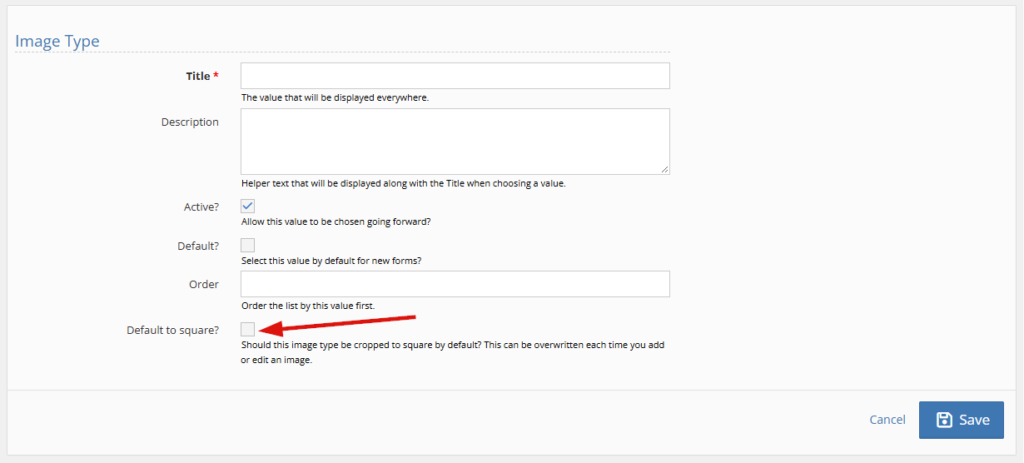
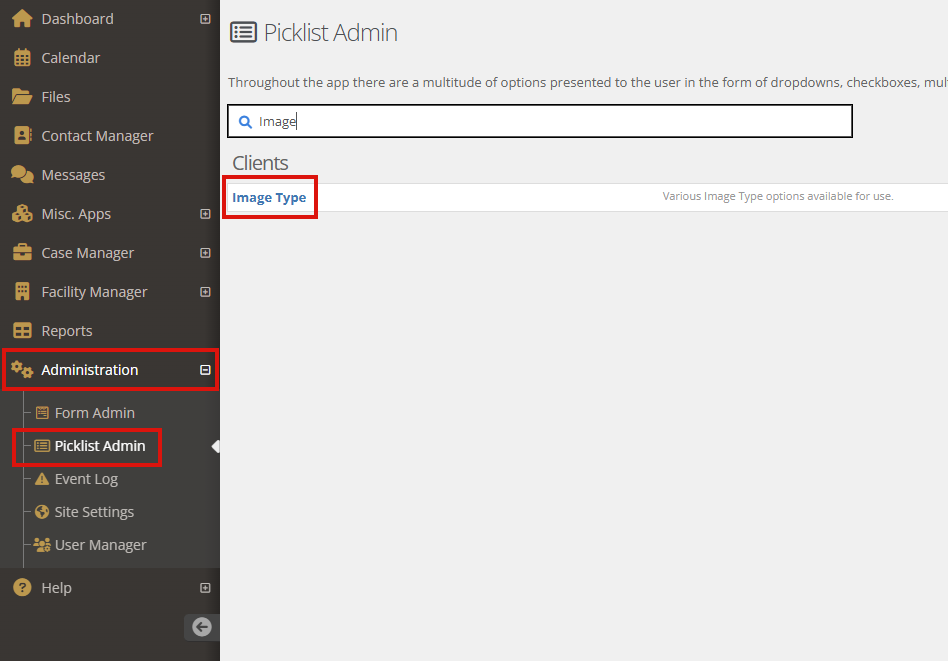
If you would like to ensure this cropping ability is set for all future Client Image uploads, update the “Client Image type” under your picklist admin.
To access this, select the administration tab, followed by “picklist admin.”
Search and select “Client Image type.”
Choose “default to square” and click “save.”