Tracking discipline events is essential for reporting purposes. Like all things if the data is entered in YouthCenter, it can be easily exported in a report format.
Using the Discipline feature in YouthCenter #
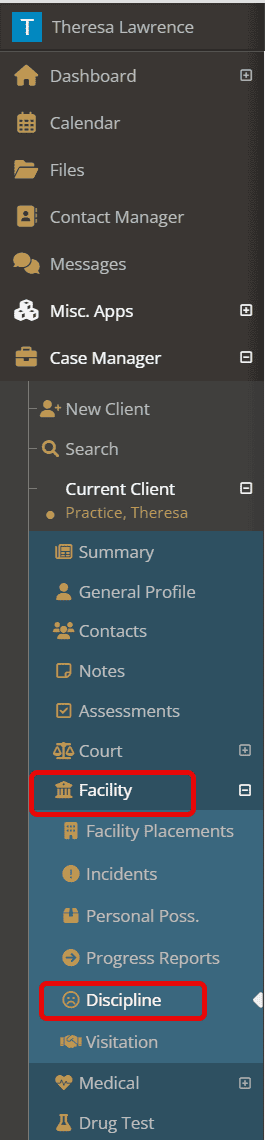
To access, click on the “Facility” tab followed by “Discipline.”
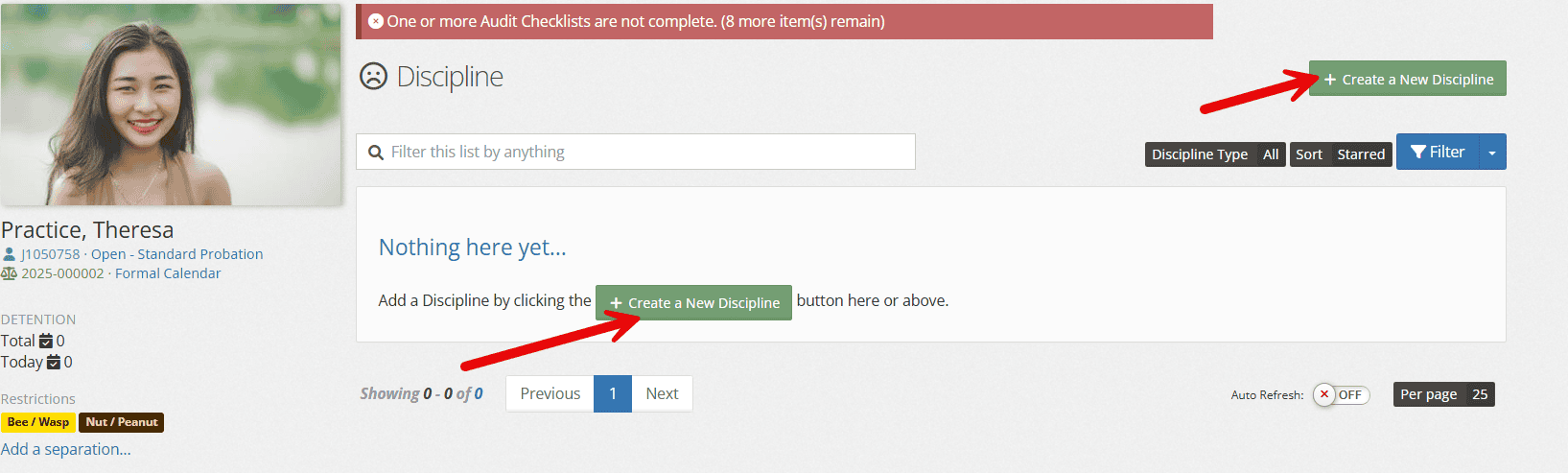
Choose “Create a New Discipline.”
Fill in the necessary fields associated with the discipline and click “Save.”
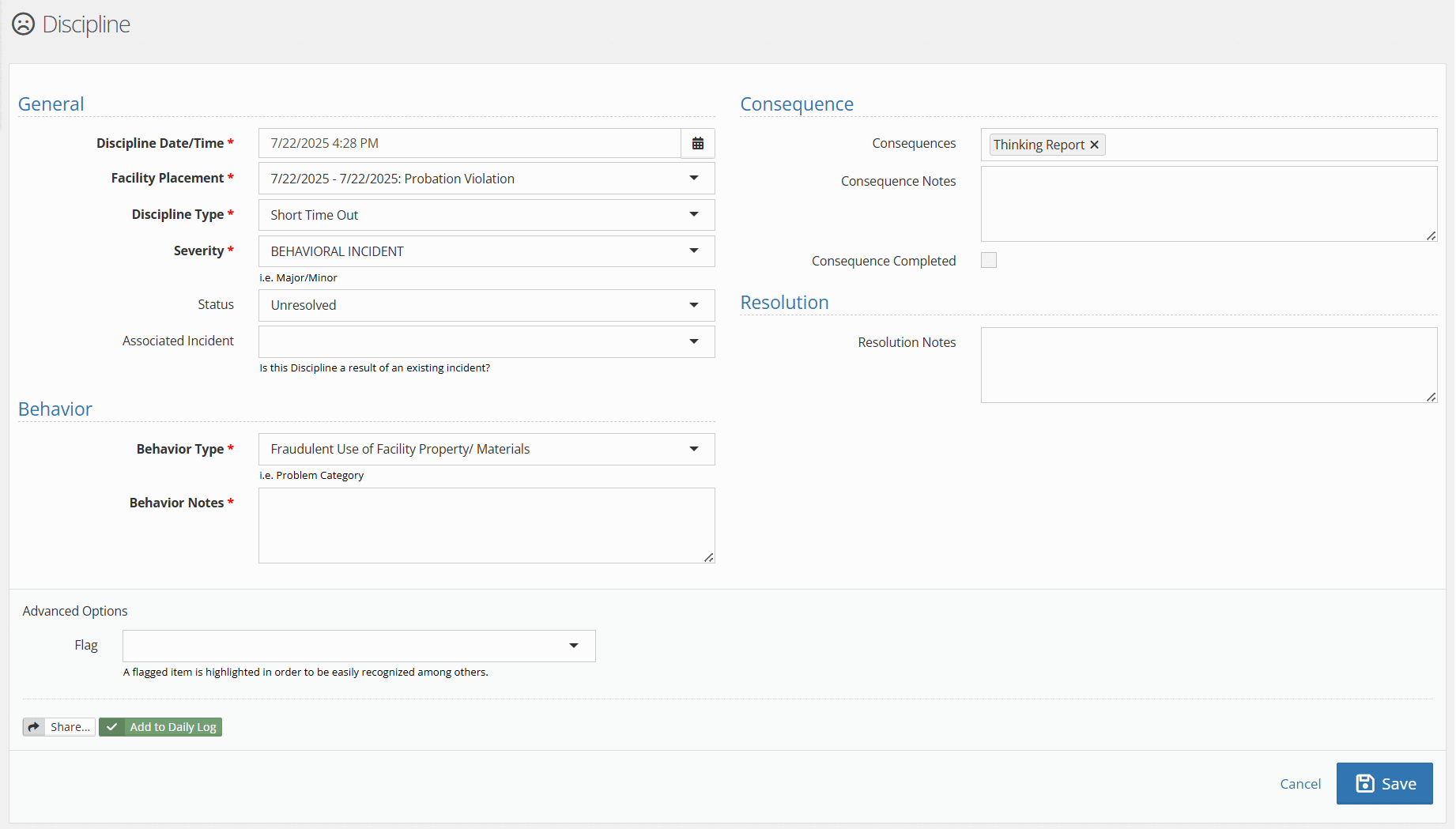
Field Descriptions: #
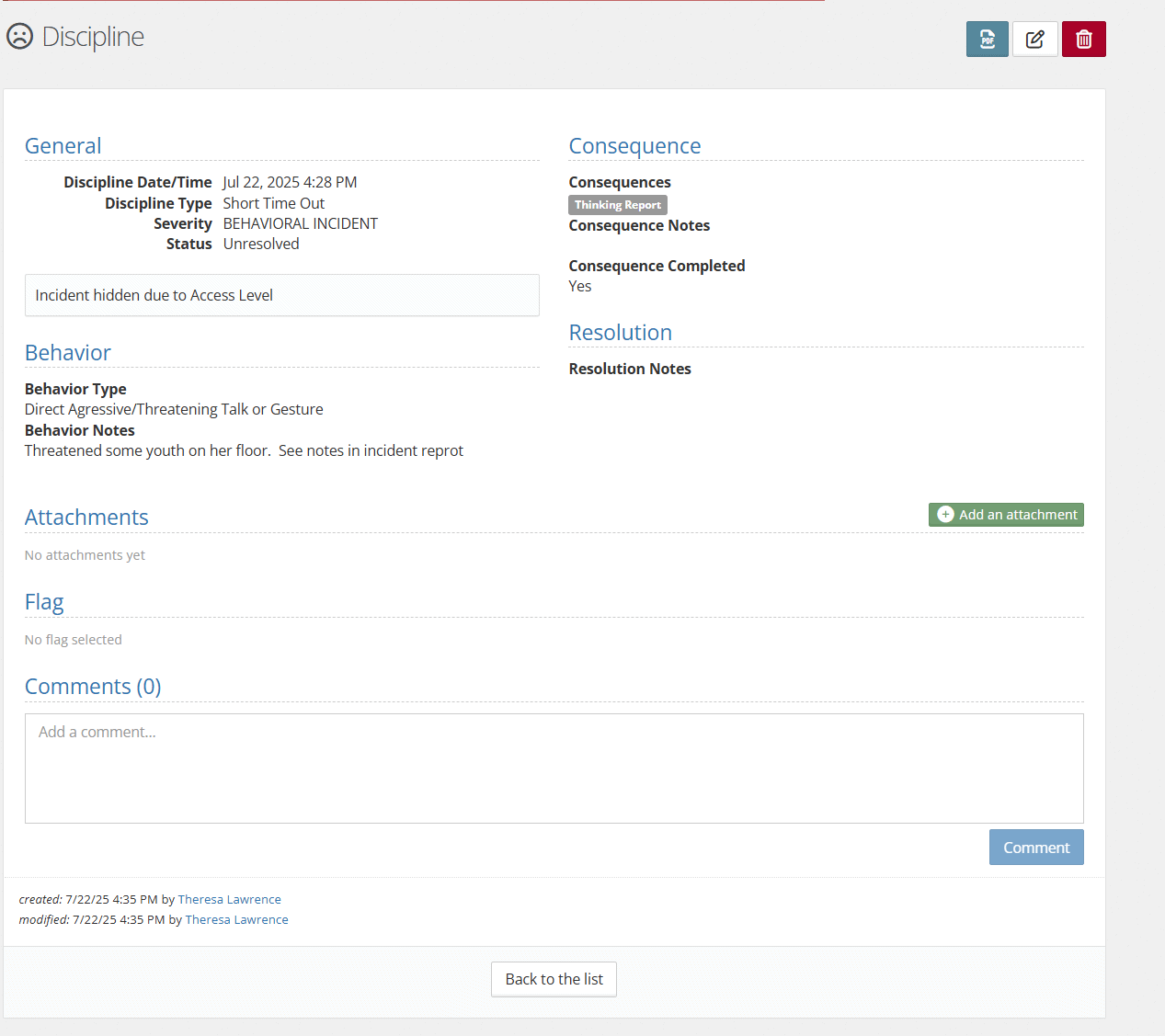
- Discipline Date/Time: Records when the disciplinary incident occurred; automatically set to the current date and time but can be adjusted to reflect the actual time of the incident
- Facility placement type: Identifies the youth’s current or previous placement location relevant to this discipline record
- Discipline type: Categorizes the nature of the disciplinary action taken (managed through admin settings)
- Severity: Indicates the seriousness level of the disciplinary incident (managed through admin settings)
- Status: Tracks the current stage or outcome of the discipline process (managed through admin settings)
- Associated Incident: Links this discipline record to the specific incident report that prompted the action, creating a complete record of events
- Consequences: Documents the specific actions, restrictions, or outcomes resulting from this discipline (managed through admin settings)
- Consequence notes: Provides additional context or details about how consequences will be implemented or monitored
- Behavior Type: Classifies the specific behavior that led to discipline (managed through admin settings)
- Behavior notes: Captures observations about the behavior, circumstances, or patterns that informed the discipline decision
- Resolution notes: Documents how the disciplinary matter was resolved and any follow-up actions or outcomes
- Flag: Marks the record for priority review, follow-up, or special attention by staff
Upon completion, the form will look like below. Attachments can be added by the green “Add an attachment” button.
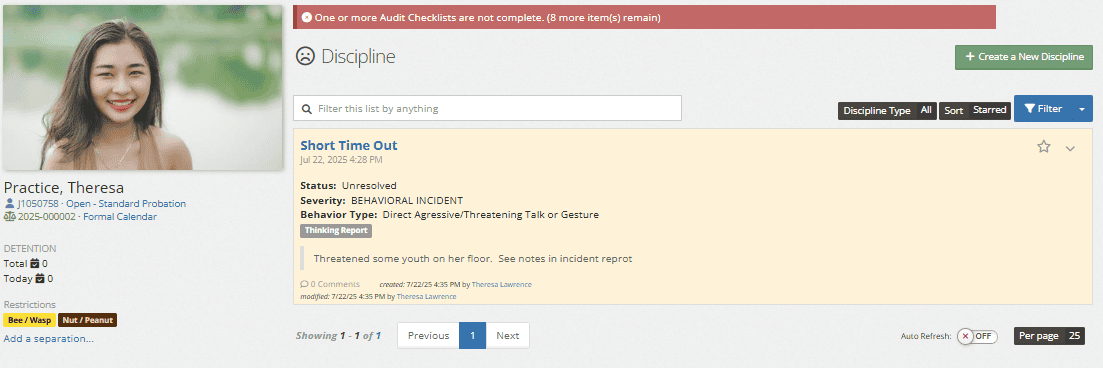
Summary information is displayed on the general Discipline area. If any edits are needed, click the down caret associated with the Discipline.
Picklist Set up #
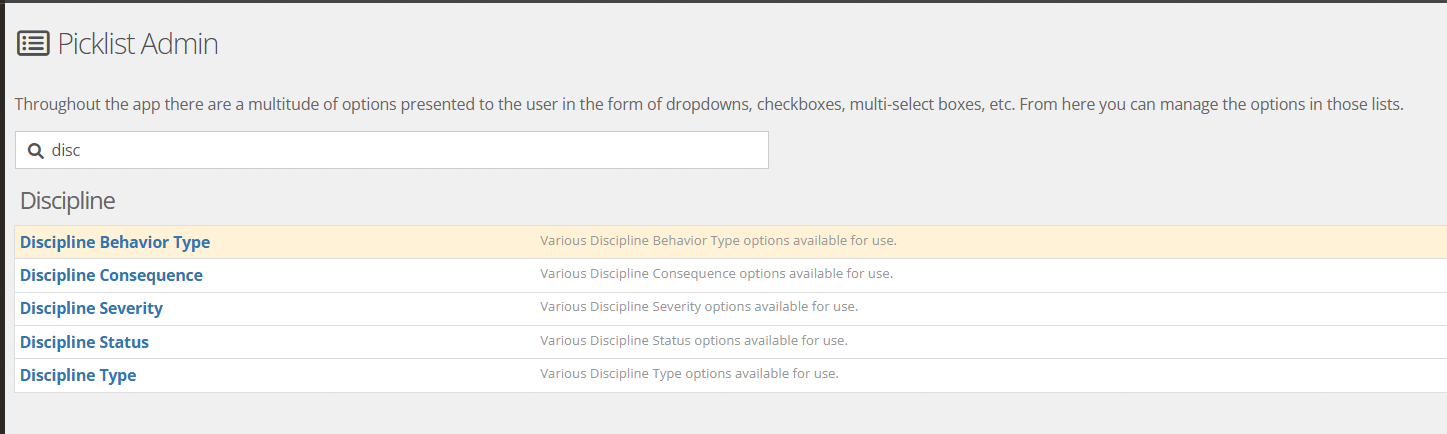
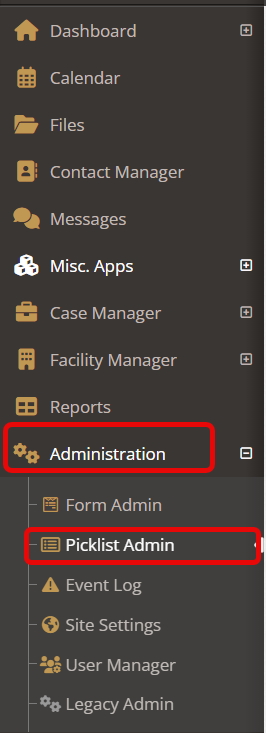
If a user has administrative access, they can set up many of the dropdowns in the Discipline form by selecting “Administration” followed by “Picklist Admin.”
Scroll to find “Discipline” or use the search bar to find the item. There are several items that correspond with the Field Descriptions listed above.