
When creating a custom form, the “build” tab will allow you to create and format your own reportable form in YouthCenter.
Within this area, there are three optional build types to choose from:
- Basic
- Advanced
- Widgets
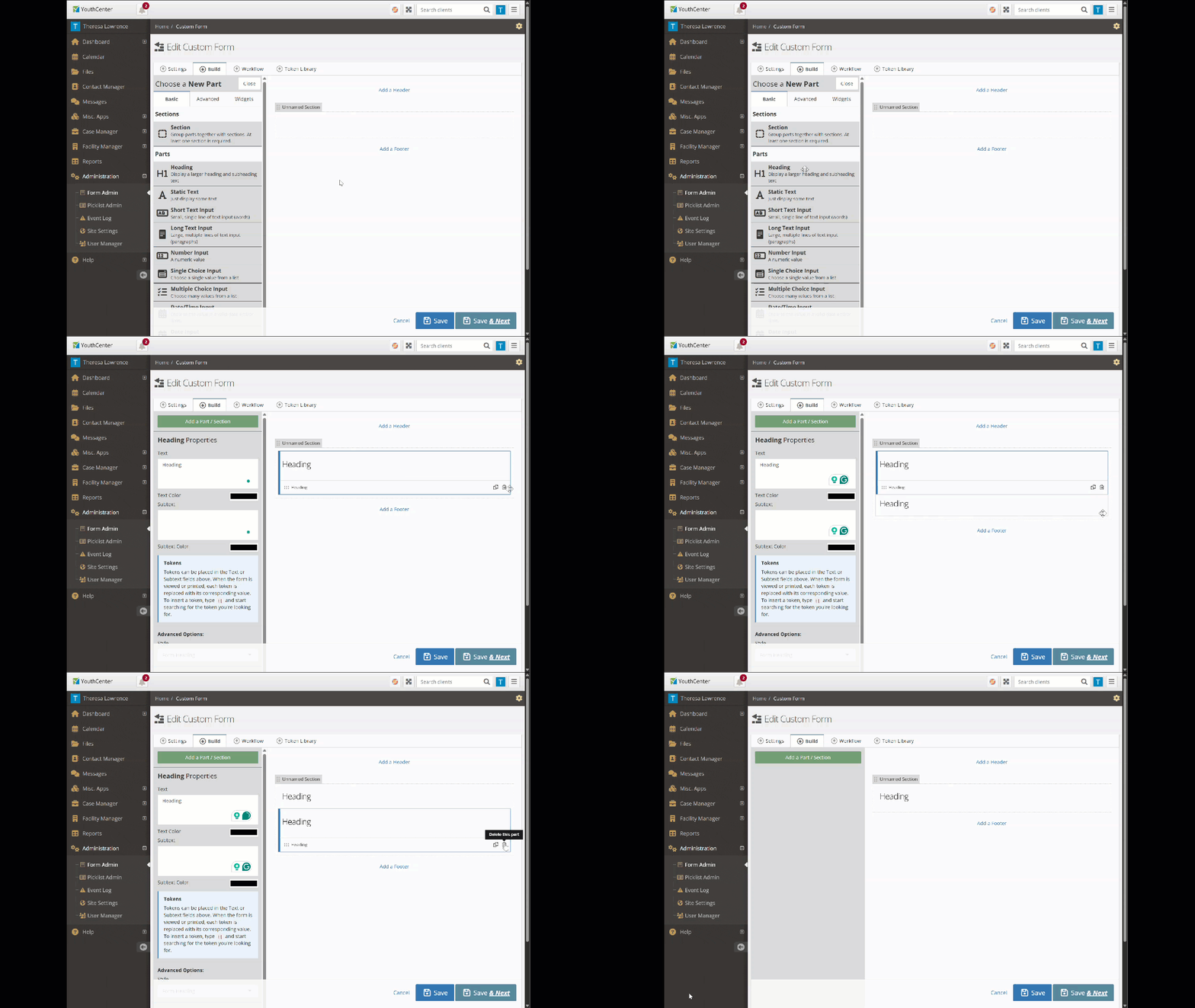
To add any of these to your form, choose from the list of options under each type and drag it to your form.
Each part will have unique personalizations on the left-hand side of the menu, once selected.
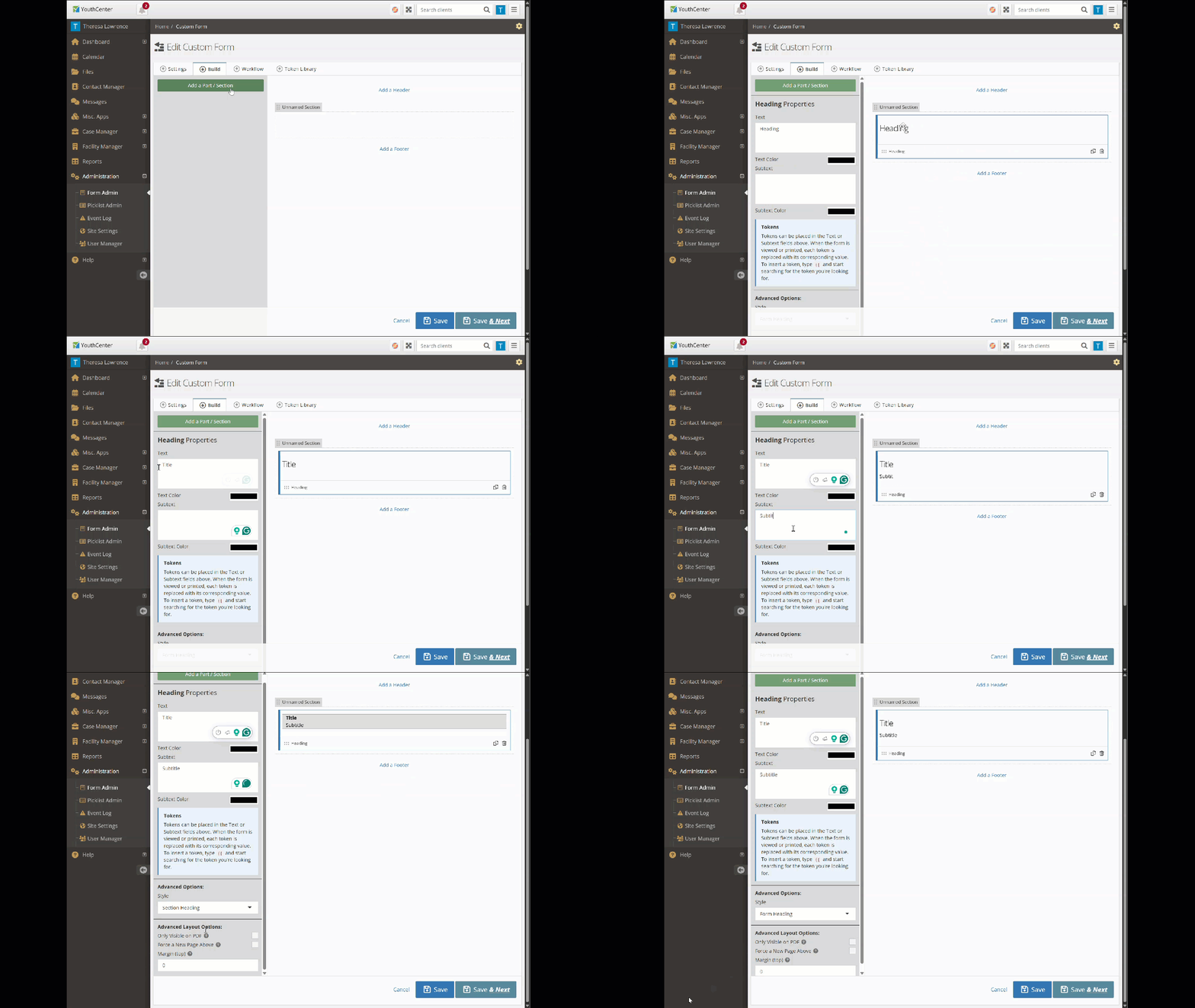
Parts can also be duplicated or deleted once added.
Read below for more information on the three build-types.
Basic #
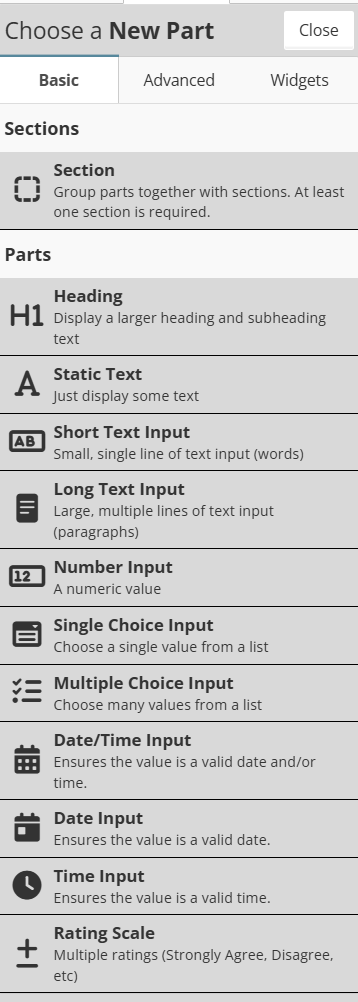
The Basic build-type provides the core building blocks needed to create a functional form, offering a range of parts that help organize content and collect user input through text, numbers, dates, choices, and ratings.
(*Note: If available, “Advanced Options” and/or “Advanced Layouts” can be found in the left properties column to further personalize these form parts.)
Sections
- Section – A container used to group related parts together. These can be split in 1/2 to allow for parts to be side by side.
Parts
- Heading – Displays a larger heading and optional subheading text, useful for labeling areas of a form.
- Static Text – Displays read-only text with no input, great for instructions or descriptions.
- Short Text Input – A single-line text field for short responses like names or keywords.
- Long Text Input – A multi-line text area for longer responses like paragraphs or descriptions.
- Number Input – Accepts only numeric values.
- Single Choice Input – A list where the user can select only one option (like a dropdown or radio buttons).
- Multiple Choice Input – A list where the user can select one or more options (like checkboxes).
- Date/Time Input – Accepts a valid date and time combined.
- Date Input – Accepts a valid date only.
- Time Input – Accepts a valid time only.
- Rating Scale – Allows users to respond on a scale (e.g., Strongly Agree, Disagree, etc.), ideal for surveys or feedback forms
Within areas such as Static Text and Heading, tokens can be added to autofill data directly from YouthCenter.
If this option is available, you will see a light blue box as shown below:
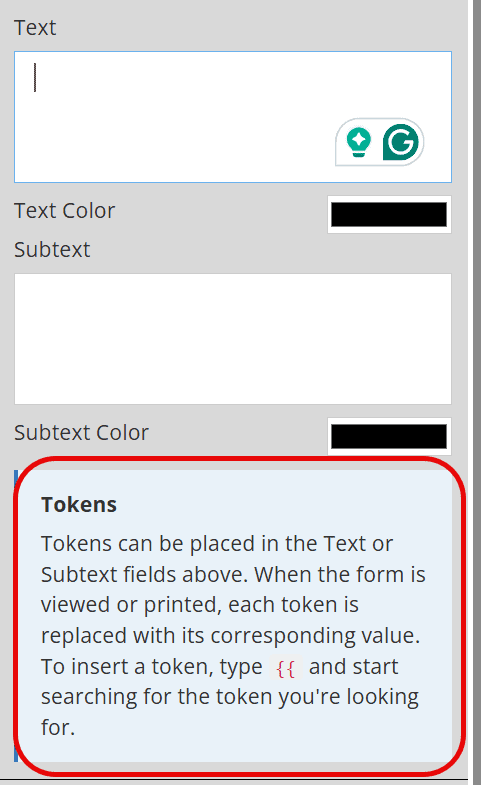
To add a token in a particular part, begin typing “{{” and a searchable drop-down will appear. Select the option that suits the data you are searching for.
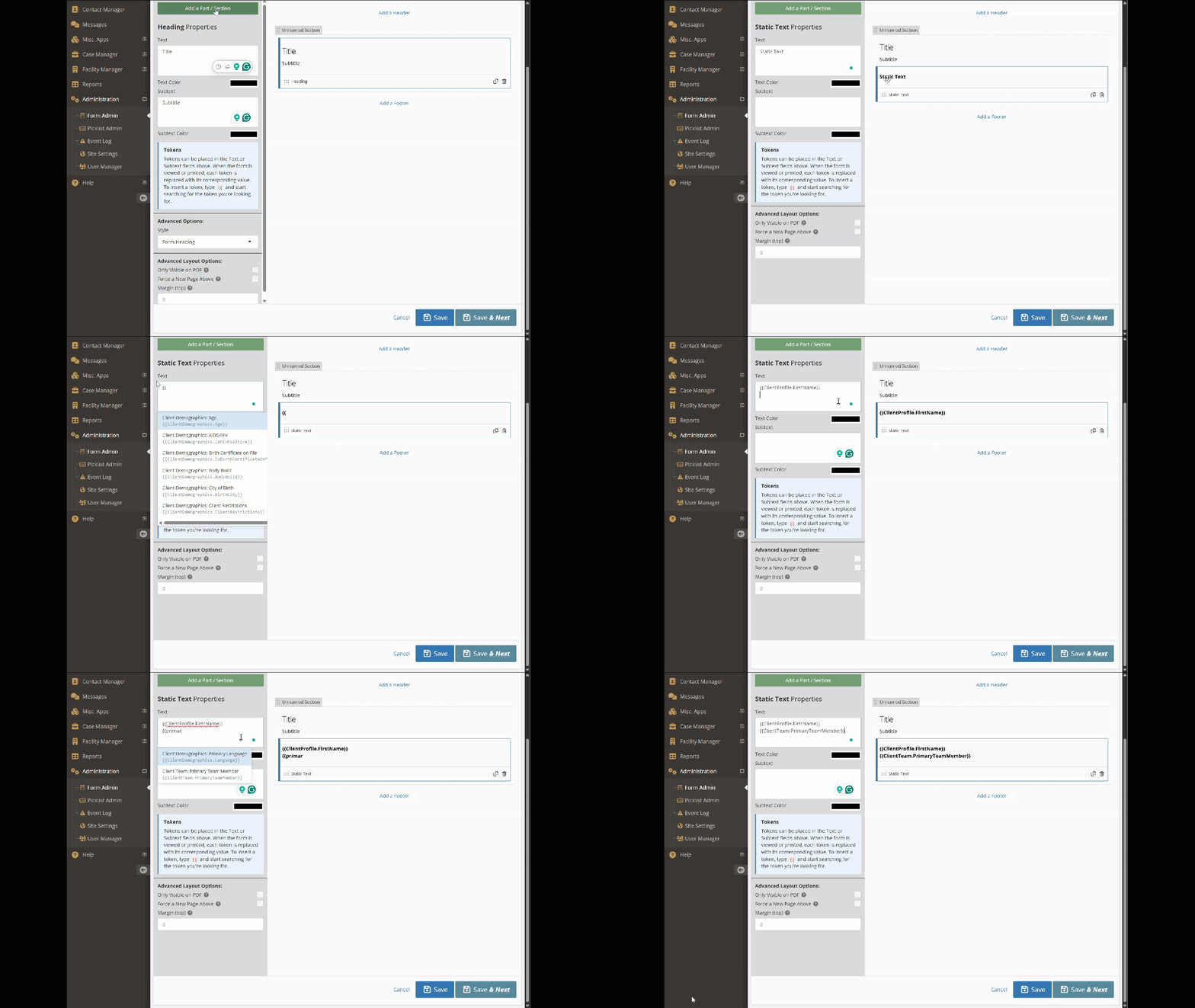
Once added, this token will autofill when a form is completed and viewed as a PDF.
Advanced #
The Advanced build-type provides specialized parts for more complex data collection needs, offering tools for structured input, visual interaction, signatures, scoring, and file management.
(*Note: If available, “Advanced Options” and/or “Advanced Layouts” can be found in the left properties column to further personalize these form parts.)
Below is an image of all options, and the following is a description for each.
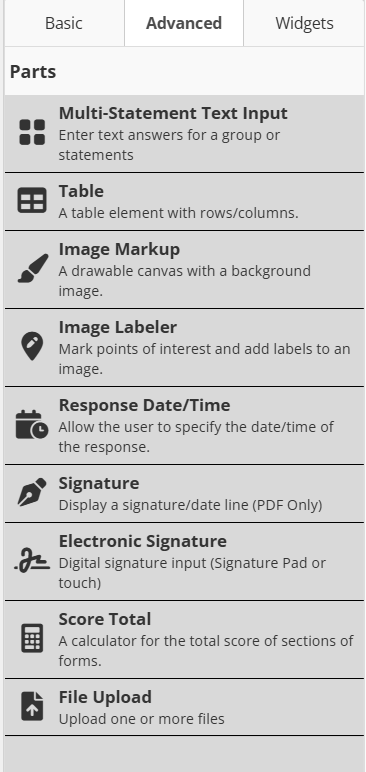
- Multi-Statement Text Input – Collects text responses for a group of related statements or questions in a single part.
- Table – Displays or captures data in a structured row and column format.
- Image Markup – Provides a drawable canvas overlaid on a background image, allowing users to draw or annotate directly on it.
- Image Labeler – Allows users to mark and label specific points of interest on an image.
- Response Date/Time – Lets the user specify the date and/or time of their response.
- Signature – Displays a signature and date line, available for PDF output only.
- Electronic Signature – Captures a digital signature via a signature pad or touch input. Includes the date and time.
- Score Total – Automatically calculates and displays a total score based on values across form sections.
- File Upload – Allows users to upload one or more files as part of their form response.
Widgets #
The Widgets buid-type provides pre-built parts that automatically pull in structured client and system data, making it easy to display detailed information without manual input.
(*Note: If available, “Advanced Options” can be found in the left properties column to further personalize these form parts.)
Client Info
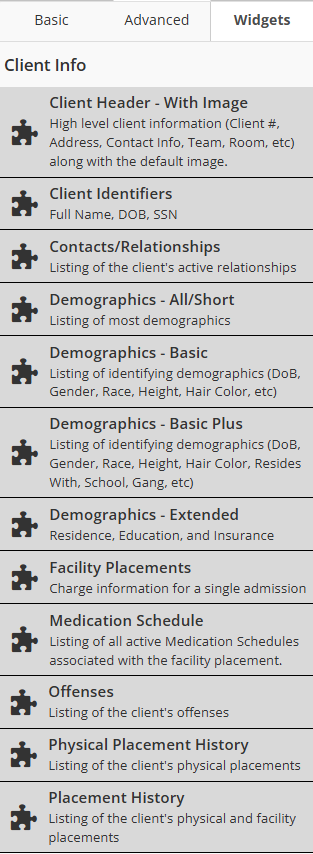
- Client Header – With Image – Displays high-level client information such as Client #, Address, Contact Info, Team, and Room, along with the client’s default Client Image.
- Client Identifiers – Displays key identifying information, including Full Name, Date of Birth, and SSN.
- Contacts/Relationships – Lists the client’s active relationships and contacts.
- Demographics – All/Short – Displays a broad listing of most demographic information.
- Demographics – Basic – Displays core identifying demographics such as DoB, Gender, Race, Height, and Hair Color.
- Demographics – Basic Plus – Expands on Basic demographics to also include Resides With, School, Gang affiliation, and more.
- Demographics – Extended – Displays Residence, Education, and Insurance information.
- Facility Placements – Shows charge information for a single admission.
- Medication Schedule – Lists all active medication schedules associated with the client’s facility placement.
- Offenses – Displays a listing of the client’s offenses.
- Physical Placement History – Lists the client’s physical placement history.
- Placement History – Displays a combined listing of both physical and facility placements.
Object Specific
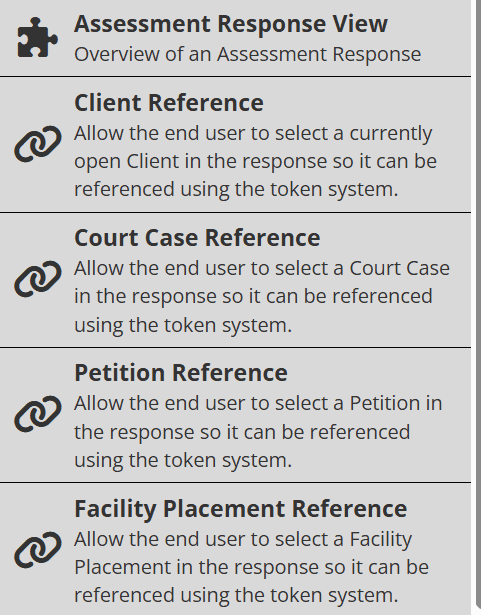
- Assessment Response View – Displays an overview of an assessment response on the form for easy reference. (For a possible use case, see the following document here.)
- Client Reference – Allows you to tie a specific client to the form so their info can be referenced throughout.
- Court Case Reference – Enables you to tie a specific court case to the form so it can be referenced throughout.
- Petition Reference – Lets you tie a specific petition to the form so it can be referenced throughout.
- Facility Placement Reference – Links a facility placement record to the form so it can be referenced throughout.
For additional information on Custom Forms, see a webinar shared here.
If you have any additional questions about these features, please reach out to support!