
When visitations are used within YouthCenter, information can easily be tracked around the length of visits, the type of visits, and the visitors associated. Visitation schedules can be pre-made, reducing any misscheduled appointments.
Client-Based Visitations #
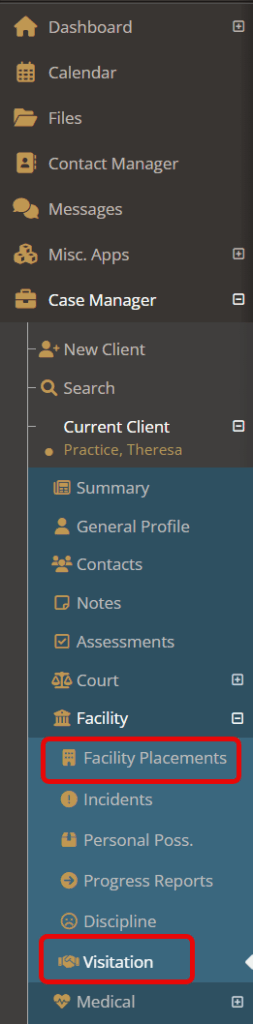
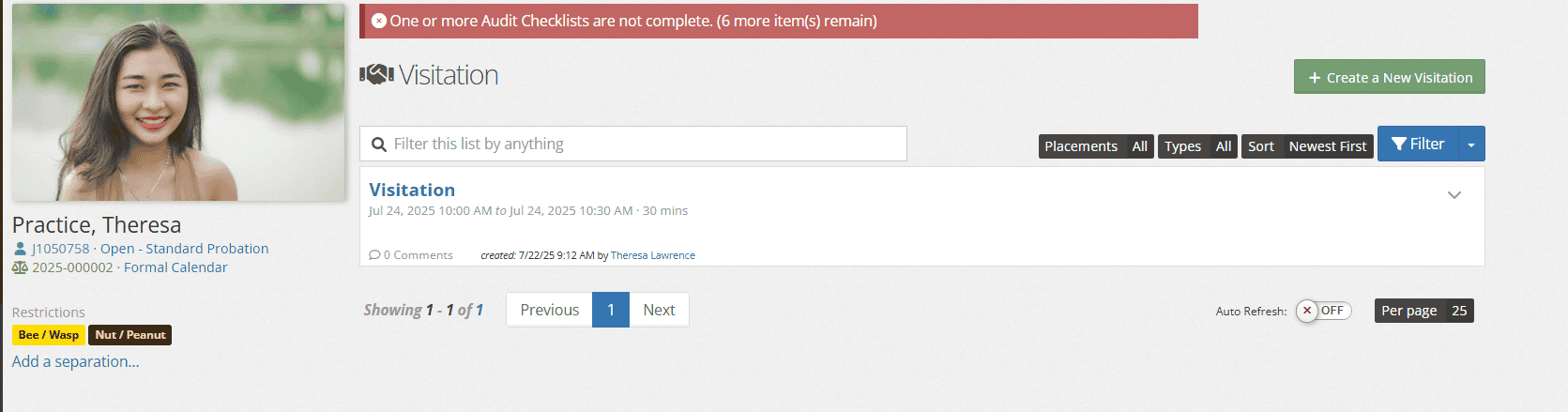
Once your client is selected, choose “facility placements” followed by “Visitation.”
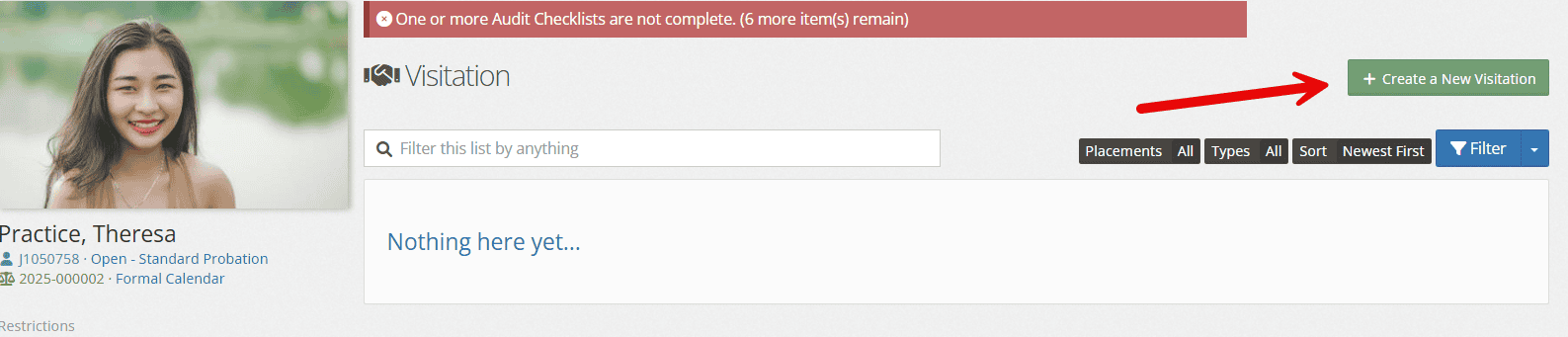
On the visitation page, choose “create a new visitation.”
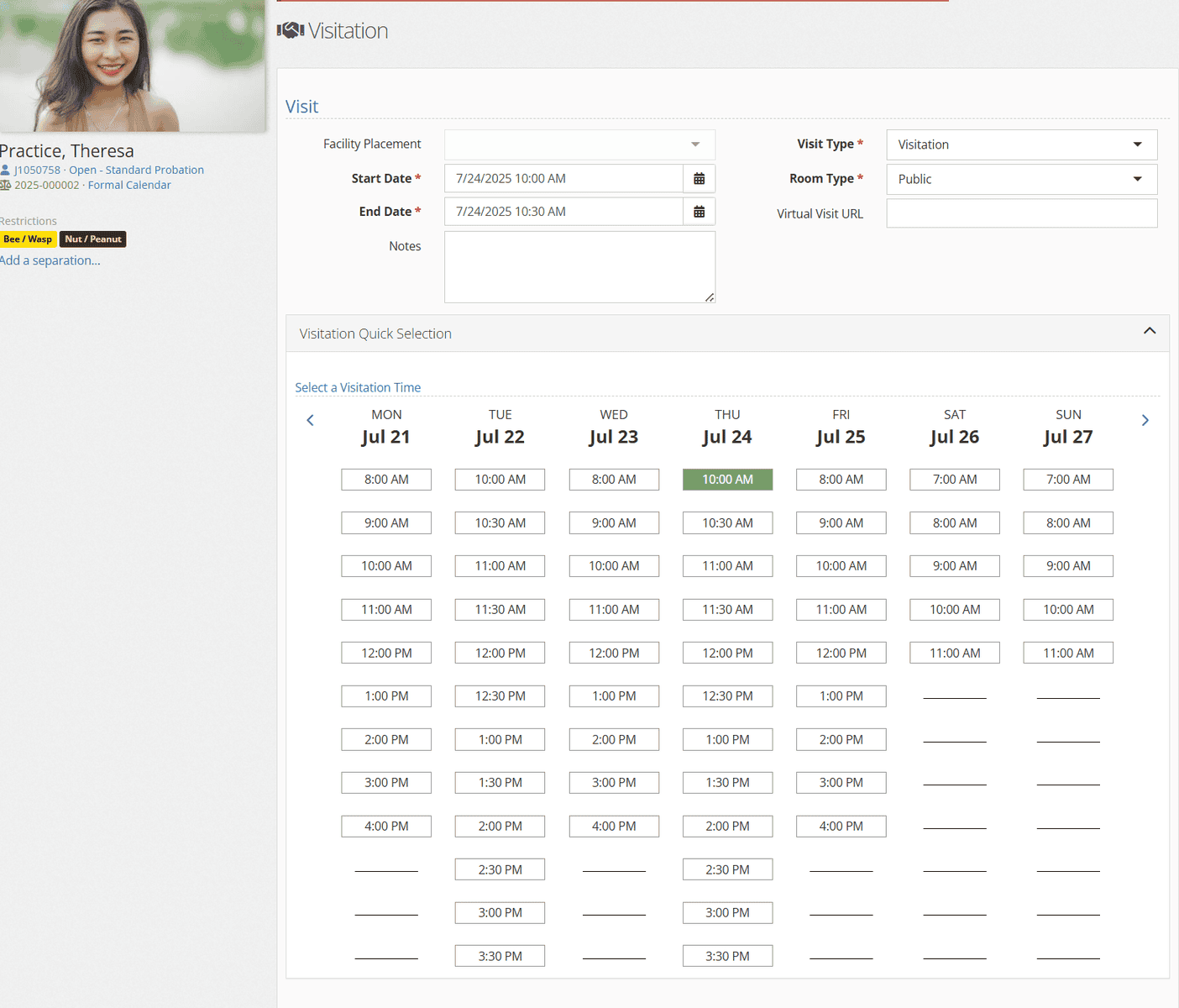
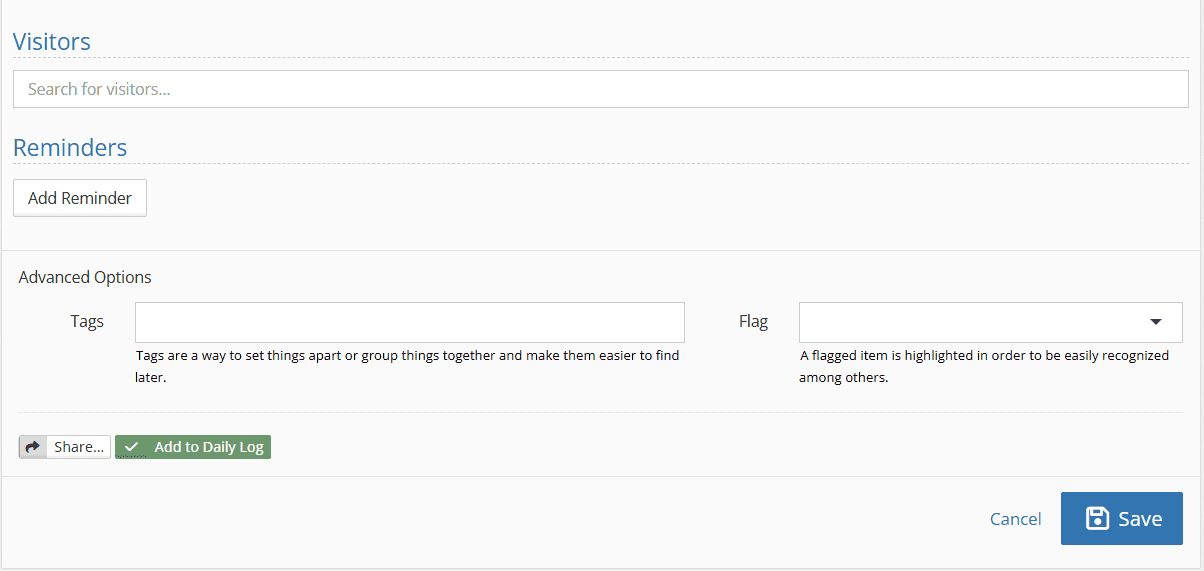
Fill in the necessary information and click “Save.” (Note: if you use the “visitation quick selection” feature, the start and end date will auto-fill.)
Description of fields: #
- Facility Placement: links the visitation to the client’s current facility placement.
- Start Date/Time: date and time of the visit
- End Date: date and time of the end of the visit
- Notes: any details necessary for the visit
- Visit type: modifiable drop-down from ‘picklist admin’ that shares what type of visit works well.
- Room type: 3 different types of rooms that include: public, private, or virtual.
- Virtual Visit URL: URL for virtual visits
- Visitation Quick Selection: quick drop-down that showcases availability for visitations in the facility. Autofills the start/end date when utilized.
- Reminders: allows for reminders to be sent for visitation at different intervals.
- Tags/Flags: Used to either color code the visitation or give quick details about the visitation itself
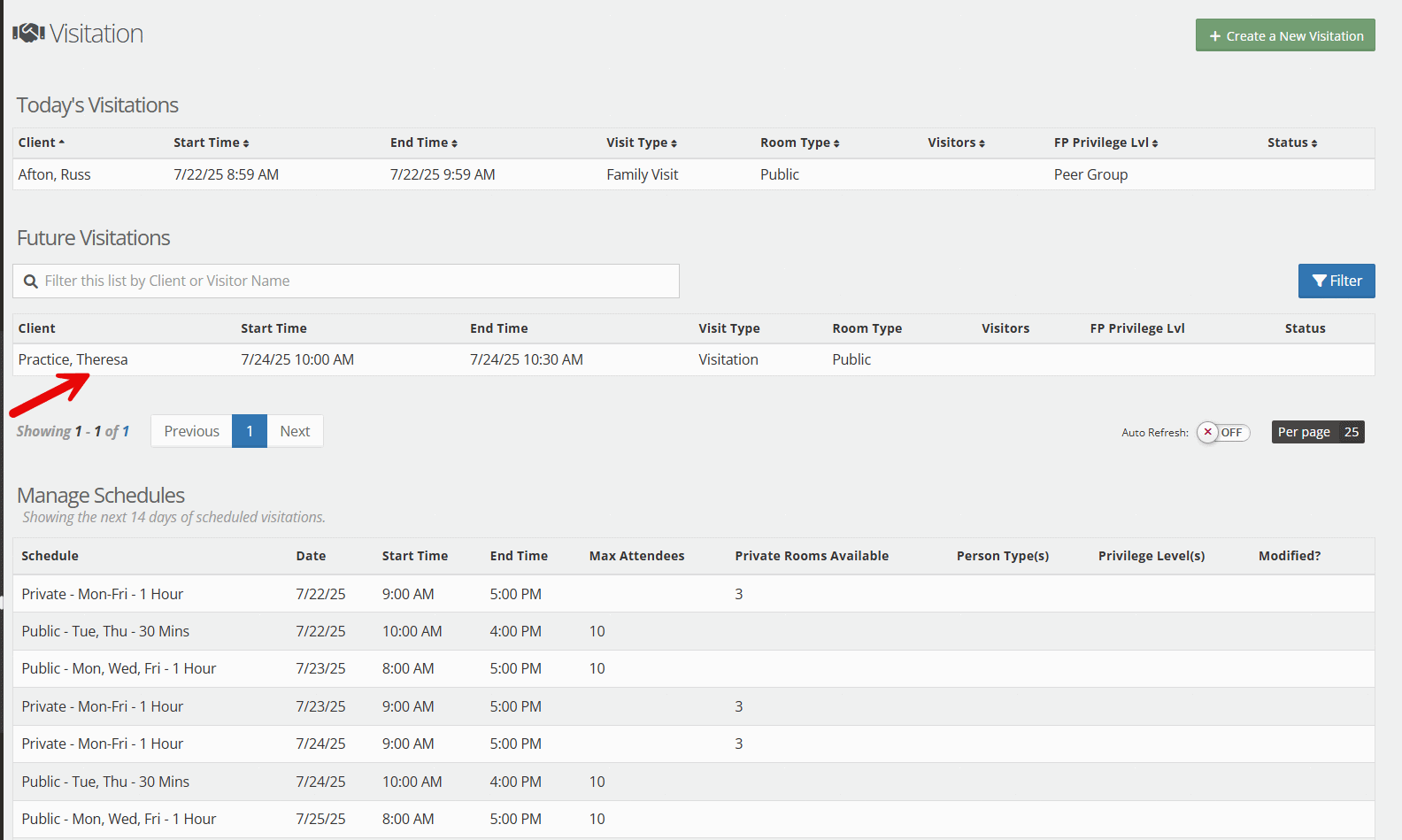
Once completed, the visitation will not only show up under the client’s individual visitations, but also under the facility visitation lists.
Facility-Based Visitations #
Visitations can be created via the Facility Manager as well.
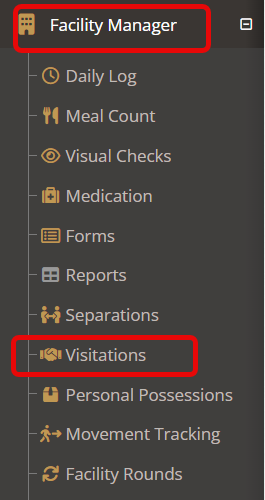
To utilize this feature and schedule multiple visitations, click on the “Facility Manager” followed by “Visitations.”
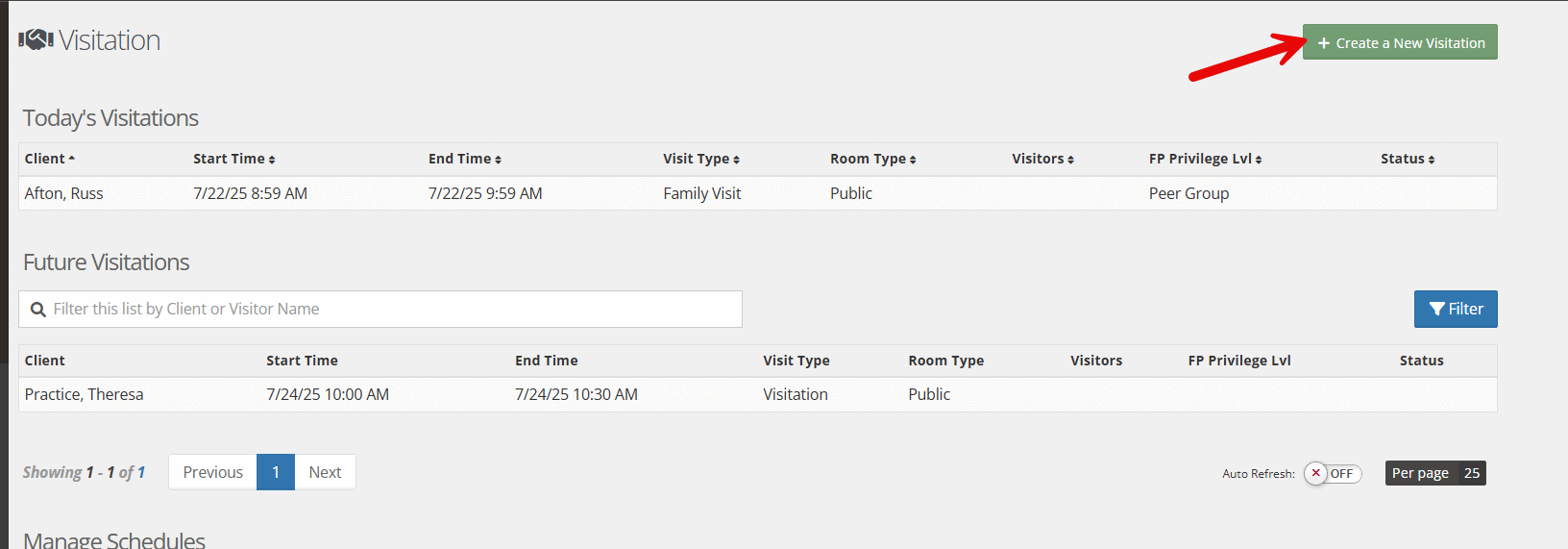
Choose “create a new visitation.”
Using the search bar, find the name of the client you’d like to schedule a visitation for. Once the name is selected, the form will auto-load.
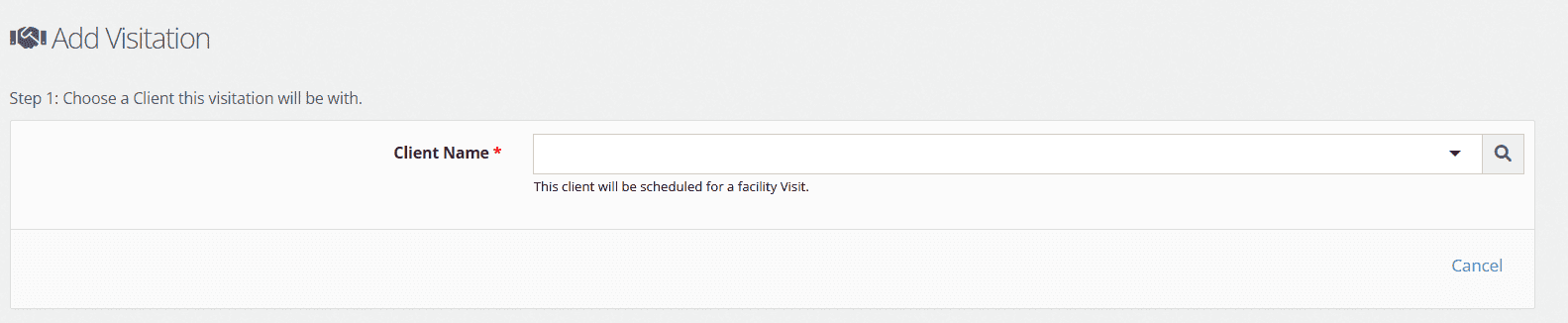
Similar to the client-based visitations, you will fill out the form’s fields and can again use the visitation quick selection to autofill the start and end date as shown below.
Click Save upon completion.
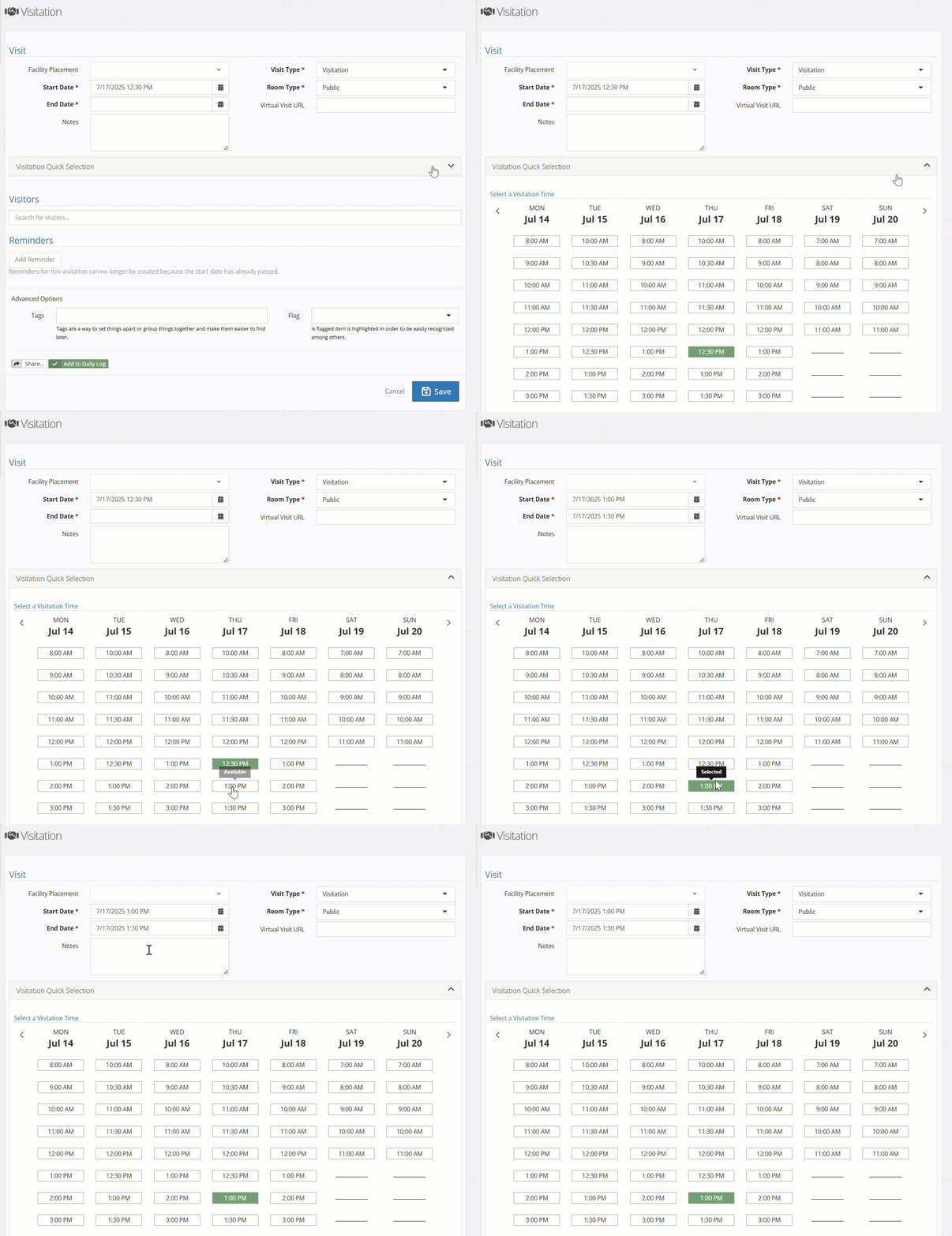
Description of fields: #
- Facility Placement: links the visitation to the client’s current facility placement.
- Start Date/Time: date and time of the visit
- End Date: date and time of the end of the visit
- Notes: any details necessary for the visit
- Visit type: modifiable drop down from ‘picklist admin’ that shares what type of visit works well.
- Room type: 3 room types available, including private, public, or virtual
- Virtual Visit URL: URL for virtual visits
- Visitation Quick Selection: quick drop down that showcases availability for visitations in the facility. Autofills the start/end date when utilized.
- Reminders: allows for reminders to be sent for visitation at different intervals.
- Tags/Flags: Used to either color code the visitation or give quick details about the visitation itself
Again, the visitation will not only show up under the facility’s visitation lists, but also under the individual visitations.
Updating Picklist items for Visitations #
Like many drop-down options, you can find the following available for your editing purposes:
- Facility Visit Type
- Visitation schedule
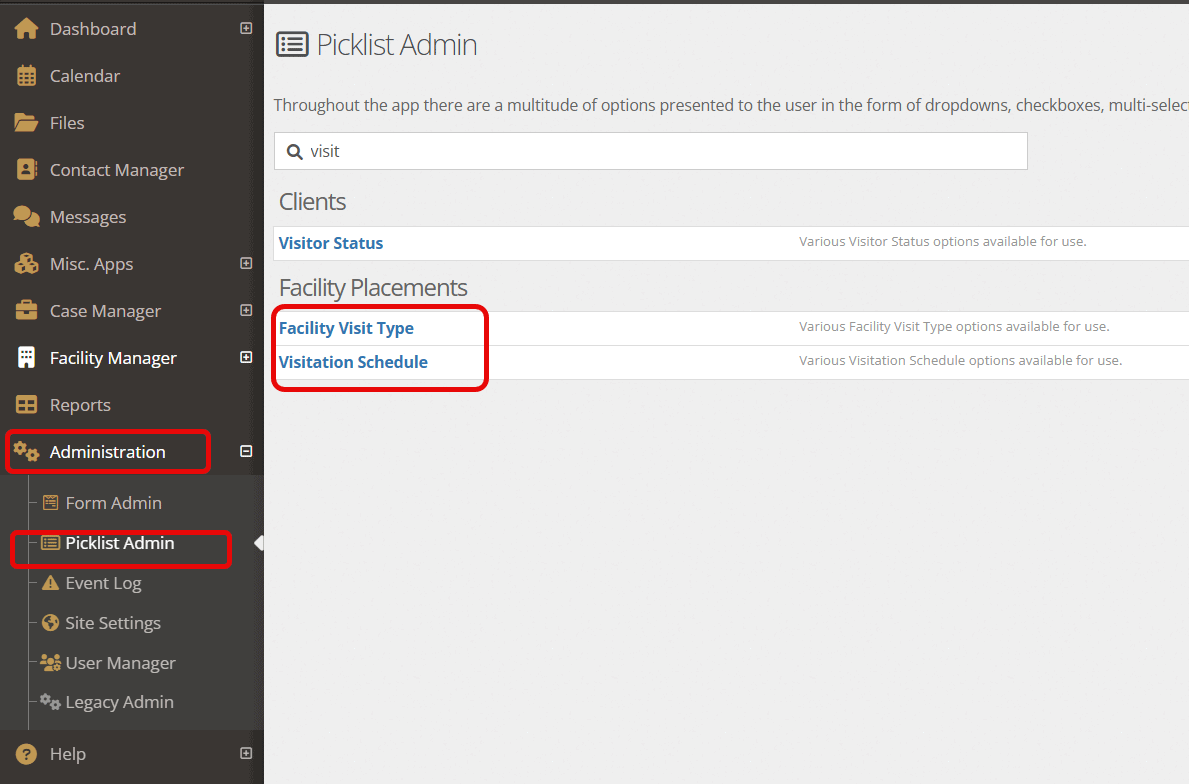
If you have administrative access, setting this options up will allow your staff to have quick drop downs for them to choose from.
Below is an example of the visitation schedule page:
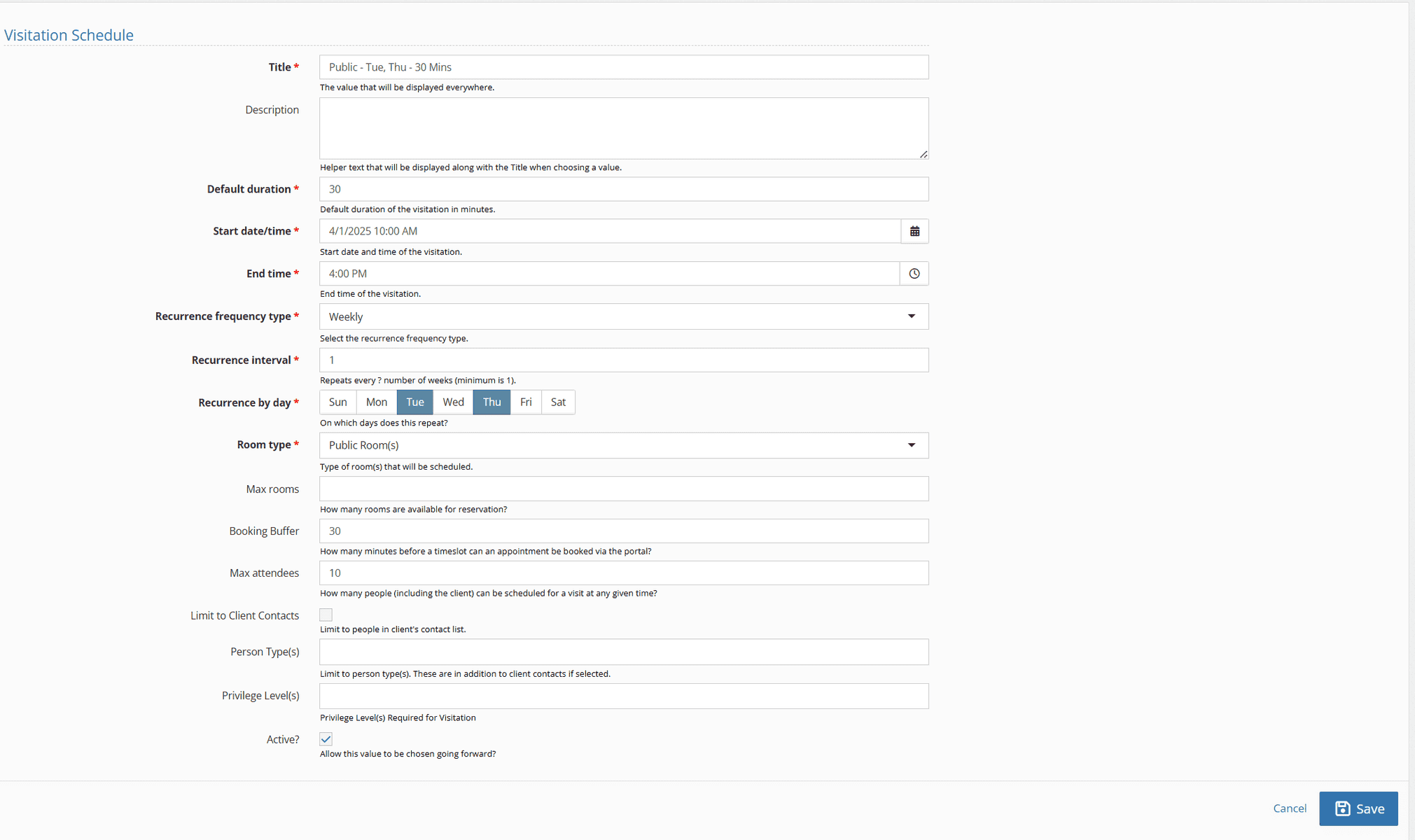
Description of fields:
- Title: Clear, descriptive label for this visitation type.
- Description: Guidelines or parameters specific to this visitation type.
- Default duration: Standard visit length in minutes.
- Start date/time: When this visitation schedule begins.
- End time: When this visitation completes.
- Recurrence frequency type: How the visitation repeats—weekly, biweekly, monthly, etc.
- Recurrence interval: The number of weeks between occurrences (minimum 1 week).
- Recurrence by day: Which days this visitation is available.
- Room Type: Categories of rooms designated for this visitation (e.g., monitored, private, contact, video).
- Max rooms: Maximum number of rooms available simultaneously for this visitation type.
- Booking buffer: Minimum advance notice required (in minutes) for scheduling.
- Max attendees: Total number of people, including the youth, permitted per visit.
- Limit to contacts: When enabled, restricts visits to approved contacts only.
- Person types: Specific roles (e.g., attorneys, therapists, clergy) permitted to visit outside of the contacts list.
- Privilege levels: Privilege level(s) required to access this visitation type.
- Active: Toggles whether this visitation type is available for scheduling.