
Service Plans are an add-on to YouthCenter designed to allow you to set up a schedule of how often a service is required for a given client. The system will prompt users to create a service plan and add updates to that plan on a scheduled basis. If you do not have access to service plans, reach out to YouthCenter Support.
For a look at how Service Plans work from a user’s perspective, please see Using the Service Plans Application. The Service Plan Feature also includes two sample plans (Short Term and Long Term) with placeholder information that you can review.
Service Plans are made of three main parts. This article reviews:
- Building the Response Forms – what specific information do you need to document about the individual client?
- Creating a Service Plan Schedule – when is the timeline of responses?
- Adding the Services Provided and Remaining Needs – which services does your organization offer? What more does the client need?
Building Response Forms #
Response forms allow your staff to document information about the specific client and their service plan. These are created in the Form Admin area but must be stored in a specific folder to function.
To build a Service Plan, open the Administration area and click into Form Admin. Choose Service Plans to view that folder:
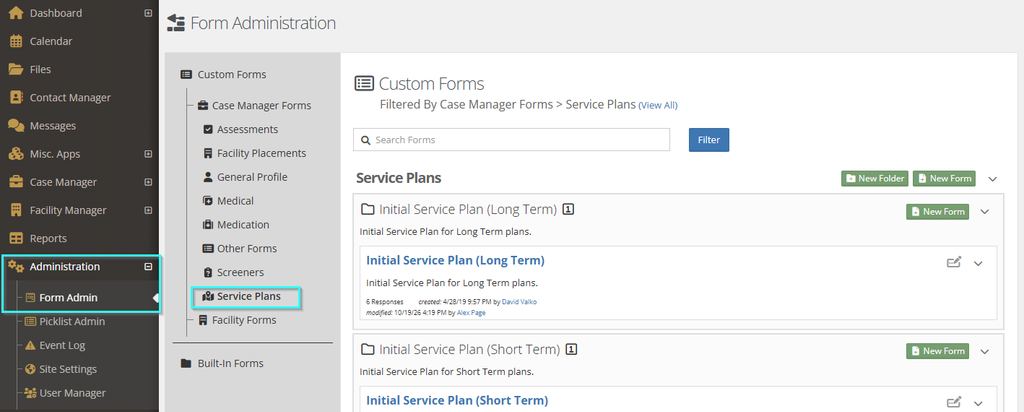
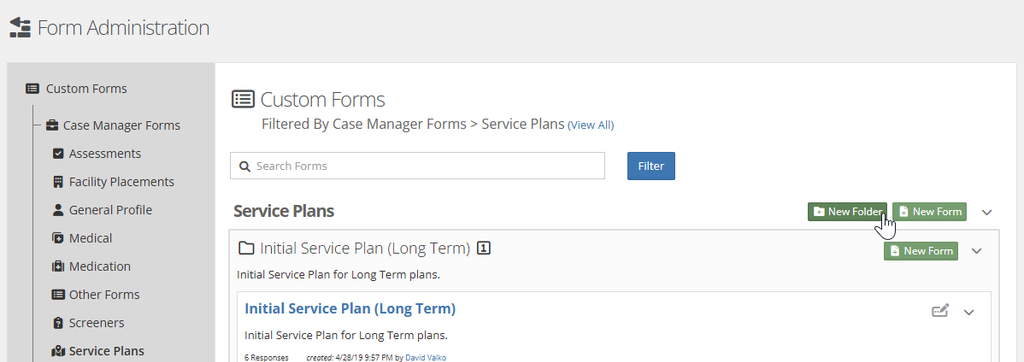
Each folder will hold a response (or group of responses) for each stage of the Service Plan. Typically this is one initial response and one or more updated responses. The sample folders in the screenshot above show one response for an Initial Long Term plan and an Initial Short Term plan. You can use these folders and add your forms, or you can create a new folder to hold your response.
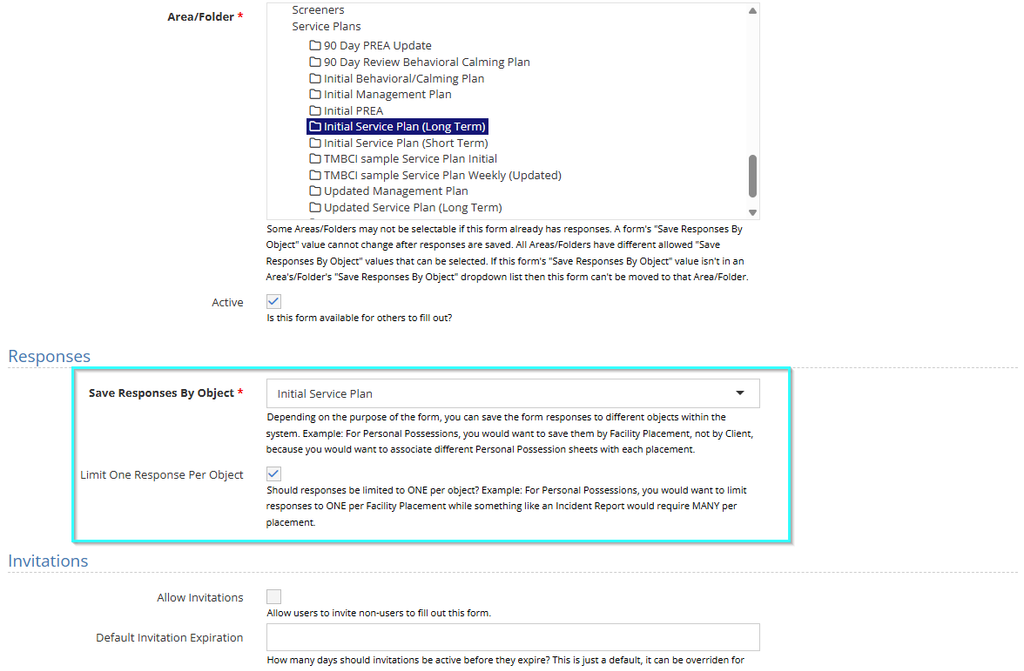
When creating a response form, the Settings section has special instructions:
- Save Responses by Object will be Initial Service Plan or Updated Service Plan instead of Client or Facility Placement like usual
- Limit Response Per Object should be checked if you only need one entry for this particular form (common with initial responses)
From this step forward, build the form just like in any other custom fillable form in YouthCenter.
Service Plan Schedule #
The Service Plan Schedule creates a timeline for staff to respond to the plan (fill out the response forms). This timeline is fully customizable in YouthCenter.
Open the Administration application and click on Picklist Admin to display all the items you can edit. Search for and select Service Plan Schedule Type:
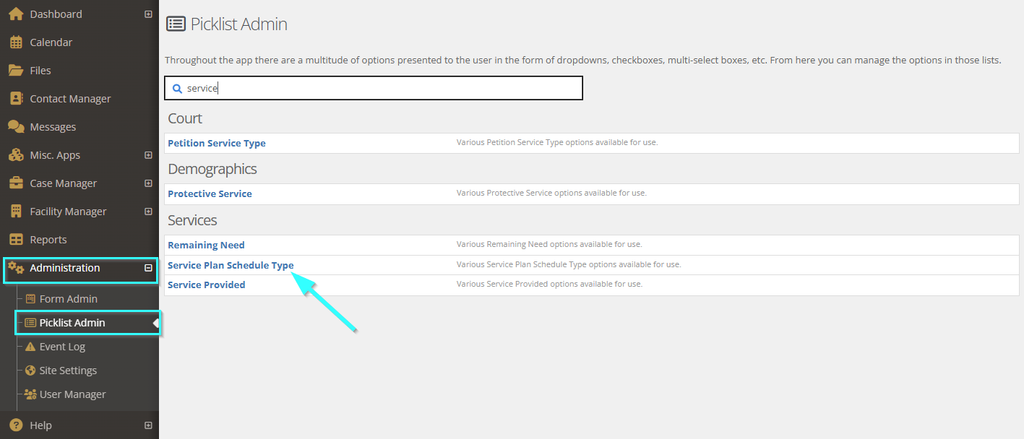
From here, you can see the existing Schedules and/or add a new Schedule Type. Use the Edit icon (notepad and pen) to change a schedule or the green + Create a New Service Plan Schedule Type to make a new one:
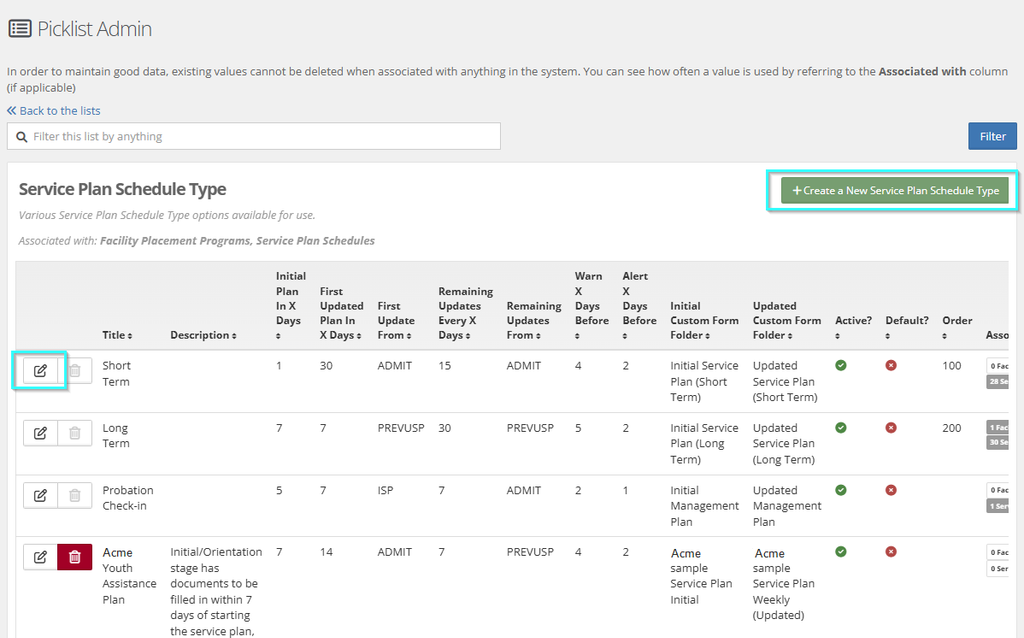
Fill in the required fields to lock in the schedule and point the Service Plan at the correct form responses that were just created. The title is what your staff will see when choosing this Schedule.
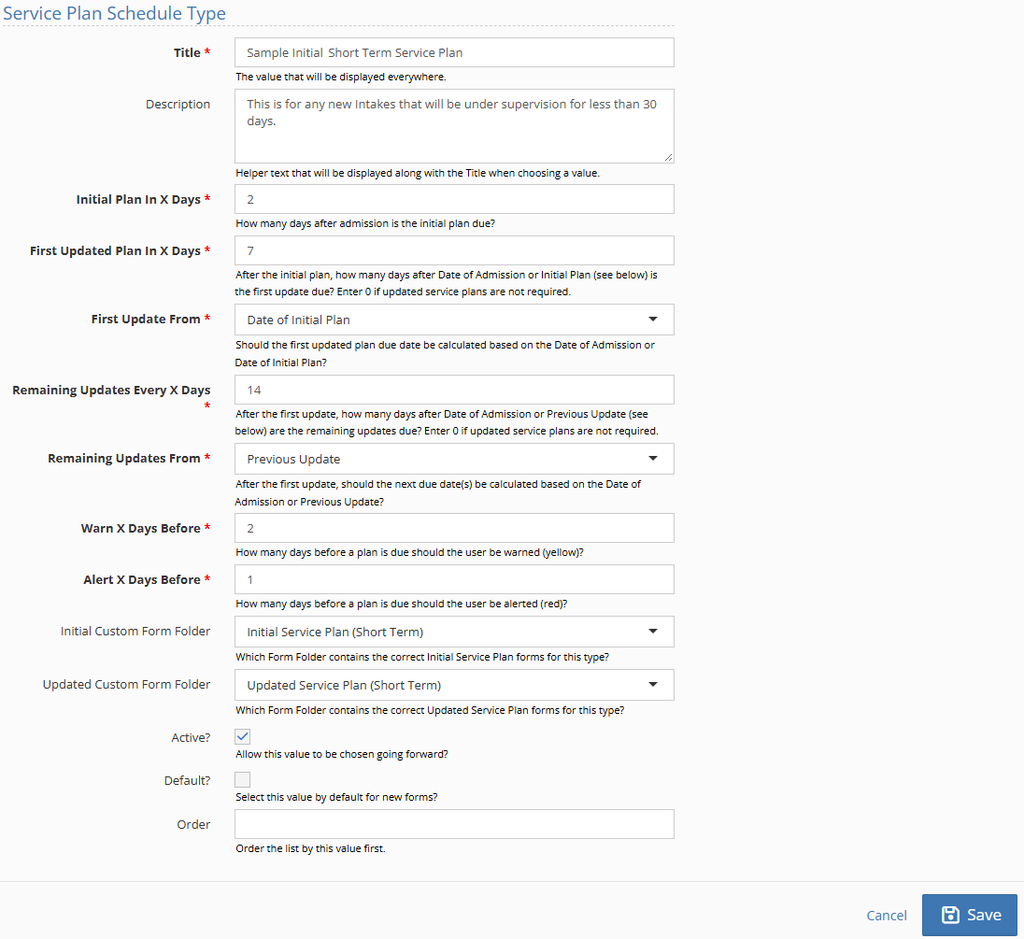
In the example above, the Plan requires an initial response in 2 days from enrollment. An updated response is required within 7 days from enrollment. New updates are required within 14 days from that updated response (Previous Update).
The user will see a yellow banner (Warning) 2 days before any of these due dates and a red banner (Alert) 1 day from any of these due dates.
The Plan will use the form available in the “Initial Service Plan (Short Term)” folder for the first response and the forms in the “Updated Service Plan (Short Term)” folder for that response within 7 days and the following updates that happen every 14 days. Save to update the plan.
Updating Services Provided and Remaining Needs #
Services Provided and Remaining Needs are filled in when a Service Plan is closed out. Create the lists in your Administration area.
Open the Administration application and click on Picklist Admin to display all the items you can edit. You can narrow this down by searching for “service” or specifying “Remaining Need” and “Service Provided”:
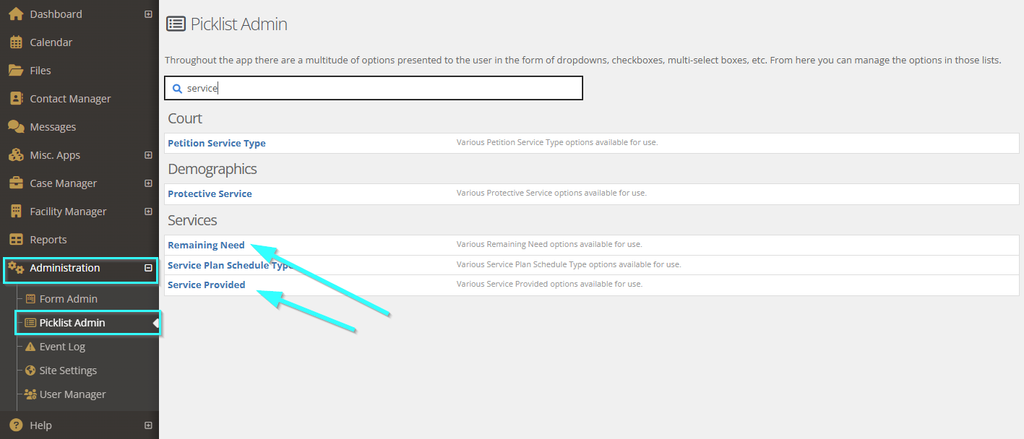
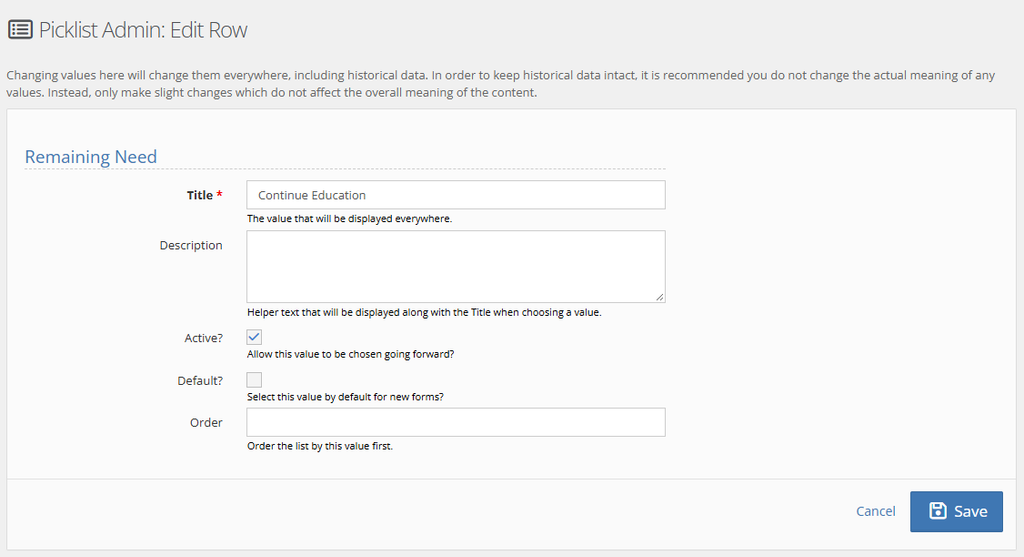
Click on either object to edit the list of items. Starting with Remaining Need, view the existing items in the list. Use the Edit icon (notepad and pen) to change an item or the green + Create a New Remaining Need to make a new one:
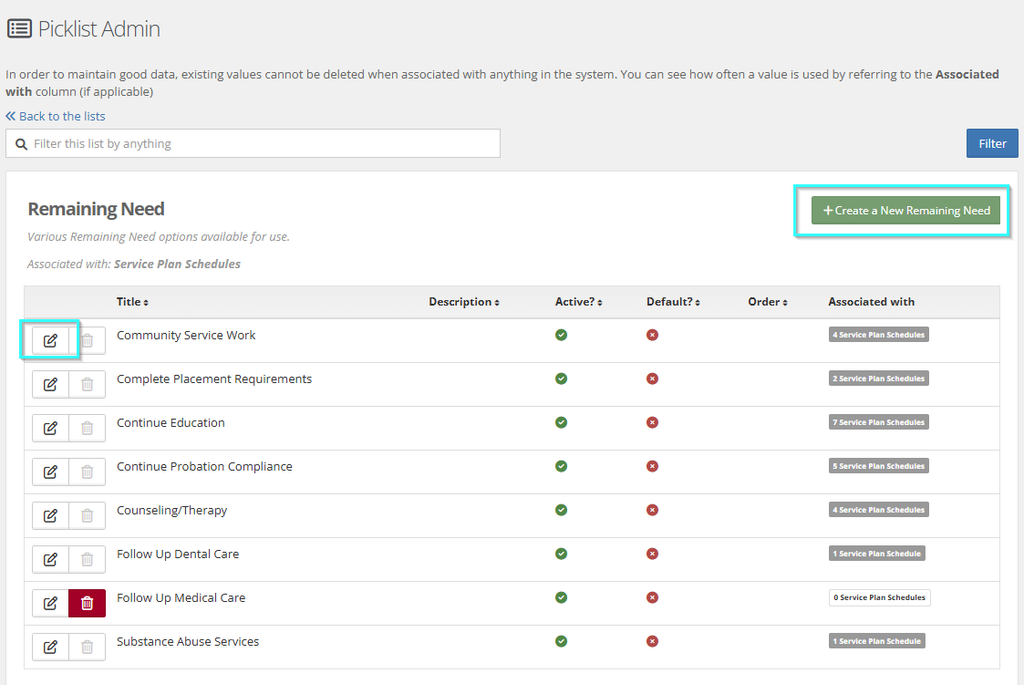
The title will show up in the drop-down menu for your team to select in all service plans going forward. Fill in any optional fields as desired and be sure to Save changes.
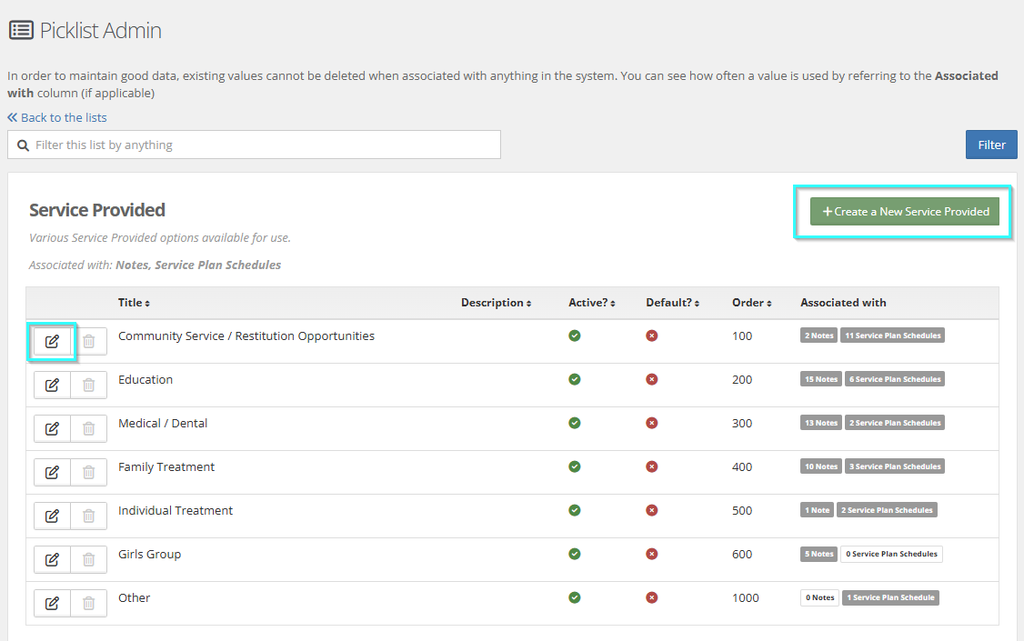
Moving on to Service Provided, view the existing items in the list. Use the Edit icon (notepad and pen) to change an item or the green + Create a New Service Provided to make a new one:
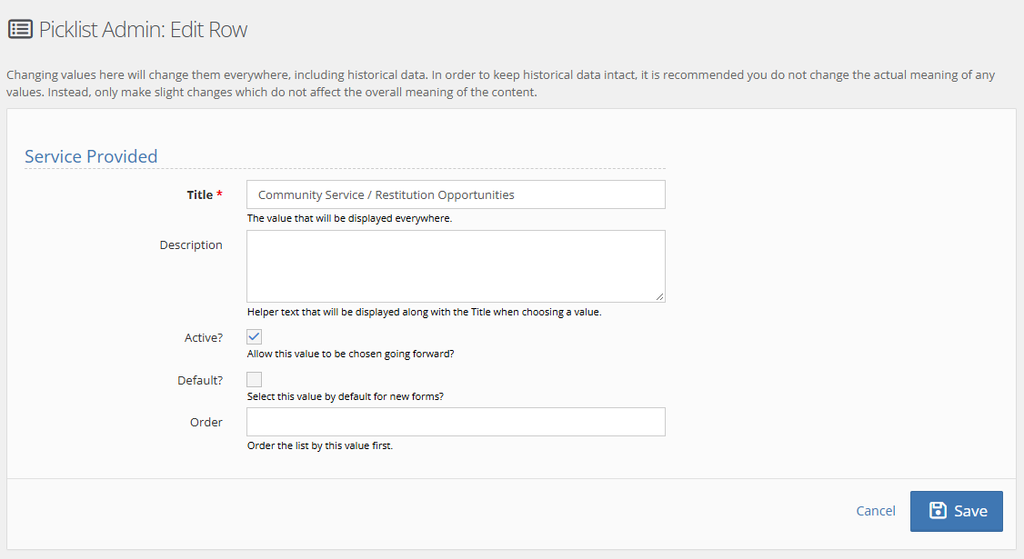
The title will show up in the drop-down menu for your team to select in all service plans going forward. Fill in any optional fields as desired and be sure to Save changes.
Once you’ve built Response Forms, created a Schedule, and added Needs/Services your team is ready to use Service Plans.
See the article Using Service Plans for an example of a Service Plan in action.