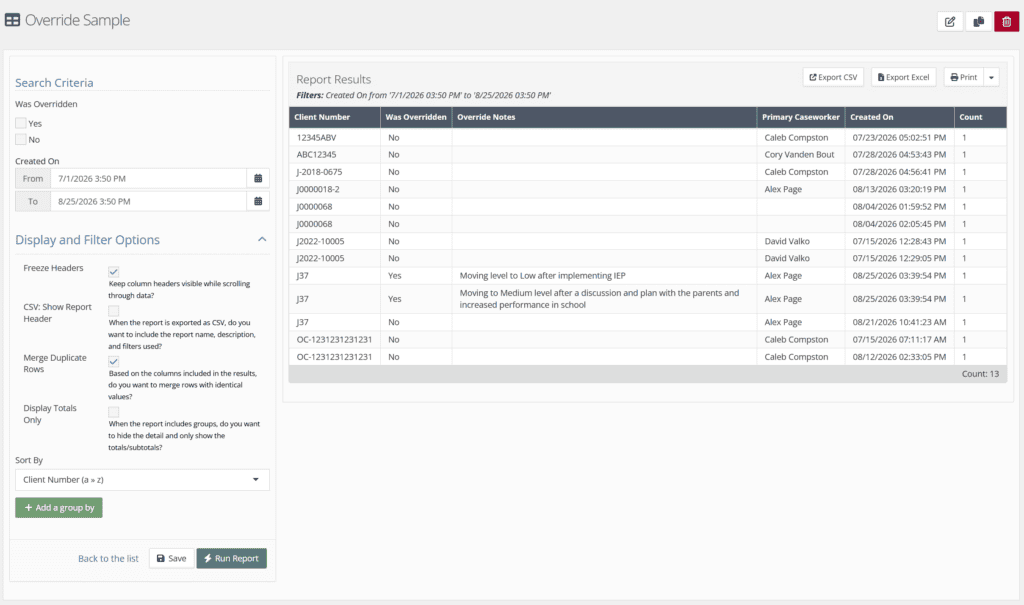
Assessment Overrides typically occur when the results of a standardized assessment (such as a risk or needs assessment) are manually adjusted by staff due to professional judgment, policy exceptions, or contextual factors that aren’t captured by the tool. Youth Center allows for this in applicable assessments and can track these overrides in the system.
If you’d like to view a webinar on this topic, please see Assessment Overrides and Reporting.
How to Use Overrides #
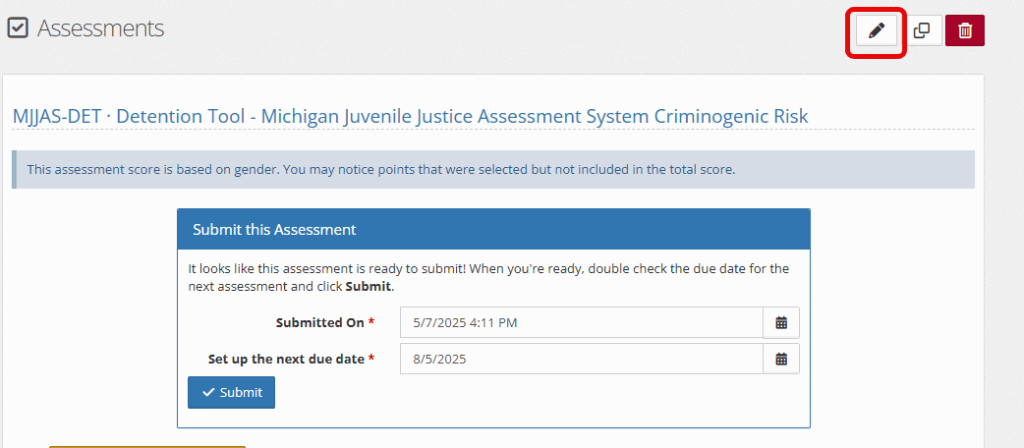
*Please note* you CANNOT override an assessment after it has been submitted!
Click the “Edit” button in the upper right-hand corner in a completed assessment that is not yet submitted for approval.
Select “Professional Override” on the left-hand side of the screen.

Change the Level/Score as needed and add a note for the reasoning behind this override.
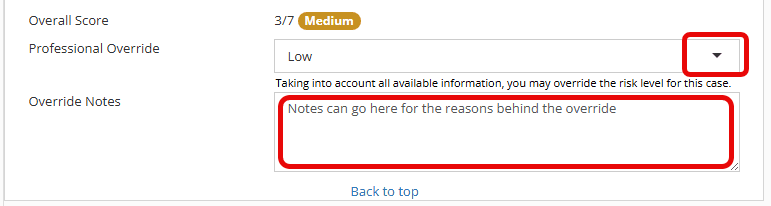
Click Save in order to save changes and submit the assessment.

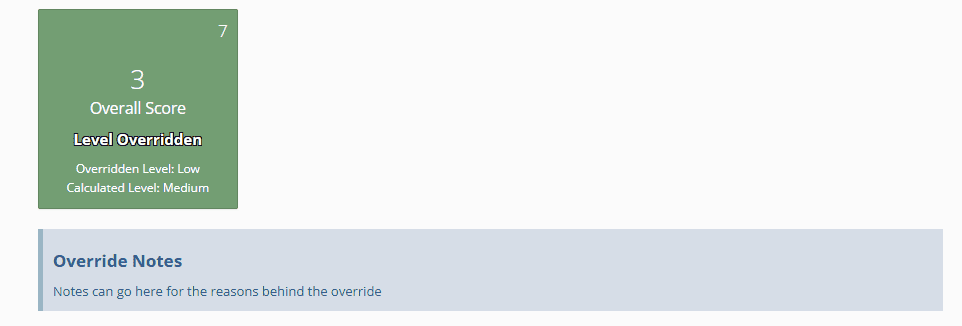
Once you have submitted the assessment for approval, the score will appear with a note as shown below, under Assessments.
Reporting on Overrides #
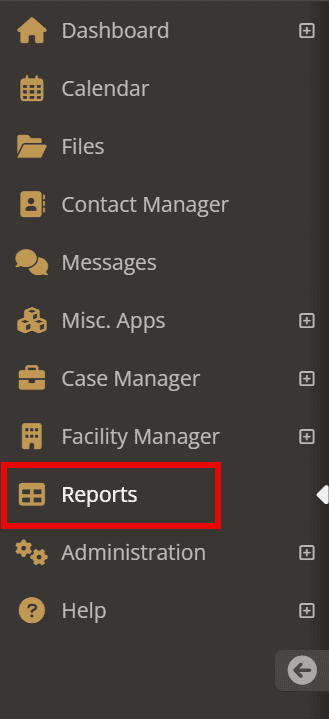
Choose the “Reports” application from your menu items:
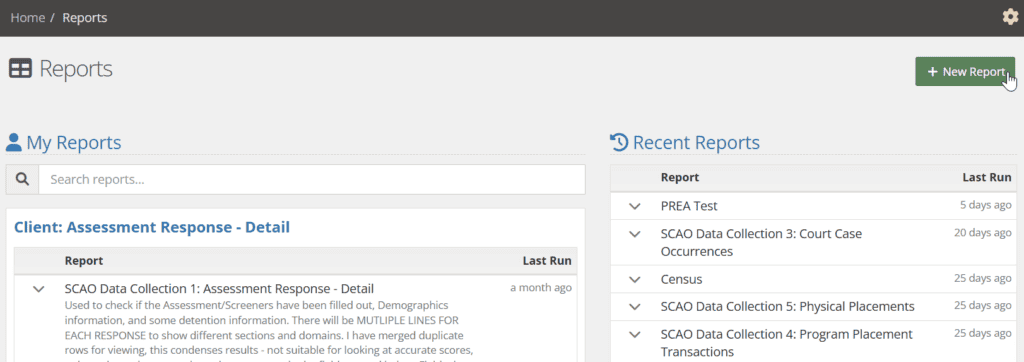
Select the green bar titled “New Report.”
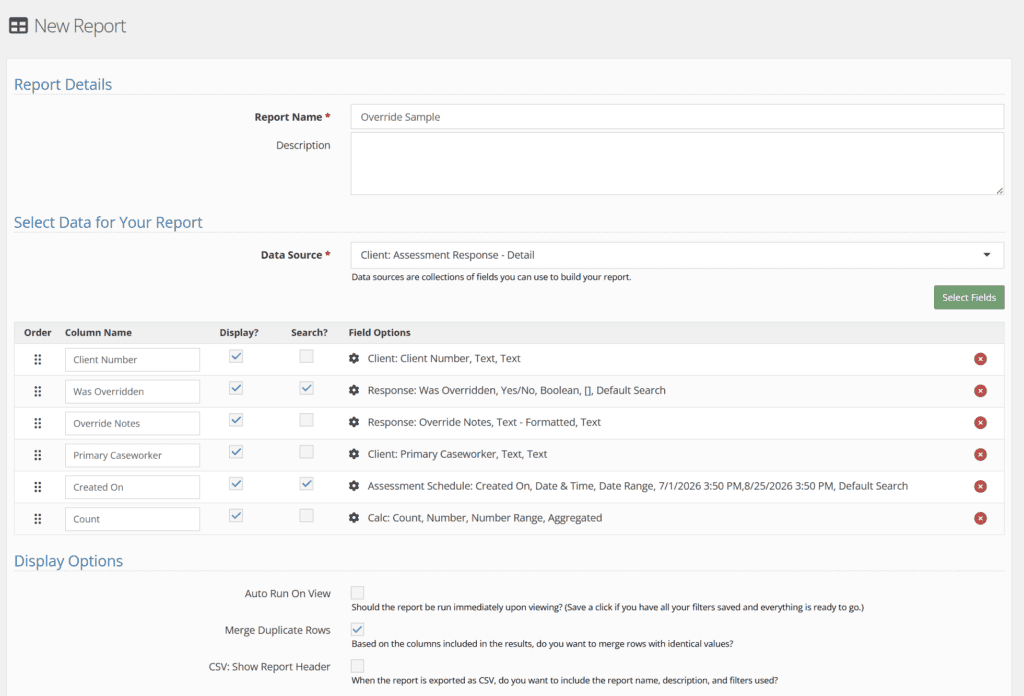
Below is a sample of how to build a report using a “Data Source” and “Data Fields” that would showcase Assessment overrides. Feel free to explore and add additional data fields to match your needs.
Once complete, select “Save & View” to proceed to the Report view page. Add in your date range and display options:
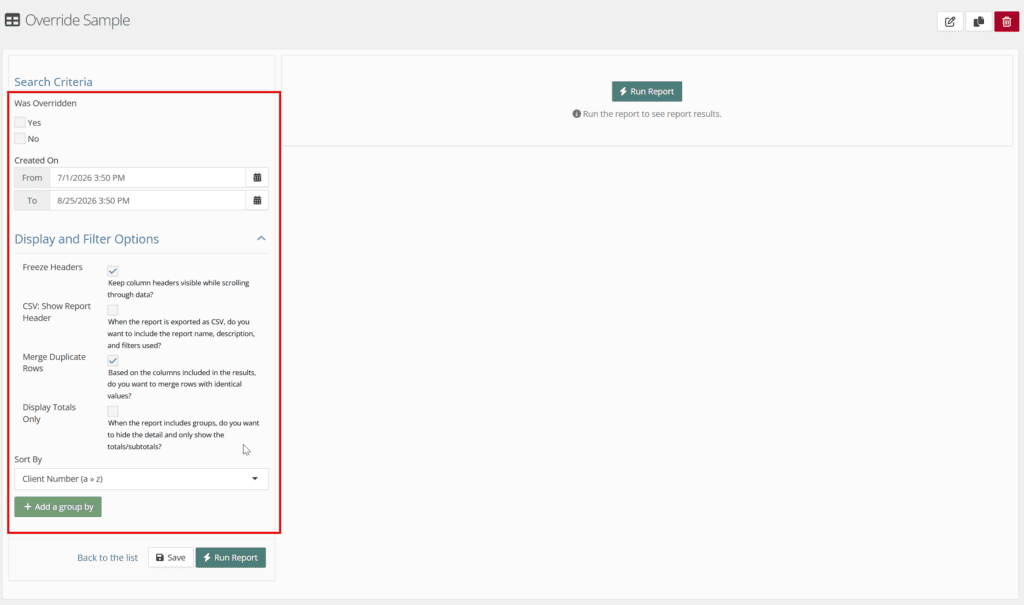
Select “Run Report” to view results and enjoy the data provided.