
With the continued goal of ease of use and accessibility, the offenses tab will be replaced by the Petitions tab. This will bring petitions, offenses, and requirements together in one place, so you don’t have to jump between screens to find what you need.
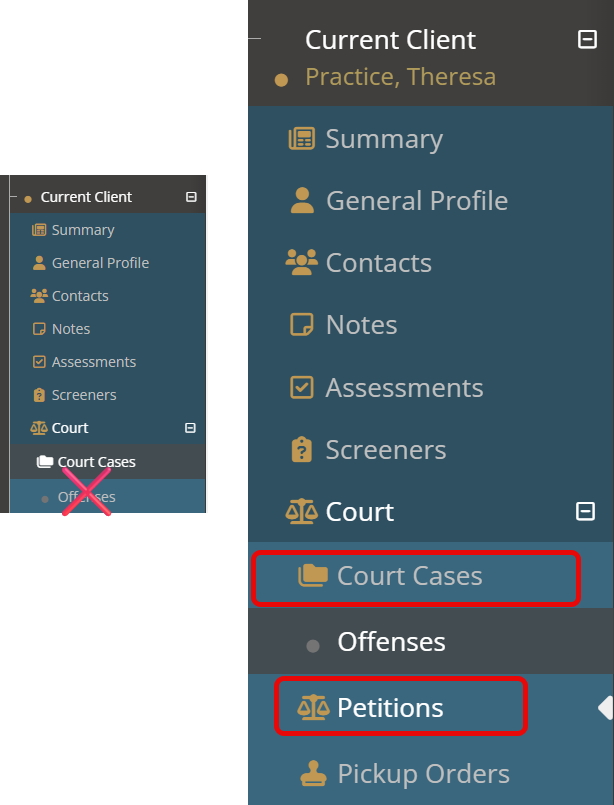
The Petitions tab includes every field that used to be on the Offenses tab, grouped in similar ways.
To add a new petition, select the green Create a New Petition bar at the top of the page.
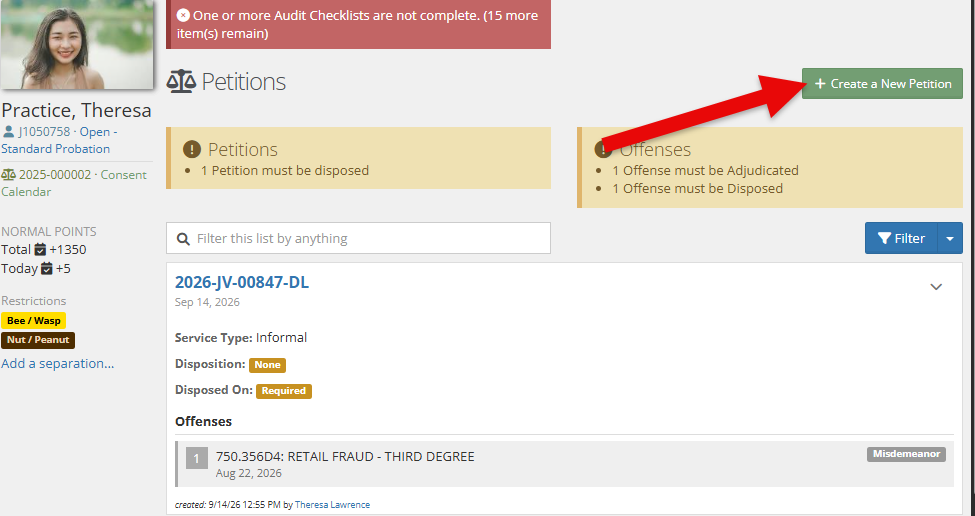
Petition Fields #
Below is a breakdown of all the field options available on the petition. These will match what was previously offered on the offense tab.
Petition Details #
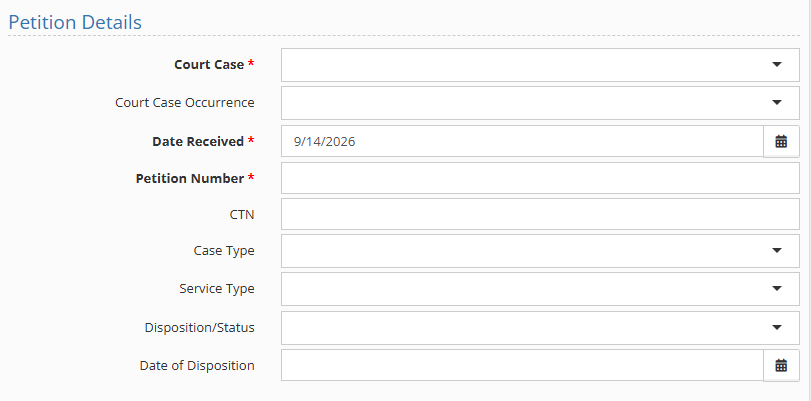
- Court Case: Dropdown menu used to match the petition to its associated court case occurrence. (required)
- Court Case Occurrence: Dropdown menu used to match the petition to a specific occurrence within the associated court case.
- Date Received: The date the petition was formally submitted to, and accepted by, the court. (required)
- Petition Number: Free-text field for entering the corresponding petition number. (required)
- CTN: Free-text field for entering the CTN number, when applicable.
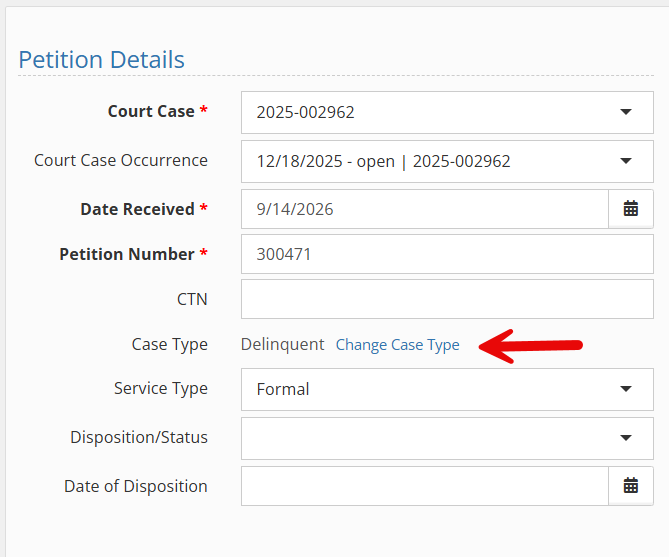
- Case Type: Admin-created dropdown menu used to select the specific case type.
- Service Type: Admin-created dropdown menu used to select the specific service type.
- Disposition/Status: Admin-created dropdown menu used to select the specific disposition or status type.
- Date of Disposition: The date on which the case outcome or resolution was reached.
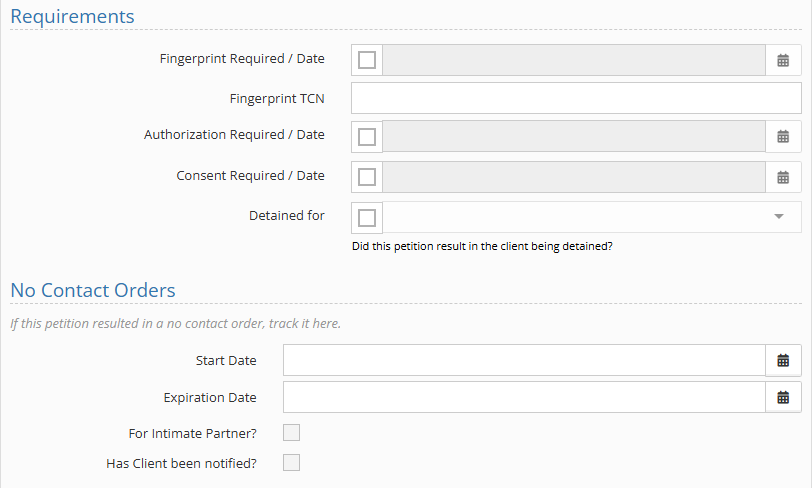
Petition Requirements/No Contact Orders #
Not every petition has special requirements or no-contact orders, so these fields are all optional. Check the box next to any requirement that applies, and fields for the date and details will appear.
Offenses #
Multiple offenses can be added to a single petition. Each offense includes the following fields.
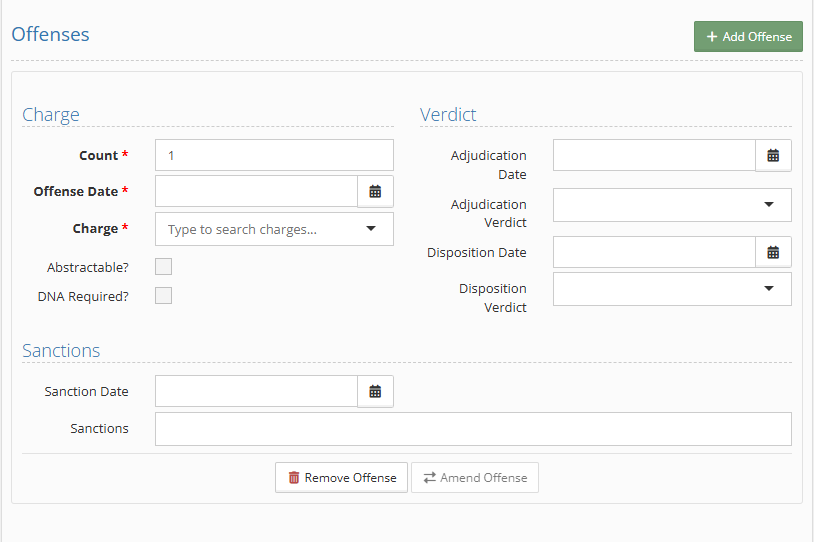
- Count: Open text field used to enter the charge count.
- Offense Date: The date on which the charge occurred.
- Charge: Admin-modifiable list of charges. Drop-down or type-ahead are available in this area.
- Abstractable/DNA required: Checkboxes used to indicate whether the offense is abstractable or requires DNA collection.
- Adjudication date: The date on which adjudication for the offense occurred.
- Adjudication verdict: The verdict reached at adjudication for the offense.
- Disposition date: The date on which disposition for the offense occurred.
- Disposition verdict: The verdict reached at disposition for the offense.
- Sanction date: The date on which any sanction for the offense was issued.
- Sanctions: Admin-modifiable list of sanctions that can be applied to the offense.
- Remove Offense: Button used to delete the offense from the petition.
- Amend Offense: Once a charge has been added, this option displays a history of changes made to the offense.
Reopening a petition: “Refer to Formal” and “Return from Transfer” #
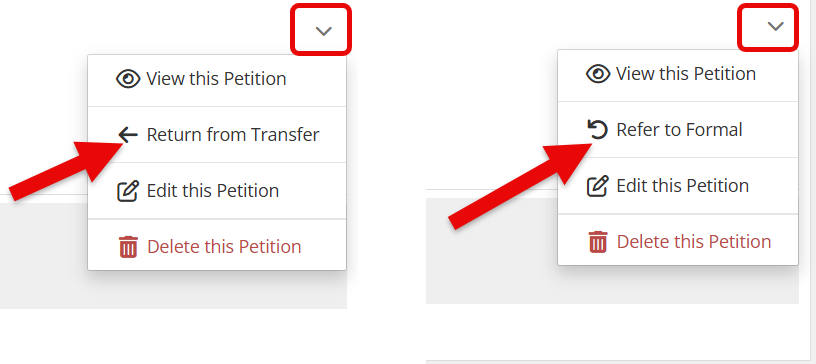
If a petition was resolved informally through Consent Calendar, or if a case was transferred to another county and later returned, the appropriate action will appear on the petition or offense.

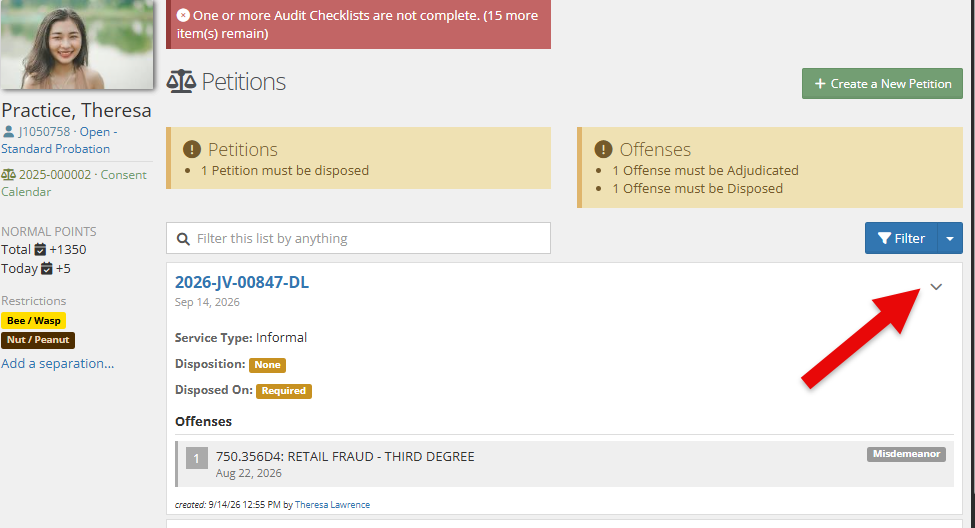
To access this action, select the down caret on the petition listing page:
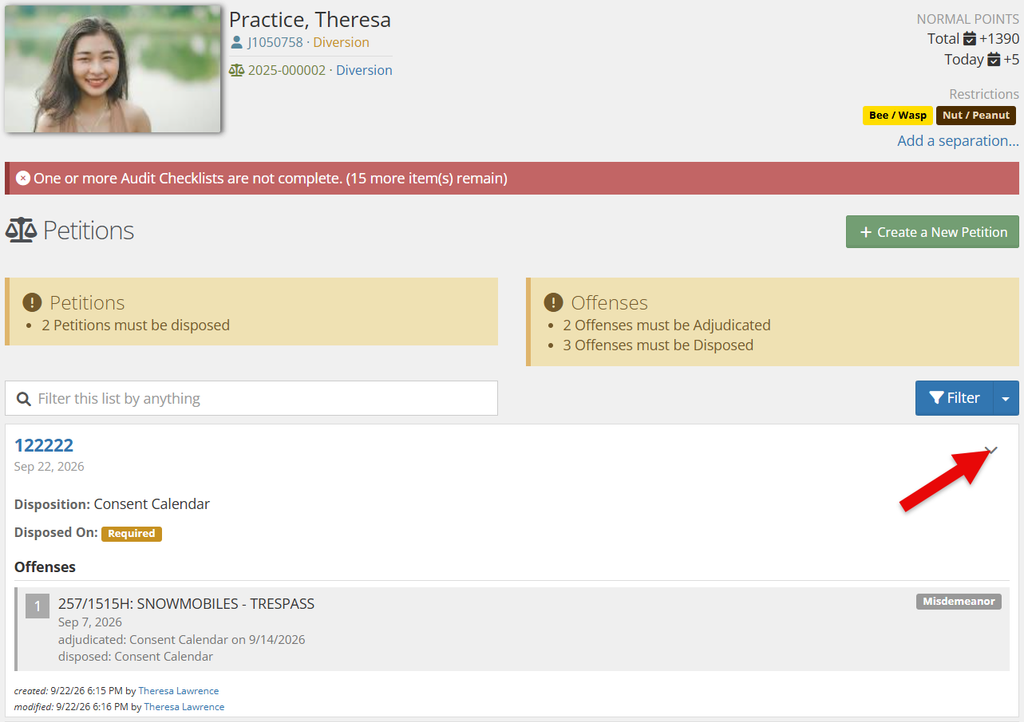
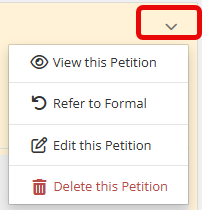
Choose the associated action.
Selecting the action creates a new petition and carries the open offenses forward.
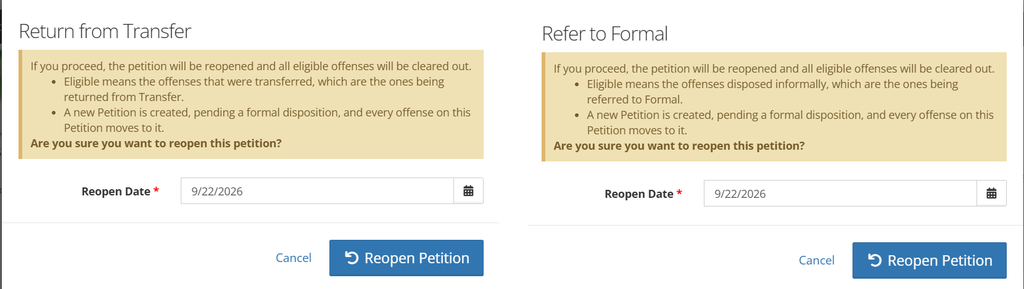
The original petition remains unchanged for historical purposes, and YouthCenter links the two records together.
Amending an offense #
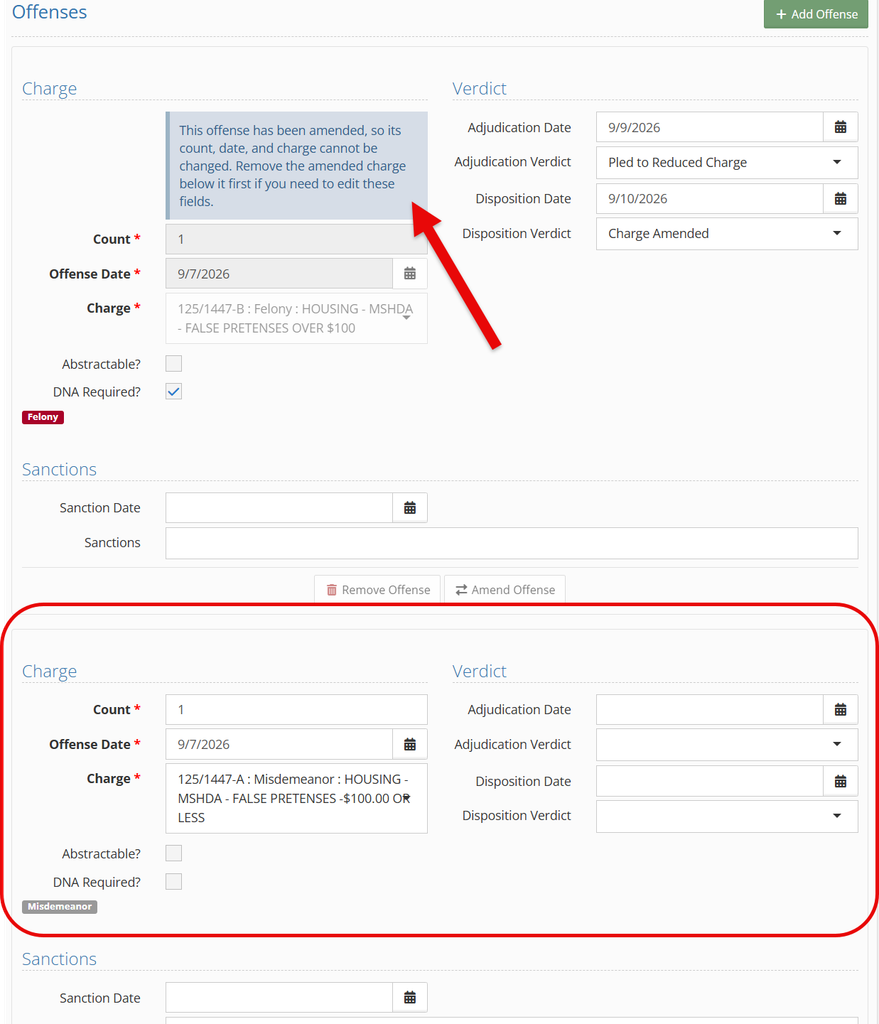
When an offense’s outcome allows for an amendment, such as a felony being reduced to a misdemeanor by the court, an “Amend Offense” option becomes available.
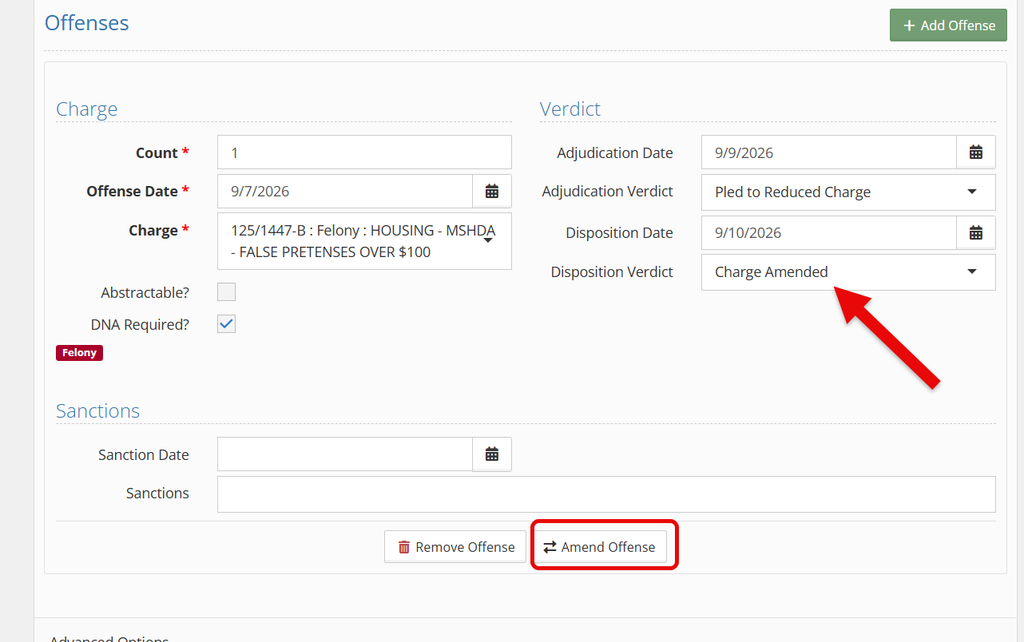
The amendment creates a new offense entry with the updated charge while keeping the original offense in the case history.
Changing a case type #
If a case needs to move from one case type to another, such as from Designated to Delinquent, the Change Case Type action is available.
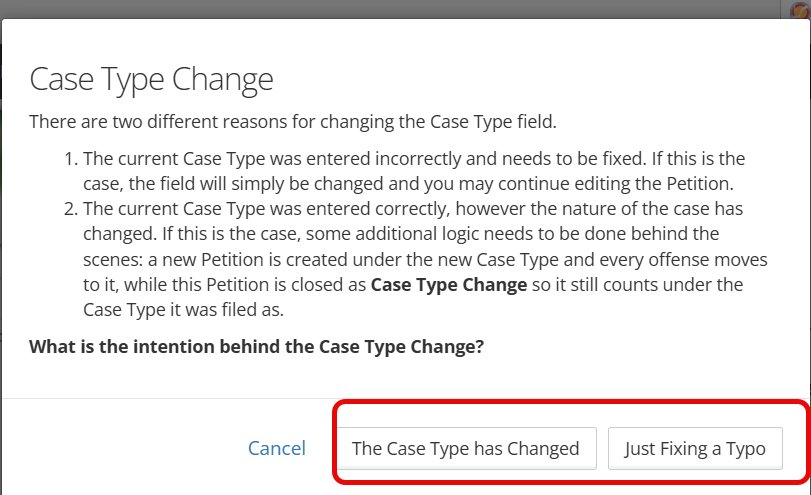
There are two different options when changing a Case Type:
- The Case Type has Changed
- The current case type was entered correctly, and the nature of the case has changed.
- Creates a new petition under the new case type and moves the applicable offenses to it.
- The original petition remains available for historical and reporting purposes (but is only visible via reporting).
- Just Fixing a Typo
- An accidental entry that needs to be remedied.
Filtering for petitions #
A filter bar at the top of the Petitions tab lets you search for a past petition or narrow the list by petition details.
Click into the filter box, enter the details, then select “filter.”

Petition Viewing #
The Petitions tab also shows some helpful information beyond the list of past petitions:
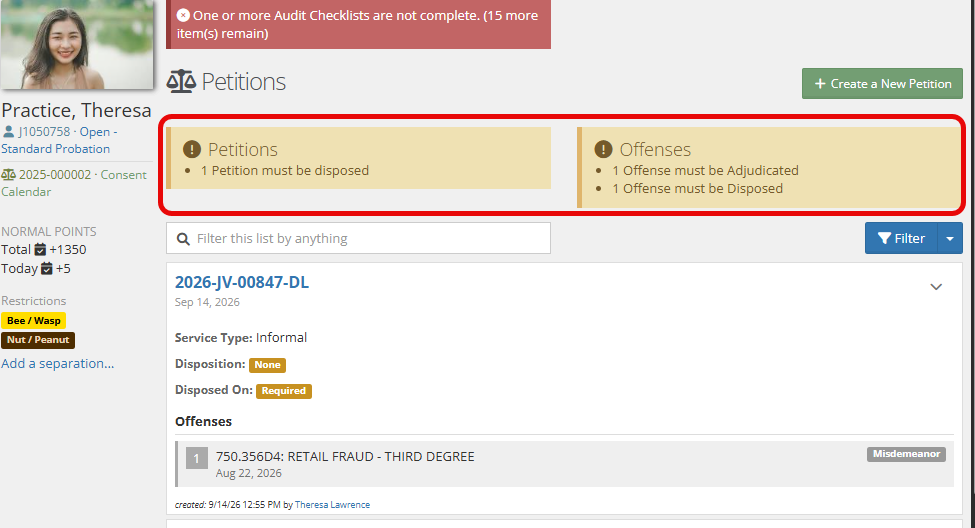
- A summary at the top of the page showing any petitions or offenses that still need to be disposed.
- Key details for each petition, visible from the list without opening the record.
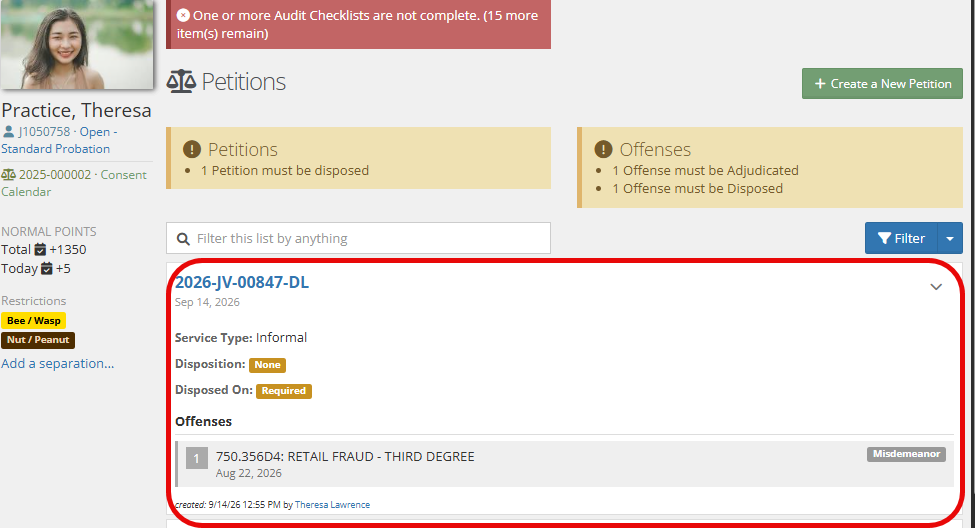
Each of these sections is broken out below:

- Petition number
- Date received

- Service type
- Disposition information and whether the data has been added

- Charge code and description
- Type of Offense
- Date of Offense
- Created date of offense and by whom
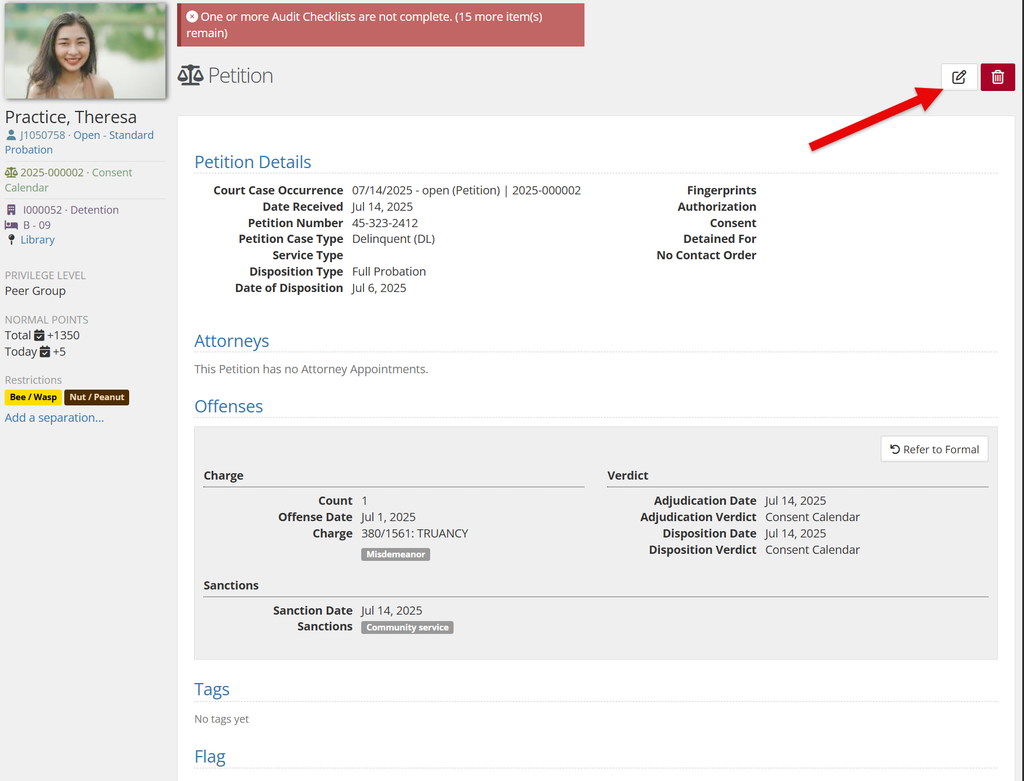
Editing/Updating a previous petition #
To edit an existing petition, select the down caret next to the petition.
Then, choose “Edit this petition.”
Once inside the record, select “Edit Petition” again to make any updates to the petition information.
Deleting a petition #
Deleting a petition also removes its offenses, related attorney appointments, and Register of Action events. YouthCenter will ask you to confirm the deletion before it is completed because the action cannot be undone.
Permissions #
Your existing permissions will continue to work with the new Petitions app. The permissions that previously controlled legacy Offenses now apply to the new Petitions screens, so there’s nothing you need to reassign.
You may notice that some permission names have changed. “Offenses” is now labeled “Petitions,” and “Offense: View” and “Offense: Edit” are now “Petition: View” and “Petition: Edit.”
There is also one new permission to review: Petition: Delete. The legacy Offenses page did not have an equivalent permission. To avoid disrupting existing workflows, we’ve automatically granted Petition: Delete to groups that already have permission to edit petitions.
If your site would prefer to limit deletion to a smaller group of users, an administrator can update that permission in Group Permissions.