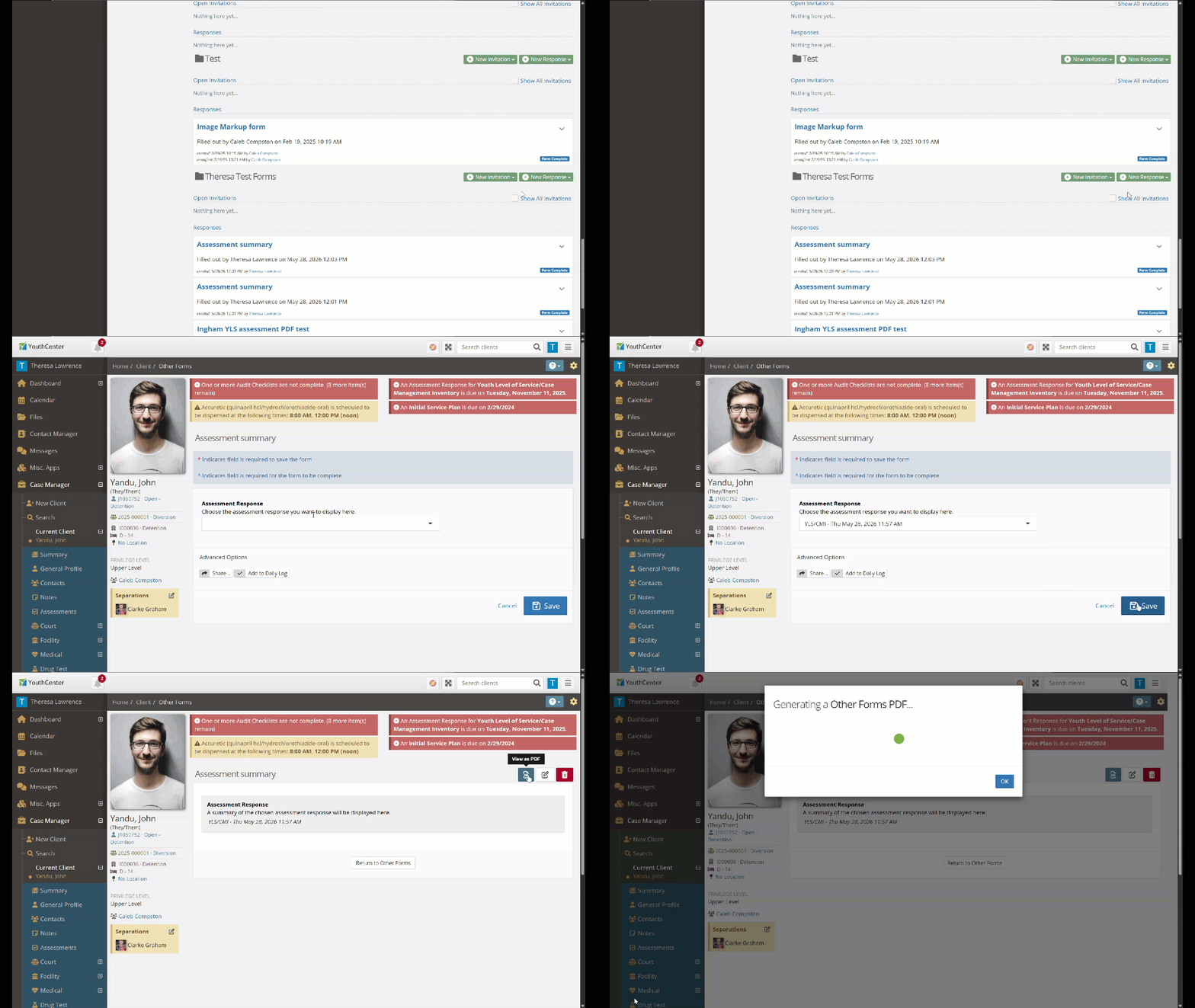
The Assessment Summary makes it easy for YouthCenter users to generate a polished PDF from youth assessment data. Simply select an assessment, and the data is automatically pulled in — no manual entry needed. Add widgets and tokens to further customize the output to fit your needs.
This is a two-step process: first, you’ll set up the form, then you’ll use it to generate summaries.
Setting Up the Assessment Summary Form #
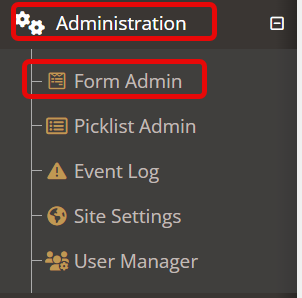
Step 1: Navigate to the Administration tab and select Form Admin.
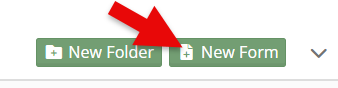
Step 2: Under the folder that best fits your team, click the green New Form button.
Step 3: Fill in any necessary settings, then click Save and Next to move to the Build tab.
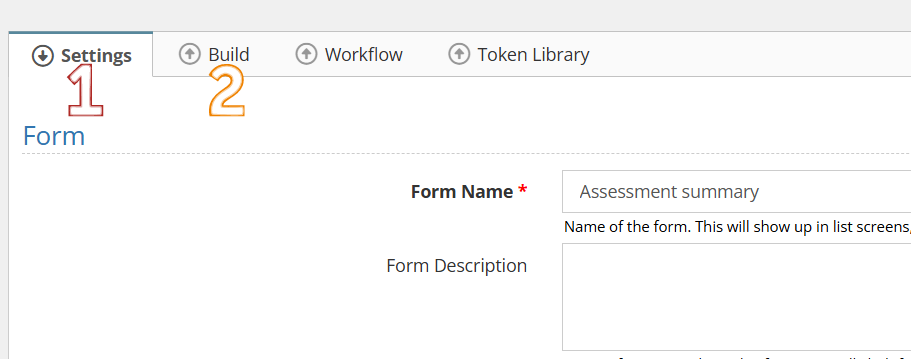
Step 4: In the Build section, open the Widgets tab.
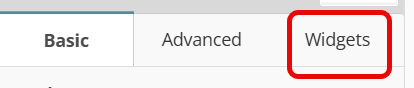
Step 5: Search for and add the Assessment Response View widget.

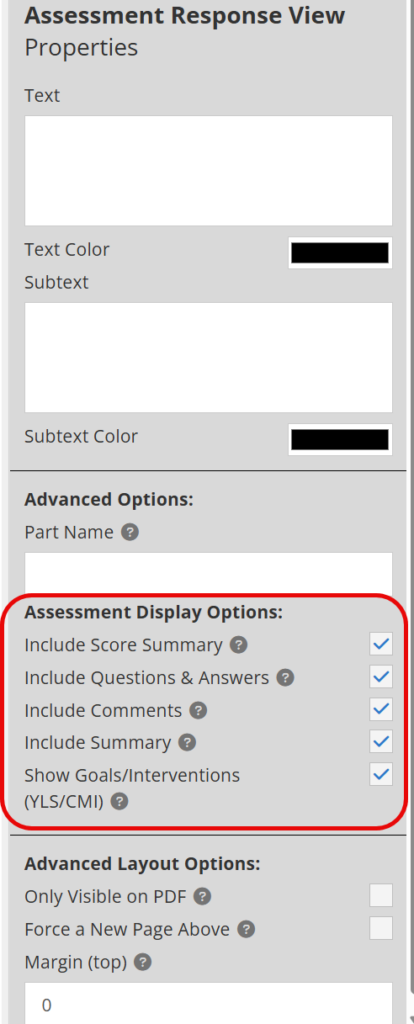
Step 6: With the widget selected, use the display options on the left side of the screen to choose which assessment data you’d like to show.
Step 7: Click Save.
Step 8 (Optional): Add additional widgets or tokens to automatically populate more data in your form. Learn more about what’s possible here.
Using the Assessment Summary Form #
Step 1: After selecting your youth, locate your summary form and click New Response.
Step 2: Select the assessment you’d like to summarize and fill in any additional fields based on your form’s setup.
Step 3: Click Save, then choose the PDF option to view and print your summary.