Within specific situations, a youth’s file may be sealed, expunged, or restricted.
To navigate these moments, YouthCenter allows those with the correct permissions to set a youth to either Sealed, Expunged, or even restrict access for individual users.
Each option will allow the youth data to be removed from view for users without the proper permissions.
Note: These features are an additional add-on. If you do not see these permissions, please check your site settings to see if this feature is purchased and active for your site. If not, reach out to [email protected] to begin discussing turning on this feature for you.
Marking a Client as Sealed/Expunged #
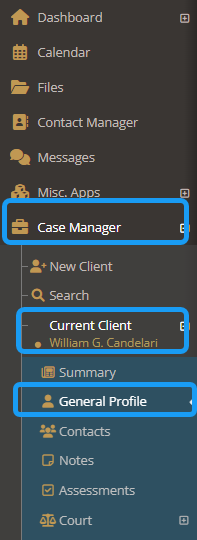
To access this setting, select the correct youth under “case manager” and choose “general profile.”
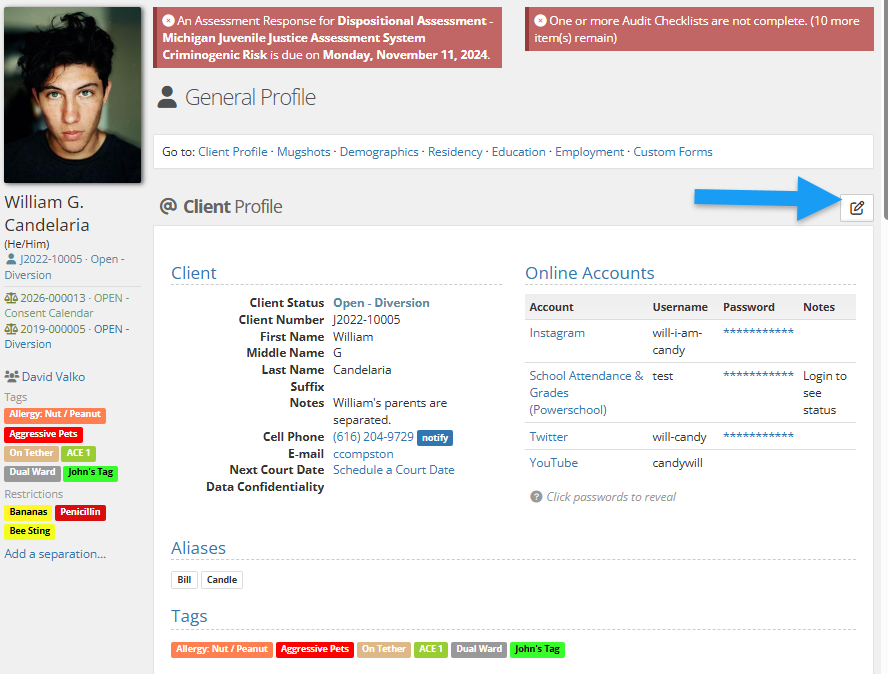
Select the “Edit Client Information” button.
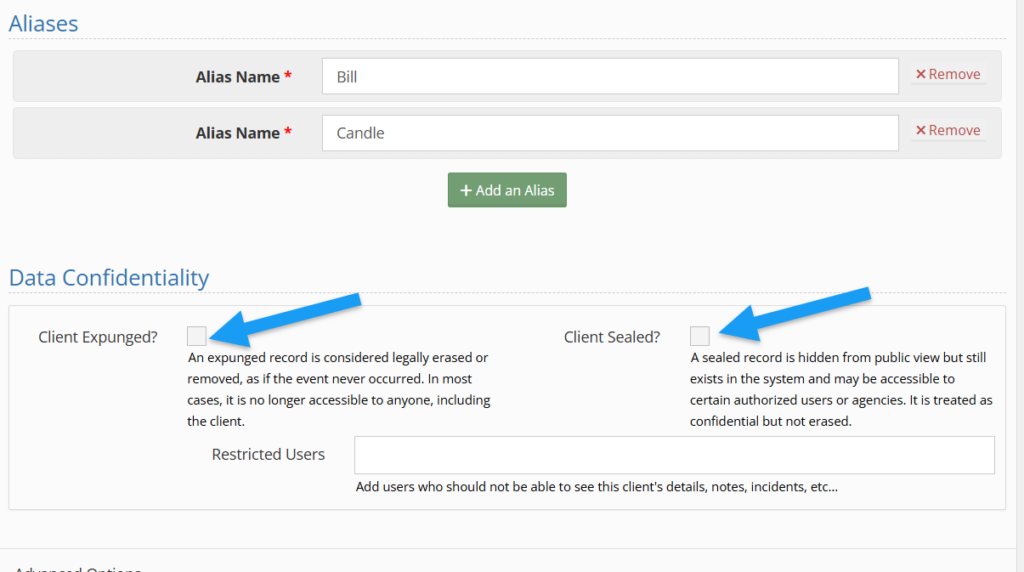
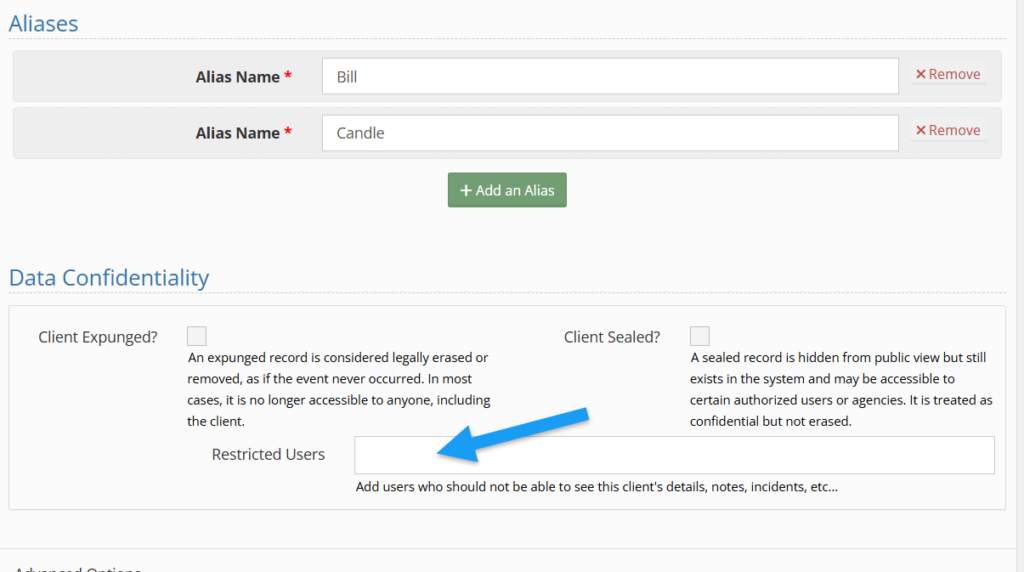
Under the “Data Confidentiality” section, choose the correct checkbox that matches your needs and click “save.”
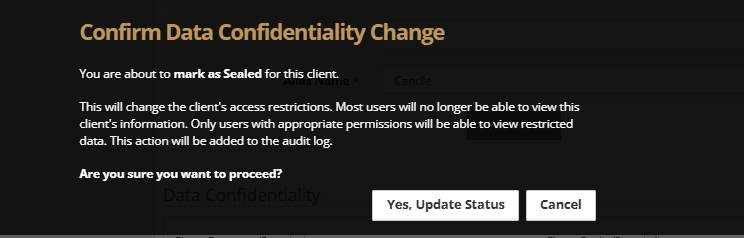
A banner confirming the confidentiality change will appear. If correct, choose “Yes, update status.”
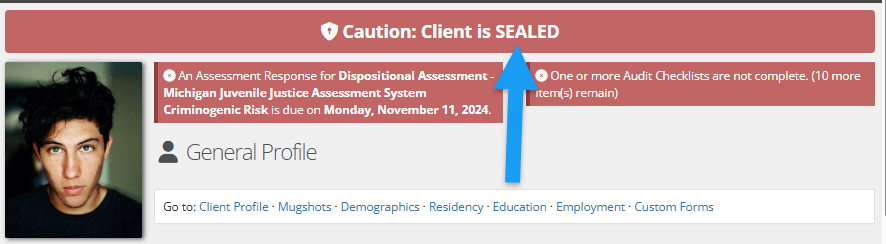
Based on the selection, a large red banner at the top of the youth’s file will appear for those who have the necessary permissions.
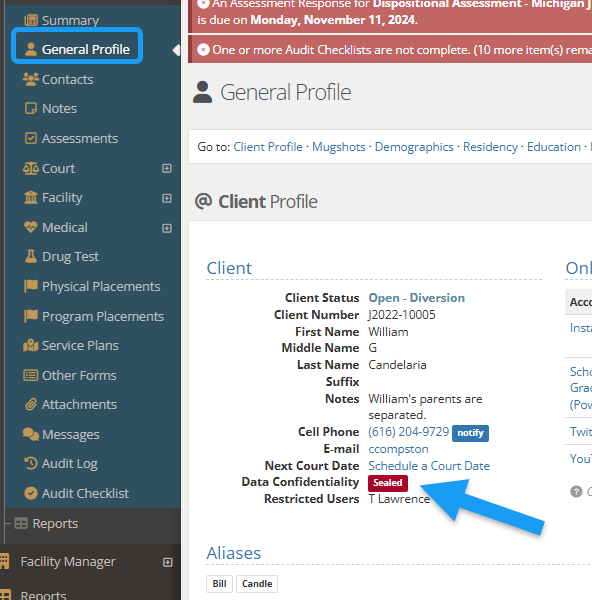
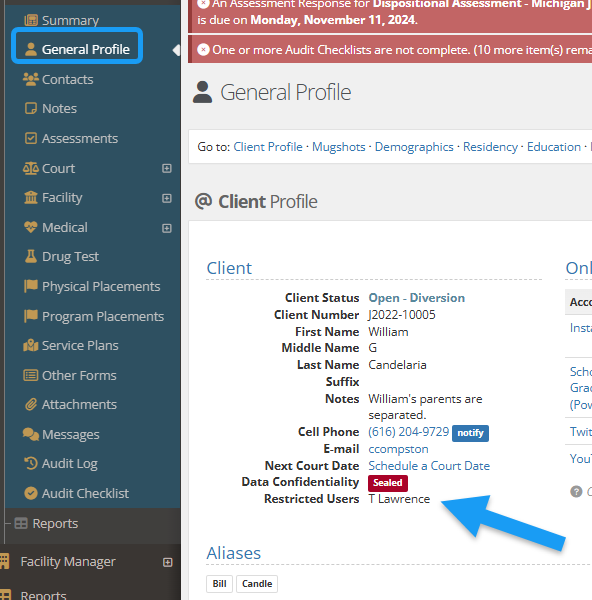
Under a Client Profile, a read “Sealed” or “Expunged” will be present.
Individual User Restriction #
To protect a client from being reviewed by relatives/themselves, an authorized user can edit a client profile to designate individual users who are not allowed to access this client’s details. Individual users can also be added by choosing the “restricted user” box.
Redacted Information for Unauthorized Users #
For those WITHOUT the viewing of sealed/expunged permissions, the youth’s information will be removed from visibility
For reference, below is a comparison of those with access and those without in the search area of YouthCenter.

Below are all areas where information will be redacted for unauthorized users:
- Portal Access
- Audit log
- Event log
- Client search
- Direct URL access
- Widgets & Dashboards
- Meal counts
- Movement
- Personal Possessions
- Incidents
- Calendars
- Calendar sub
- Contact manager
- Separation
- Client Search
- Report Columns
Tracking of Restricted Access Activity #
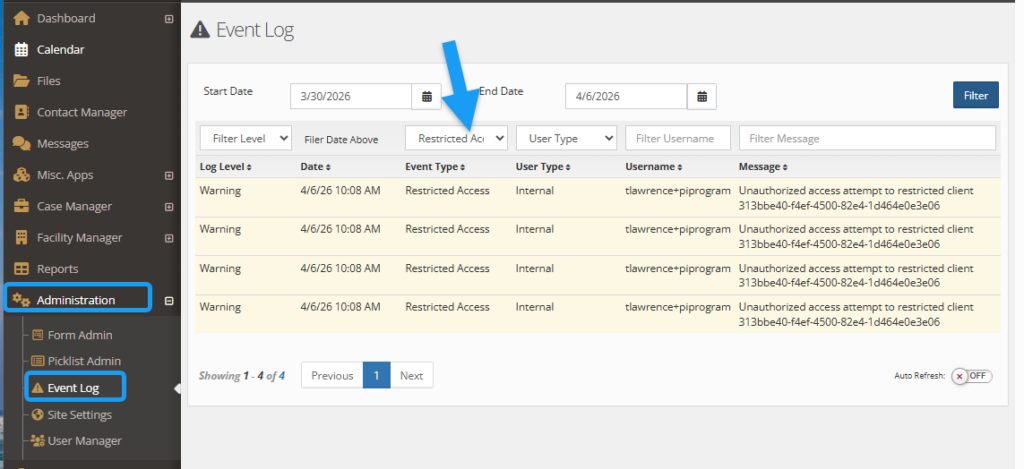
Under event logs, administrators will have a filter type of “restricted access” showing any unauthorized access for expunged/sealed/restricted accounts.