Reports 2.0 is an updated version of Legacy Reports within YouthCenter that provides a better visualization of data and also faster reporting.
The timeline for this feature’s rollout and the sunsetting of the previous reports is as follows:
- April: All organizations will have access to the Report Manager 2.0
- October: Legacy Report Manager will be sunset
This document will review some of the new locations and features of Reports 2.0
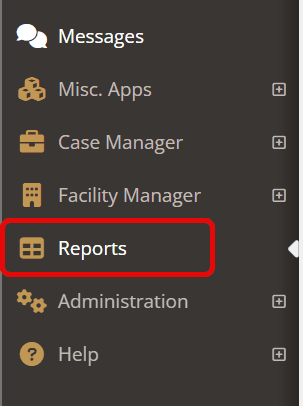
To utilize Reports 2.0 select the “reports” tab on your side menu.
Editing Existing Reports #
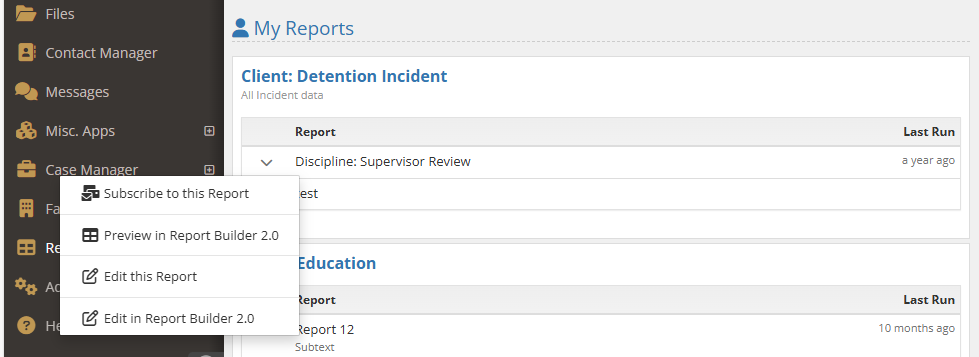
Select the carrot menu next to a report and choose “edit in report builder 2.0.”
IMPORTANT Note: Reports are shared across the legacy and the new interface. Editing it on either the legacy or the new interface will change it in both areas.
Creating New Reports #
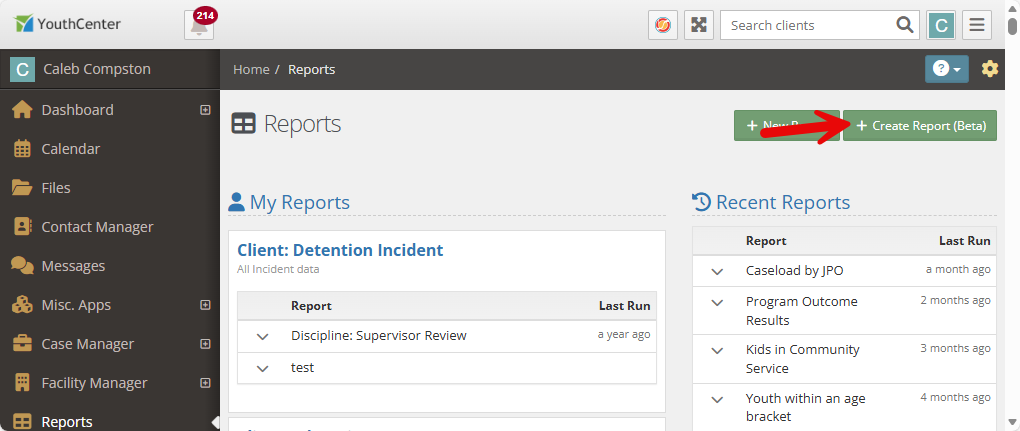
To create a new report in the beta, select the green + Create Report (Beta) button in the top right of the Reports screen.
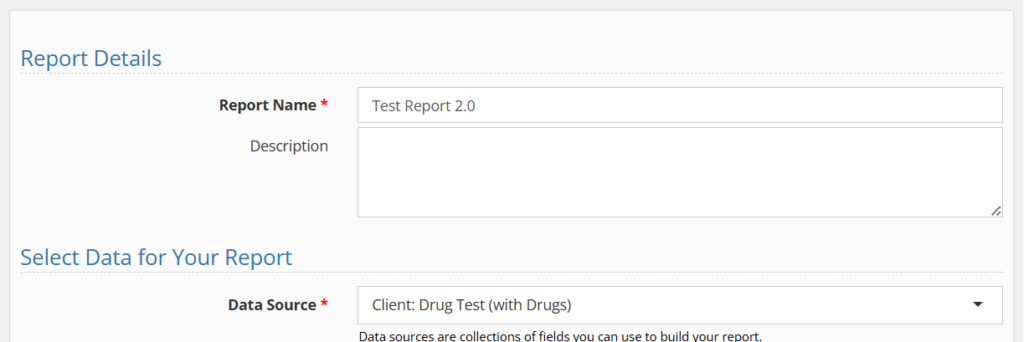
Name the report and choose the data source to suit your needs.
Choose your data fields via the searchable field editor.
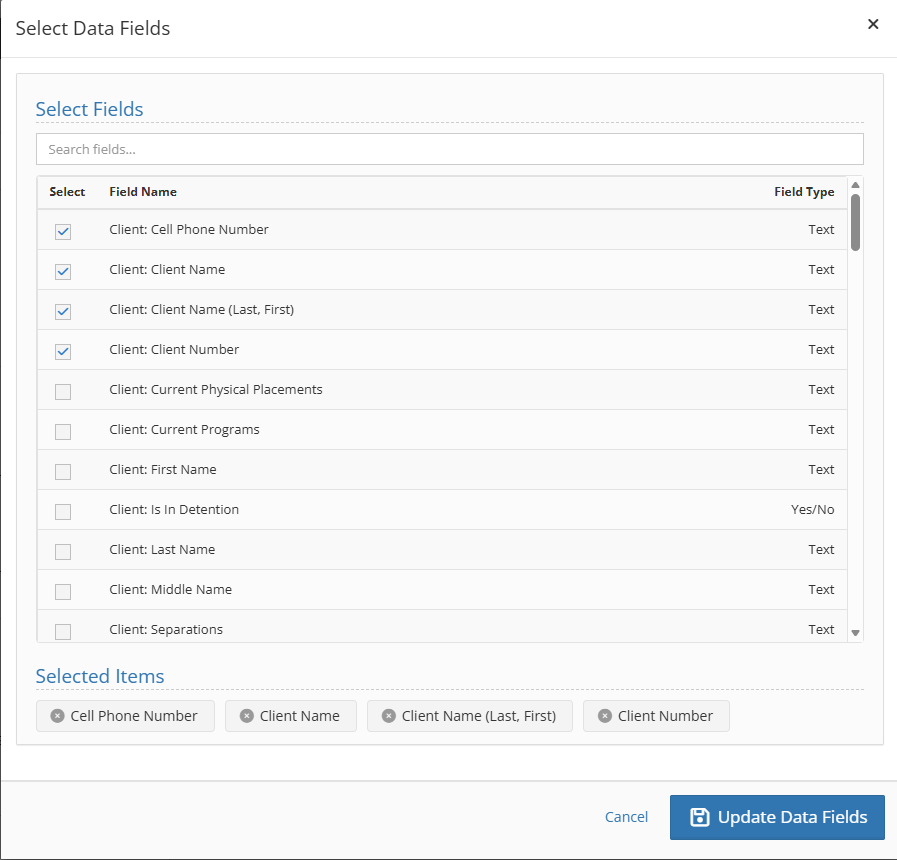
Choose as many data fields as needed to give you a complete report.
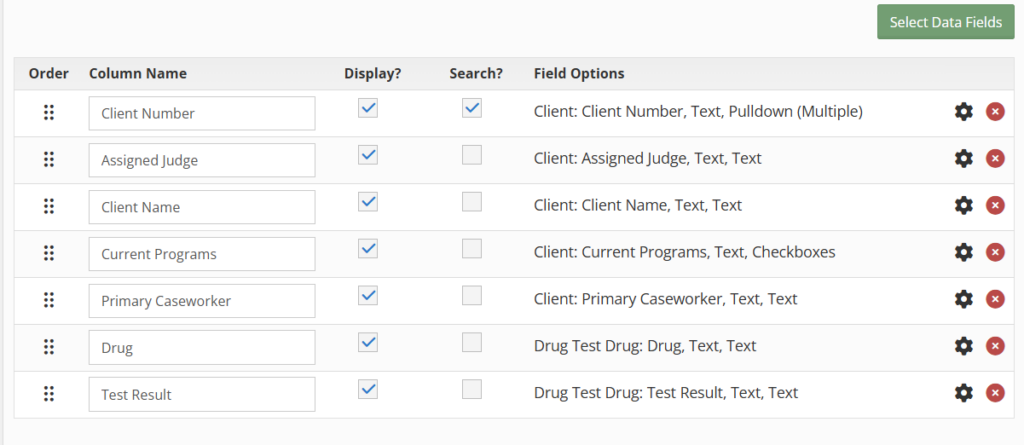
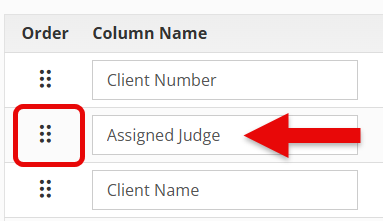
Data fields can be rearranged by hovering on the 6 dots.
Data fields can also be renamed by typing within the “column name” field.
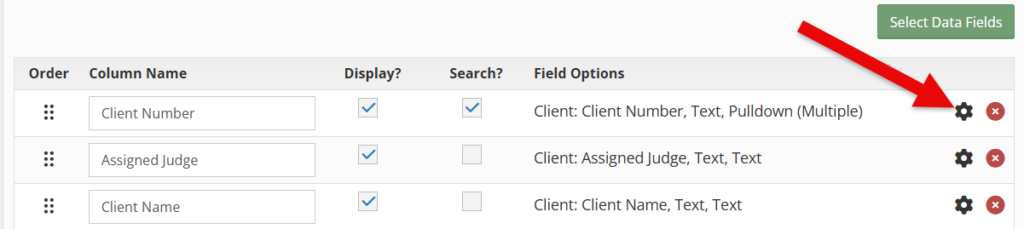
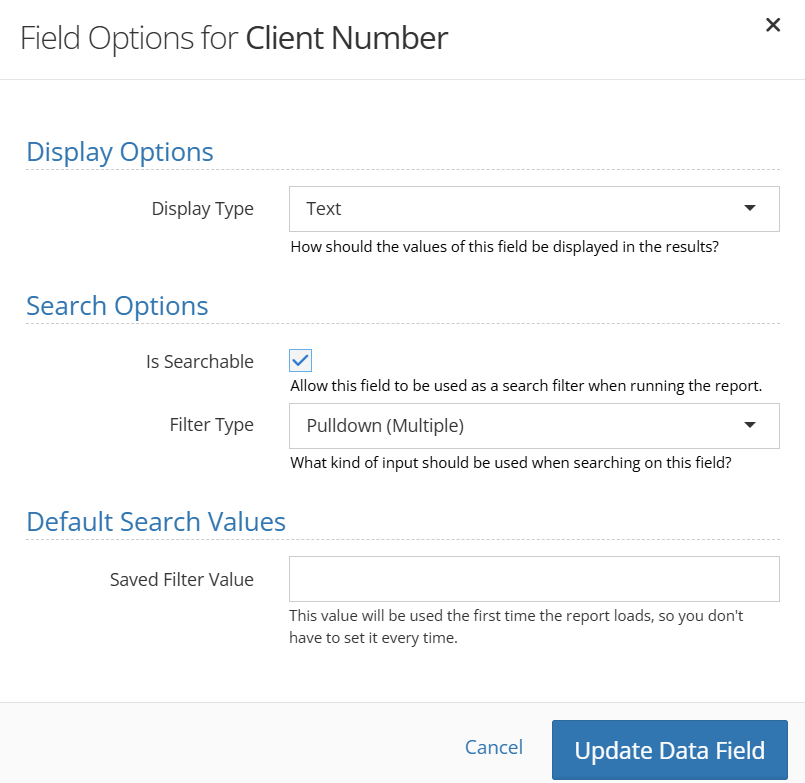
To make data fields searchable and/or to edit the filter types, select the gear icon.
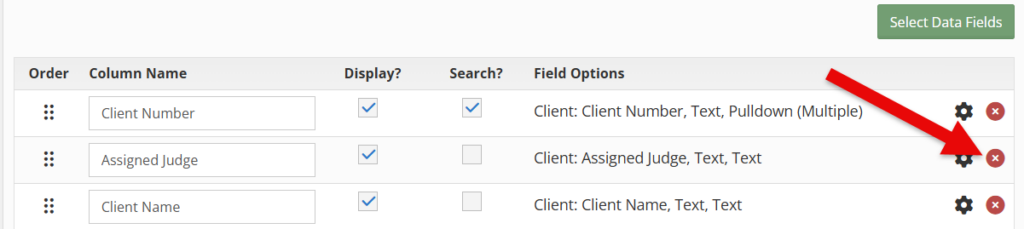
To delete a data field, select the “red” X.
Running a Report #
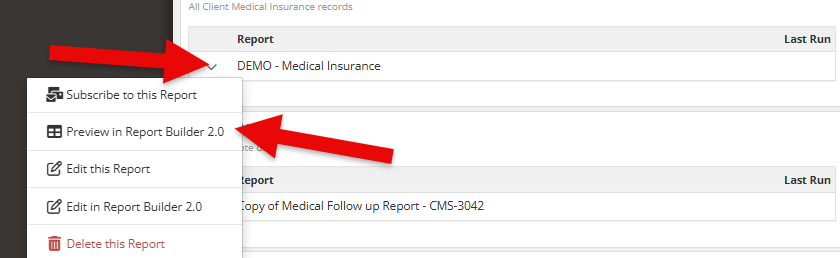
Select the down carrot and choose “preview in report builder 2.0”
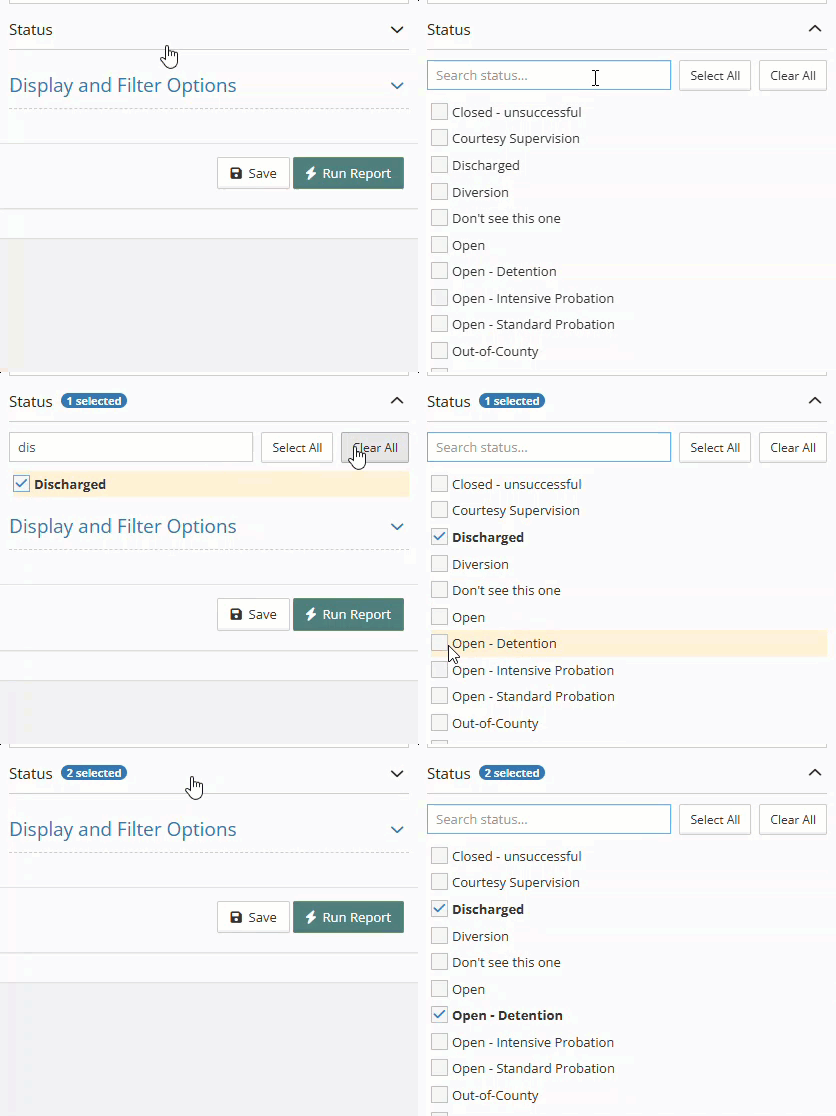
To update the filters and display options, choose the accordion-style filter panel and use the search bar to find the options you need.
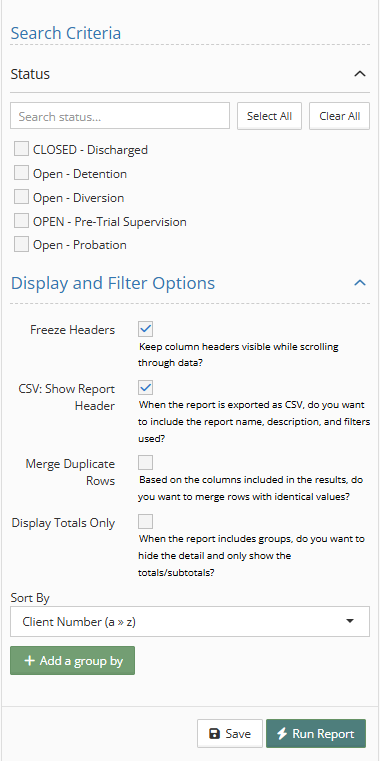
Select “Run report.”
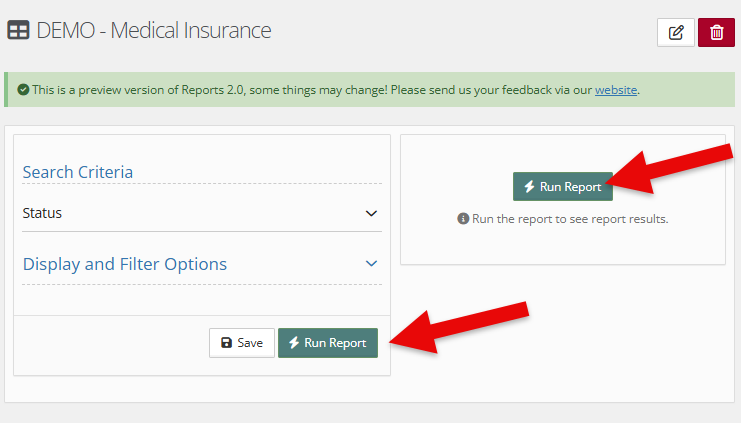
Exporting a Report #
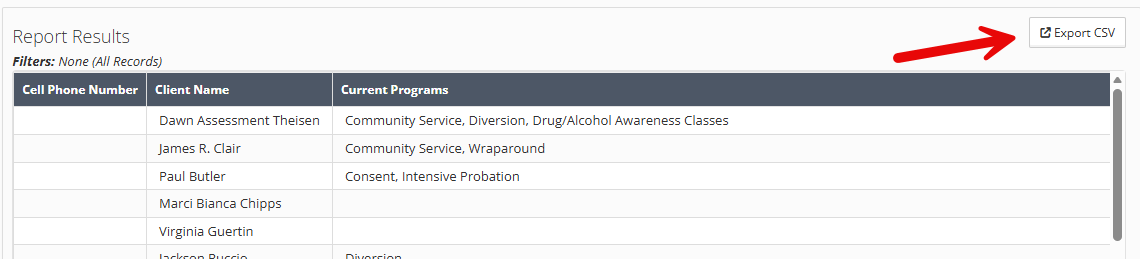
Any report you run can be exported immediately as a CSV! No need to change the report; simply select the export CSV button in the top-right corner of the report.
Managing Security #
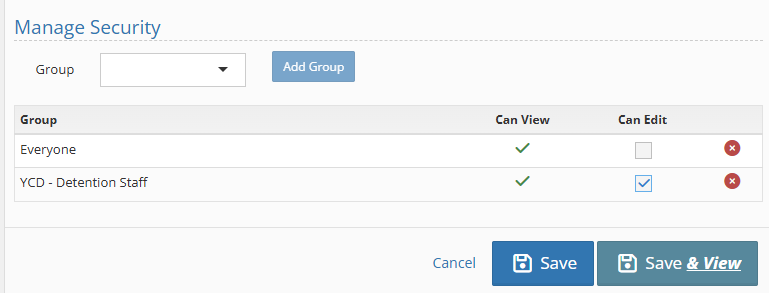
When editing a report, add the group (s) you want to have access to the report directly in the edit form.