
Passkey Login #
For sites with the appropriate packages, administrators can now enable passkey login for their site under General Settings → Security. When enabled, users can sign in using biometrics (fingerprint, Face ID) or a hardware security key instead of a traditional password. Administrators can also reset a user’s passkey from the User Manager if the user is locked out or needs to re-enroll.
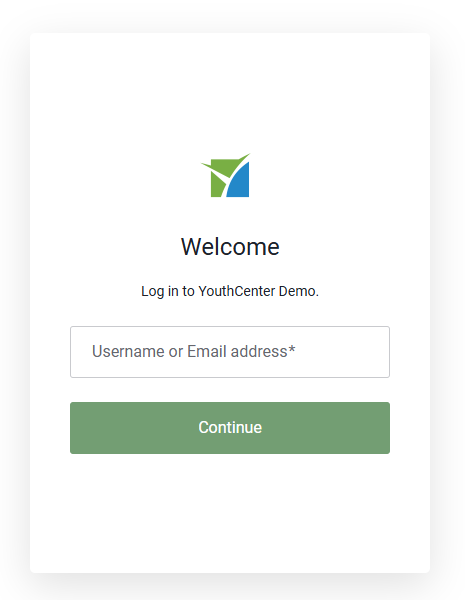
As a reminder, login is now a two button process instead of one for users using username and password. You will first be asked to enter your username or email address, and then after pressing continue, then you will be taken to either your passkey or password login check.
Read more about Passkey login here
Enabling Passkey Support #
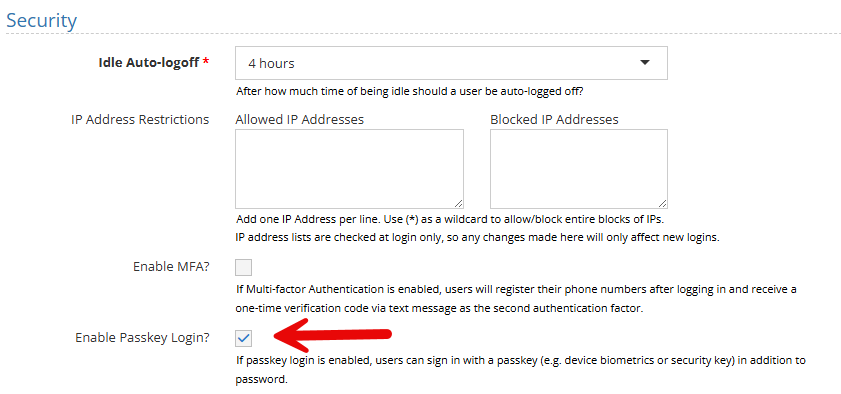
To enable passkey login, expand Administration → Site Settings
Under the General Settings → Security, check the Enable Passkeys Login checkbox and press save.
Enrolling a Passkey Device #
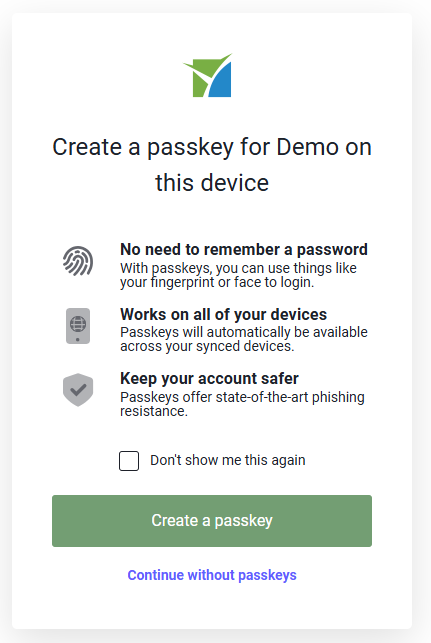
When logging in, a new screen will appear asking the user if they would like to create a passkey.
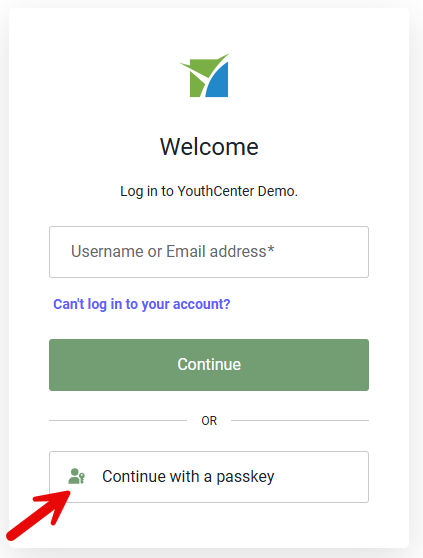
Once created, the user can use the login with passkey option on the login page:
Removing or Resetting a Passkey #
If someone loses access to their passkey, you can revoke their passkey by editing their user in User Manager. Simply select Reset Passkey in the top right.
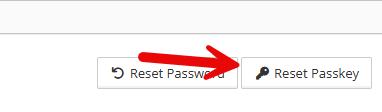
This will remove their associated passkey, and they will need to log in with their username and password again, at which point they can enroll a new passkey device if desired.